by Charles Oropallo | Nov 3, 2026 | Do-It-Yourself, Internet, Small Business, The CW Corner
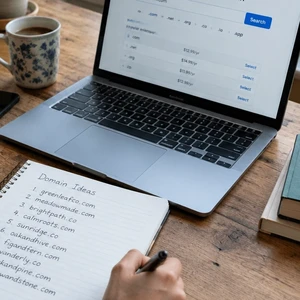 Choosing a domain name is easier when you think beyond what is available today. Your domain may appear on business cards, invoices, social profiles, and email addresses. It should be easy for people to remember and flexible enough to grow with your plans.
Before registering a name, take time to check how it sounds, what it might be confused with, and whether someone else already has a claim to it. A little research now can save you from a frustrating rebrand later.
Start with a name people can remember
A good domain name should be easy to say, hear, spell, and type. Imagine telling someone your web address over the phone. Would they know how to spell it without asking you to repeat it?
Short names are often easier to recall, but clarity matters more than squeezing every character out. A name that is short but confusing may send customers to the wrong place.
Try saying your favorite options aloud. Then ask someone else to write each one down after hearing it. If they regularly misspell the name, simplify it before registering.
Hyphens and numbers can make a domain harder to share. People may wonder whether a number is written as a digit or spelled out. Hyphens are easy to forget, especially when someone hears your address rather than seeing it.
Double letters can also cause mistakes. For example, people may not know whether a name contains one letter or two. These patterns are not always dealbreakers, but test them with real people before committing.
A quick test: say the name once, then ask someone to type it. If you need a long explanation, keep brainstorming.
Check for lookalikes and awkward meanings
A domain does not appear with spaces between its words. Read your shortlist in lowercase and look for combinations that could be misread. A harmless phrase with spaces can look less clear when everything runs together.
Also search for close variations. Check common misspellings, singular and plural forms, and names that sound similar when spoken. A neighboring business with a similar name could confuse customers, even if its website looks unrelated.
Search the exact name in a search engine and on social platforms. Look for businesses, products, or public discussions using the same wording. Check relevant maps, directories, and marketplaces too.
Think about what happens when someone mistypes your address. If a close variation leads to a competitor or an unrelated site, consider whether you can register that variation too. You do not need to buy every possible spelling. Focus on likely mistakes that could cause real confusion.
Check trademarks and existing businesses
Domain availability does not mean a name is legally available for your business. Registering a web address does not automatically give you trademark rights.
Search for the exact name and similar names used by businesses in related fields. In the United States, you can start with the United States Patent and Trademark Office trademark search. Search your state’s business-name records as well, and check for businesses using the name online.
Pay attention to names that look or sound alike, not just exact matches. A similar name may still confuse customers, particularly if both businesses offer related products or services.
If you plan to operate in other countries, check the relevant trademark resources there. The World Intellectual Property Organization also provides international trademark search information.
These searches are useful first steps, not a legal clearance opinion. If your preferred name appears close to an existing brand, ask a qualified trademark professional before investing in it. It is much easier to adjust a shortlist than to rebuild a brand.
See whether the matching social handles are available
Look for your preferred name on the social platforms your customers use. A matching handle can make your business easier to find and remember.
You do not need an account on every platform. But if your business relies on a particular network, check its handle before registering the domain. A name may look consistent on your website and social profiles, or it may require awkward additions.
If your exact handle is taken, consider a clear alternative. You might add a simple location or business descriptor, if that still sounds natural. Avoid a string of extra punctuation or numbers that makes the name harder to remember.
Check the name in more than one place. A platform’s search can reveal active accounts, while a direct profile search may show whether the exact handle is already in use. Availability can change, so reserve the accounts you genuinely plan to use.
Choose the extension that fits
The extension is the ending after the dot, such as .com or .org. A .com address is familiar to many people and can be a practical choice for businesses serving a broad audience.
Other endings may fit too. A .org extension is commonly associated with organizations, while .net is another established option. Newer extensions can offer a memorable match, but some visitors may still instinctively type .com.
Country-code extensions can make sense when your business serves a particular country. Before choosing one, check any local registration rules and whether the extension fits your plans.
Compare the regular renewal price, not just the introductory offer. Also consider how easy the extension is to say, whether customers will trust it, and whether it could be mistaken for another address.
Choose the extension you are comfortable sharing aloud and printing on your materials. A clever ending is not helpful if customers keep typing the wrong one.
Check a domain’s history before buying it
A domain that has been registered before may carry a past you cannot see from its current page. It could have been used for a business, a personal site, spam, or something else entirely.
Before buying a previously used domain, enter it into the Internet Archive’s Wayback Machine. Review available snapshots from different periods. Look for what the site represented and whether its content or purpose changed substantially.
Search the name in a search engine too. Try versions with and without “www,” and look for old references, complaints, or unrelated business listings. If you are buying from another owner, ask about the domain’s past use and confirm that the seller can transfer it to you.
The Wayback Machine is helpful, but incomplete. A missing page does not prove that the domain was never used. Treat what you find as useful clues, not a complete history.
Protect your domain after registration
Choosing a name is only the beginning. Make sure the domain is registered to you or your business, with contact details you can access. Keep your registrar account secure and use a monitored email address for renewal notices.
Turn on automatic renewal if it suits your situation, and keep your payment details current. Add a reminder to check the renewal date as well. An expired domain can interrupt your website and email, and recovering it may be difficult. Read more in our guide to what happens when your domain expires.
Enable a domain lock when your registrar offers one. This helps prevent unauthorized transfers, but it does not replace a strong password or account security. See why your domain lock matters.
Consider registration-data privacy if your registrar provides it. Privacy services can help limit the personal details displayed in public registration records, although they do not make you anonymous. Learn more in our guide to WHOIS and what the internet can see about your domain.
Make a confident choice
Before you register, say your shortlist aloud, check likely spelling mistakes, search for similar businesses, and review trademark records. Compare social handles and extensions, and look into a domain’s history if it has had a previous owner.
A strong domain does not need to be clever. It needs to be clear, memorable, and right for the people you want to reach. Take the time to check your choice now, and you can move forward with more confidence.


by Charles Oropallo | Nov 2, 2026 | Do-It-Yourself, Internet, Small Business, The CW Corner
If you’re worried something was deleted from the internet, here’s the important distinction: removing the original does not erase every copy. A web page might disappear from its website while traces remain in search results, archives, screenshots, or backups. Those copies are stored in different places, so removing one does not automatically remove the others.
The good news? You can take practical steps to reduce what remains. First, it helps to understand where copies might live and who controls them.
What does “deleted” actually mean?
Usually, deletion means someone removed content from its original location. A website owner might delete a page, a business might remove a social post, or a person might take down a shared photo.
That action affects the original. It does not reach into every search engine, phone, email inbox, archive, or backup where someone else may have saved it.
Think of a page like a flyer on a community bulletin board. Taking down the flyer does not retrieve copies that people photographed or shared. Online content can work much the same way.
Also, a page that no longer loads is not necessarily gone forever. It may have moved, become private, or been replaced. Before taking action, confirm whether the original content is actually unavailable.
Where might old content still appear?
Search engine results
Search engines keep records of pages they discover. After a page changes or disappears, a result might still show its old title, description, or image for a while.
This result is not necessarily a working copy of the full page. It may simply be an outdated listing that has not refreshed yet. Google explains how to request an update using its Refresh Outdated Content tool.
That tool addresses what appears in Google Search. It does not delete the content from the original website or remove copies from other services.
The Wayback Machine
The Internet Archive’s Wayback Machine saves snapshots of some public web pages. A snapshot may show what a page looked like at a particular time, even after the live page changes.
However, it does not capture every page. Some pages may never have been archived, and saved pages might not display every feature or file correctly. A missing snapshot does not prove that no one saved the content elsewhere.
If you want a page excluded from the archive, the Internet Archive explains its process in its removal request guidance. Approval is not automatic, so provide the specific page addresses and relevant context.
Screenshots, downloads, and reposts
A screenshot is a separate image. Deleting the page that appeared in the screenshot will not delete that image from someone else’s phone or social account.
The same goes for downloaded files, forwarded emails, copied text, and reposted photos. Each saved copy has its own location and may need separate attention.
Browser or device copies
Your browser may store temporary files to help pages load faster. Your device may also contain downloads, screenshots, or saved links.
These local copies are different from search results and public archives. Clearing browser data may remove some temporary files, but it will not erase screenshots or downloads saved elsewhere.
Website and business backups
A business website may have backups made for recovery. Hosting providers, website administrators, developers, or business owners may each manage separate copies.
Backups are useful when a site breaks or files are accidentally removed. But they also mean deleted material may remain in a backup until that copy expires or is removed according to the owner’s retention practices.
What can you realistically do?
There is no universal “erase this from the internet” button. Instead, work through the places where the content appears.
Step 1: Find the original and every copy you can locate
Start with the original page, post, file, or profile. Save the exact web addresses where it appears, including copies on other sites.
Search for a distinctive phrase from the content, its filename, or the person’s name. Check image results if a photo is involved. Keep a simple list so you can track which locations you have contacted.
For business owners, check more than the page itself. The content could also appear in a document, public feed, image file, or another part of the website.
Step 2: Remove or restrict the source
If you control the original, delete the content or change who can access it. Check whether the same information appears in other pages or files you manage.
For a permanently deleted web page, Google recommends that the site return a 404 (Not Found) or 410 (Gone) response. In everyday terms, these tell browsers and search services that the page is no longer available.
If the content should remain available only to certain people, use a login or another access restriction. Google’s guidance explains options for removing information from your website.
A temporary search-result removal is not a substitute for fixing the source. If the page remains public, it may appear again later.
Step 3: Request an update from search services
If the original has been removed or significantly changed, ask Google to refresh its result through the outdated content request process.
If the issue involves private information, review Google’s personal information removal guidance. Search-result removal can limit visibility in Google Search, but the original page may still exist elsewhere.
For content published by someone else, contact that website or platform. Ask politely for removal, and include the exact page address. If the content is sensitive, follow the platform’s official privacy or safety reporting process.
Step 4: Contact archive owners and people who shared it
If you find an archived copy, use the archive’s own request process. If someone reposted a screenshot or file, contact that person or the site hosting the copy.
Be clear about what you want removed and where you found it. Save records of your requests and replies. If the situation involves threats, identity misuse, or a serious privacy concern, consider getting appropriate professional advice.
Step 5: Check your own copies and backups
Review devices, shared folders, email attachments, and website backups that you control. Remove copies when they are no longer needed and when doing so fits your legal or business recordkeeping obligations.
For a business site, ask your website provider or administrator how backups are handled. It is reasonable to ask how long copies are kept and what options exist for removing sensitive information.
A note for small-business owners
Deleting an old price list or staff page can leave visitors seeing outdated search results for a while. That does not always mean your website is broken.
First, confirm that the live page shows the change. Then check the search result and request a refresh if needed. If the old information appears on another website, contact that site separately.
When a page has a replacement, make sure visitors can find the new information. When there is no replacement, avoid leaving a confusing empty page. A useful error page can explain that the information is no longer available.
If you need help with a website change or an old page, The CharlesWorks Corner’s web design and development information is a good place to start.
The short version
When content is deleted from its original website, it may still exist in search results, archives, screenshots, saved files, or backups. Each copy has a different owner, so each may require a separate request.
Act quickly if the content is sensitive, but stay realistic. You can remove or restrict what you control, request updates from search engines, and contact archive owners or publishers. You cannot guarantee that every unknown copy will disappear.
If you’re unsure where to begin, start with the original page and make a list of the copies you can find. One careful step at a time is better than assuming the delete button did everything.
by Charles Oropallo | Nov 1, 2026 | Do-It-Yourself, Domains, Scams, Small Business, The CW Corner
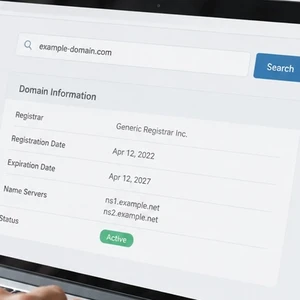 A WHOIS lookup can help you understand who manages a domain and what registration details are publicly available. It’s useful when you’re choosing a web address, checking a suspicious message, or reviewing your own domain.
The name sounds technical, but the idea is simple. Think of WHOIS as a public directory of domain registration records. It can provide clues about a domain, although privacy protections often hide personal contact details.
What does WHOIS mean?
WHOIS is pronounced “who is.” It is not actually an acronym. The name reflects the question people ask: who is responsible for this domain?
Traditionally, WHOIS referred to tools and systems that shared domain registration information. Today, modern lookups generally use RDAP (Registration Data Access Protocol), a newer method for retrieving that information.
You do not need to understand the technology to use a lookup. The results appear as a list of details about a domain name.
The free ICANN (Internet Corporation for Assigned Names and Numbers) Lookup tool is an official place to start. Enter a domain name and review the results.
What can a lookup show?
A WHOIS or RDAP lookup may display several kinds of registration information. The exact results vary by domain ending, registrar, and privacy settings.
- Registrar: The company officially listed as managing the domain registration.
- Registration and expiration dates: When the domain was registered and when its current registration period ends.
- Name servers: Services that help direct the domain’s website and email to the correct locations.
- Status codes: Short labels describing restrictions or other domain conditions.
- Registrant contact details: Information about the person or organization that registered the domain, when publicly available.
A registrar is the company through which a domain is registered. It is not always the same company that hosts the website.
A name server is like a signpost. It helps guide visitors’ browsers and email systems toward the right online services.
A status code such as clientTransferProhibited can indicate that a registrar has restricted domain transfers. The label may look cryptic, but it generally describes a setting or status, not a warning that your website is unsafe.
Will it show your name and address?
Usually, not all of them. These days, many domain records hide or redact personal contact information through privacy services or registration-data redaction.
Instead of your home address, phone number, or email, a lookup might show a privacy service or a note saying that information is unavailable. The exact display depends on the domain and its provider.
That privacy is helpful, especially if you registered a domain for a small business from home. Still, do not assume every detail is hidden. Check your own record and ask your registrar what privacy options are available.
Also remember that a lookup is not a complete identity check. Public records can be masked, outdated, or limited. Treat the information as a useful clue, not proof of who controls a website.
Why should a small-business owner care?
A domain is part of your business identity. It may connect your website, business email, and customer communications.
A quick lookup can answer practical questions before a small issue becomes a confusing one. Here are a few situations where it helps.
You want to buy a domain
Search the name you want through ICANN Lookup. If the result shows an existing registration, someone has registered that domain, even if its website appears blank.
If no registration record appears, the name may be available. Confirm through a registrar’s domain search before making plans. Availability can change, and the lookup alone does not reserve a name.
Also check similar spellings before settling on a business address. A small typo can send customers somewhere else.
A strange email mentions a website
Suppose you receive an unexpected message claiming that a familiar company’s website is unsafe or that you must pay through a new website. Look up the domain mentioned in the message.
Review its registration date, registrar, and any available contact information. If it appears unrelated to the company, newly registered, or inconsistent with what you already know, slow down.
A lookup cannot prove that a message is fraudulent. Scammers can also use established domains or imitate legitimate businesses. But the results can give you another reason to verify the message independently.
Do not click a suspicious link to investigate. Visit the organization’s known website directly or contact it using details you already trust.
A renewal notice seems questionable
Some renewal notices are legitimate. Others may try to steer you toward a different provider or collect payment under pressure.
Check the registrar listed in your domain’s lookup. Then sign in by entering that company’s known web address yourself, rather than following an unexpected payment link.
One detail can be confusing: a domain may have been purchased through a reseller. The registrar shown in the lookup may differ from the company that sends your invoice or provides support. If the names do not match, ask your web provider or registrar to explain the relationship.
Be especially cautious if a message demands immediate payment or claims your domain will disappear unless you use its link. For more on questionable domain notices, see our guide to another domain scam.
You want to check your own domain
Look up your business domain and compare the results with your records. Check which registrar appears, review the expiration date, and confirm that the listed name servers look familiar.
If the registrar is unfamiliar, do not panic. A website developer, hosting provider, or reseller may have helped register the domain. Ask who manages it and how you can access the account.
If the name servers look unfamiliar or your website and email have stopped working, contact the provider responsible for your domain or website. Avoid changing settings until you know what each setting controls.
A quick check you can do now
This simple check should take only a few minutes:
- Open ICANN Lookup.
- Enter your domain name and view the registration results.
- Note the registrar and expiration date.
- Check whether the name servers match information from your web or email provider.
- Review any contact information that is visible.
- If something looks wrong, contact your registrar through its official website.
Keep a note of the registrar and the provider that handles your website. Store it somewhere you can find later, not on a mystery sticky note attached to your monitor.
ICANN’s guide to WHOIS and registration data services offers further background. For most everyday checks, though, the lookup tool and your registrar’s account are sensible starting points.
Keep the results in perspective
WHOIS and RDAP records are helpful, but they do not explain every part of your online setup. The registrar manages the domain registration; another company may host your website or email.
A lookup can help you spot mismatched details, confirm who is listed as registrar, or investigate an unfamiliar domain. It cannot tell you whether a website is trustworthy just by itself.
Check the source of unexpected messages, confirm important details directly with your provider, and ask questions when the records do not make sense. That is a practical way to keep your domain information from becoming a mystery.
If you would like help checking or managing a domain, The CW Corner is here to help. CharlesWorks has built websites and managed hosting from New Hampshire since 1998. We’re happy to help you make sense of your domain details.









 European Union General Data Protection Regulation Compliant