
 A website maintenance routine should be simple, scheduled, and focused on the features your customers depend on. Backups matter, but they are only one part of caring for a website.
A few repeatable checks can help catch problems before a customer does. Think of your site like a storefront: you keep the doors working, remove clutter, and make sure the information inside is current.
You do not need to become a web professional to follow a basic routine. Set aside time regularly, keep notes, and ask for help when a change feels risky.
Start with a manageable schedule
For many small-business websites, a monthly check-in and a more thorough quarterly review provide a useful starting point. Adjust the schedule to match how often your site changes and how important its features are to daily business.
For example, an appointment-booking site may need more frequent checks than a brochure site with a few pages. Busy online stores should have a maintenance plan suited to their transactions and customer activity.
Add a recurring calendar reminder. Keep a checklist somewhere you can find it again. A routine is more useful when it survives a busy week.
Monthly check: update WordPress carefully
WordPress, themes, and plugins receive updates that can fix problems and improve compatibility. Sign in to your dashboard and review Dashboard > Updates.
Before updating, make sure you have a current, restorable copy of the site. If available, test changes on a staging copy first. A staging copy is a private version of your site where you can check changes without affecting visitors.
Then:
- Review the available WordPress, theme, and plugin updates.
- Check the update notes for important compatibility information.
- Update components carefully, especially when several changes are pending.
- Visit the live site and test the features customers use.
If your site has custom features or handles important business tasks, avoid clicking every update at once and walking away. Check the WordPress update guidance for additional help.
Install important security updates promptly, rather than waiting for your next calendar reminder. If an update causes an error or you are unsure about compatibility, pause and contact your developer or host.
Remove plugins and themes you no longer need
Unused software can clutter your dashboard and make maintenance harder. During your monthly review, look at your installed plugins and themes.
Ask what each item does and whether your site still needs it. A deactivated plugin is still installed, so remove it if you are certain it is unnecessary. Don’t delete anything simply because its name looks unfamiliar. It may support a feature your site relies on.
Before removal, check whether the item is active or connected to a page, form, or other function. If you are unsure, ask the person who manages your website.
Keeping only what you need makes the site easier to understand and maintain. Decluttering is useful; guessing is not.
Test your forms, not just your homepage
A homepage that loads correctly does not prove every important feature works. Test the forms customers rely on, such as contact, quote, appointment, or newsletter forms.
Submit a test with the required information. Confirm the success message appears, and check that the submission reaches the intended recipient or storage location. If the form includes a confirmation email, check that too.
Where practical, test on a phone as well as a computer. Look for problems such as fields that are hard to tap, unclear instructions, or buttons that do nothing.
If you collect payments or bookings, test those processes according to your provider’s safe testing instructions. Don’t make a real purchase just to see whether a button works.
Check that your backups can restore the site
A backup is only helpful if you can restore it. This check is different from confirming that a backup job ran.
Ask your host or developer how restoration is tested. The safest approach is usually to restore a copy in a staging environment, then check that it loads and works.
On that restored copy, confirm that key pages appear, you can sign in, and important forms behave as expected. For a store or booking site, ask your provider how to test those features without affecting real customer activity.
If you manage this yourself, make sure you understand the restoration steps before an emergency. The WordPress maintenance guide offers broader maintenance advice. Don’t wait until something breaks to discover the recovery process.
Review website users and access
Staff, contractors, and former team members may have accounts on your website. Review the user list regularly and check whether each person still needs access.
Remove accounts that are no longer needed, or reduce their permissions when full access is unnecessary. WordPress provides different user roles, so a person who only edits content may not need administrator privileges.
Use individual accounts rather than sharing one login across a team. That makes it easier to know who has access and to update permissions when responsibilities change.
If you find an account you cannot identify, don’t assume it is harmless. Ask your developer or host to review it with you.
Find broken links and missing pages
Links can stop working when pages move, services change, or old content gets removed. Review important navigation links and pages customers visit most.
Try links from your homepage, service pages, contact page, and footer. Check downloadable files, images, and links to outside websites as well. Look for error pages, missing files, or links that lead somewhere unexpected.
A broken link checker can help flag possible issues, but review the results before making changes. Some flagged links may be intentional, and automated tools can miss context.
Fix or replace links that matter to visitors. When a page has moved, a suitable redirect may help people reach its new location. If redirects are unfamiliar, ask a professional rather than experimenting on a live site.
Give content a quarterly review
Your website should reflect the business you run today, not the business you ran several seasons ago. Use a quarterly review to check service descriptions, staff information, hours, prices, images, and contact details.
Update copyright dates when appropriate, but don’t stop there. Review the actual content for old offers, outdated policies, retired services, and links to former staff or locations.
Ask yourself: would a new customer know what you do, who you serve, and how to contact you? If the answer is unclear, improve the wording.
You do not need to rewrite every page. A small, accurate correction is better than leaving stale information in place.
Use Site Health as a helpful clue
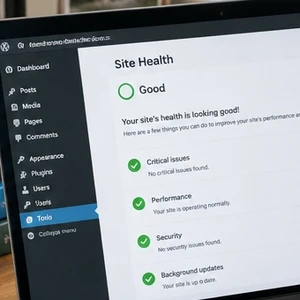
WordPress includes a Site Health screen under Tools. It reports certain technical issues and recommendations that may need attention.
Review the findings, but don’t treat every notice as an emergency. Some recommendations require technical knowledge or depend on how your site is built. The WordPress Site Health documentation explains what the screen shows.
Start with items marked critical, then discuss other concerns with your developer or host. Site Health is useful, but it does not replace testing your own pages, forms, and customer journeys.
Keep a short maintenance log
After each review, note what you checked, what you updated, and anything that needs follow-up. A simple document or spreadsheet is enough.
For example, record that you tested the contact form, removed an old staff account, or noticed a broken link awaiting review. These notes prevent repeat work and help a professional understand what has already happened.
A log also gives your routine a clear finish line. When the checklist is complete, you can get back to running your business.
You can hand maintenance to a professional
Doing the checks yourself can work well when your site is straightforward and you feel comfortable in the dashboard. If updates or troubleshooting feel stressful, handing maintenance to a professional is a reasonable choice.
The CharlesWorks Corner has served website and hosting clients since 1998 from New Hampshire. We believe support should feel personal, with access to real people who can explain the work clearly.
You can learn more about WordPress and website development or visit cwcorner.com to get in touch.
A website maintenance routine does not need to be complicated. Review updates, test the important features, remove what you no longer use, and keep your content current. Consistency beats a heroic cleanup after everything has been ignored.










 European Union General Data Protection Regulation Compliant