by Charles Oropallo | Oct 23, 2026 | Do-It-Yourself, Email, Small Business, Technical Help, The CW Corner
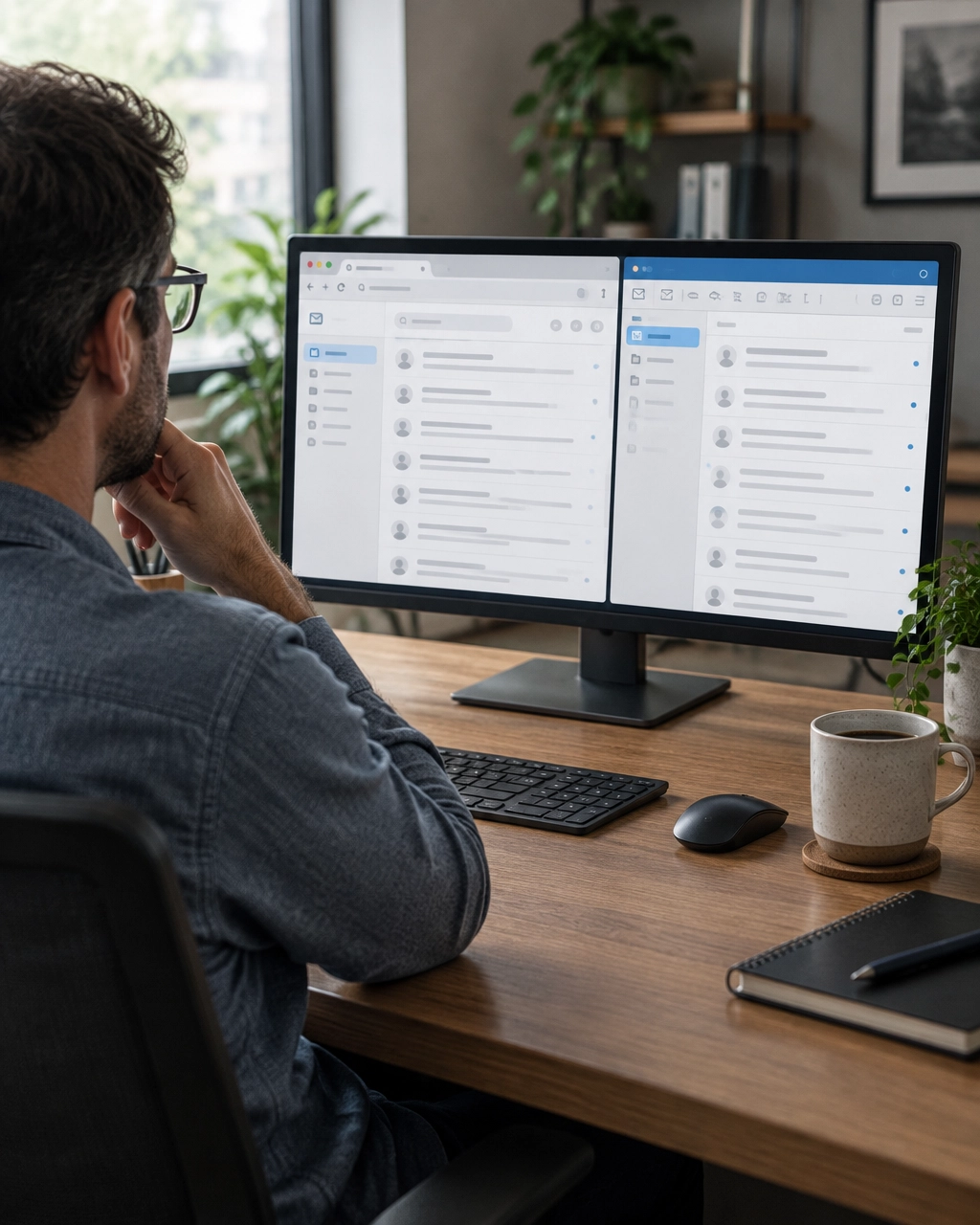 Webmail vs email client is a choice you face when reading business email on your own domain. Webmail opens in a browser, while an email client is an app such as Outlook, Apple Mail, or Thunderbird. Both can access the same mailbox. The best option depends on where you work and how you want to manage messages.
What is webmail?
Webmail lets you sign in to your email account through a browser. Your hosting provider may give you a webmail link or a portal, such as Roundcube.
You generally don’t need to install or configure anything. Open the link, enter your email address and password, and read or send messages. That makes webmail a practical starting point, especially on a borrowed computer or a new device.
Your mailbox stays on the email provider’s server. The browser is simply the window you use to access it. You can usually sign in from different devices with an internet connection.
The trade-off is that browser-based webmail may not notify you reliably when new messages arrive. You might need to keep a tab open, allow browser notifications, or remember to check manually. If you close the browser and move on, the inbox may not call your attention.
What is an email client?
An email client is a program or app installed on your computer or phone. Outlook, Apple Mail, and Thunderbird are familiar examples.
Once the account is set up, the app connects to your provider’s mail server. It can collect new messages, send replies, and display notifications. Many clients also keep a local copy of messages, so you can read previously downloaded email when offline.
The setup takes more effort. You may need to enter your incoming and outgoing server names, username, password, and security settings. Your host supplies these details. A typo or mismatched setting can prevent sending or receiving.
For background on how mail apps connect, see Microsoft’s explanation of IMAP and POP and Apple’s Mail settings guidance.
Webmail or an app: which is easier?
If you want to start reading email without setting up software, try webmail. It’s usually the simplest way to confirm that your address and password work.
An app may suit you better if you spend much of your day in one program, want notifications, or need to read older messages without an internet connection. Keep in mind that offline access only includes messages already saved on your device. You’ll need an internet connection to receive new mail or send queued messages.
There’s no need to treat this as a permanent decision. You can use webmail and an email app at the same time. Switching between them is safe and reversible. Just choose the right connection type if you want messages and folders to stay consistent across devices.
Choose IMAP for multiple devices
When setting up an email client, you may be asked to choose between IMAP and POP3.
IMAP (Internet Message Access Protocol) keeps messages on the mail server and synchronizes your mailbox across devices. If you read a message on your phone, it can show as read on your computer, too. Folders and other changes can stay in sync.
If you check business email on a phone and a computer, IMAP is usually the sensible choice. It helps avoid the “I thought I replied to that” moment caused by different devices showing different inboxes.
POP3 (Post Office Protocol version 3) typically downloads messages to one device. Depending on its settings, the app may remove downloaded messages from the server. That can make those messages unavailable through webmail or another device.
POP3 can work for a deliberate, single-device setup. But it generally isn’t the best fit when you want the same inbox on several devices. For more details, read Thunderbird’s guide to IMAP and POP.
Setting up an email app
Your hosting provider gives you the account details needed for setup. These may include incoming and outgoing server names, your username, and required security settings.
The incoming server handles messages you receive. The outgoing server uses SMTP (Simple Mail Transfer Protocol) to send your messages. Enter the information exactly as your provider gives it to you.
Here’s a helpful setup routine:
- Ask your host for the current email setup instructions.
- Choose IMAP if you want to use the account on multiple devices.
- Enter the server names, username, and other required details.
- Match the security options to your provider’s instructions.
- Send a test message, then check your inbox and sent folder.
Don’t guess at server names or security settings. Different hosting companies can use different configurations. If automatic setup fails, your provider can confirm the correct details.
What to check when email stops working
If your app suddenly stops sending or receiving, start by signing in to webmail. If webmail works, your mailbox is likely reachable, and the issue may be in the app’s settings or connection.
Check the app’s incoming and outgoing server names, username, password, and security settings against your provider’s instructions. Also confirm that the app is online and not holding messages in an Outbox.
If webmail also fails, check that you’re using the right address and password. Look in your spam or junk folder for messages that seem missing. Check for a full-mailbox warning, too. Delete or archive older messages when appropriate, and save important items before clearing anything.
If mail still doesn’t arrive, contact your hosting provider. They may be able to check the mail queue or server logs for delivery information. These details can help distinguish a mailbox problem from an app problem.
Keep your business email protected
Use a strong, unique password for your email account. Turn on two-factor authentication if your provider offers it. This adds another verification step when you sign in.
Never send passwords in plain-text email. An inbox can be forwarded, accessed on several devices, or exposed if an account is compromised. Share account details only through a secure method recommended by your provider.
Also back up messages or attachments you can’t afford to lose. Synchronization is useful, but it is not the same as a separate backup. Keep important records somewhere secure and accessible to your business.
A practical place to start
For a beginner, webmail is often the easiest first step. Sign in and confirm that your mailbox works. When you’re ready for notifications or offline reading, set up an email client using your host’s instructions.
If the app has trouble, test webmail before changing settings. When webmail works and the app doesn’t, that’s a useful clue: the problem is likely in the app configuration.
The CharlesWorks Corner handles email services for clients, including help with account setup and troubleshooting. Visit cwcorner.com to learn more. Start with the access method that feels comfortable, and change it later if your work habits change.


by Charles Oropallo | Oct 22, 2026 | Technical Help, The CW Corner, Web Hosting, Website Development, WordPress
 PHP updates may seem like a behind-the-scenes detail, but they can affect your WordPress site’s security, speed, and compatibility. If your hosting company has asked you to change PHP versions, it helps to understand why before clicking anything. The good news: with a little preparation, you can make the change carefully.
First, what is PHP?
PHP, short for PHP: Hypertext Preprocessor, is programming software that runs on the web server. WordPress uses PHP to build pages, display posts, process forms, and connect with your database.
Think of WordPress as the blueprint for your site and PHP as the worker following those instructions. Your visitor requests a page, and PHP helps assemble the right content. The server then sends the finished page to the visitor’s browser.
Unlike a photo or document, PHP does its work behind the scenes. You generally won’t see it while browsing your website. But an older PHP version can affect how well the site runs.
Why do PHP versions get retired?
PHP is maintained in numbered versions, or branches. Each branch receives updates for a limited time. Those updates may fix bugs, improve performance, or address security problems.
Eventually, a branch reaches the end of its support period. The PHP project stops providing fixes for it, including security fixes. Hosting companies also need to maintain software that works with their current servers and support tools. So they retire old versions rather than maintain them indefinitely.
That doesn’t necessarily mean your website will stop working on the day support ends. It does mean the version is no longer receiving fixes from the PHP project. Your host may eventually remove it or require you to move to a supported version.
For current support dates, check the official PHP supported versions list. WordPress also publishes its server requirements, including its current PHP guidance. Requirements can change, so use those sources when planning an update.
What can happen if your site uses outdated PHP?
Security fixes stop. When a PHP branch is no longer maintained, new problems found in that branch may not receive PHP project fixes. Keeping the server software supported is an important part of maintaining a website.
Plugins and themes can fall behind. WordPress add-ons are built to work with particular software versions. Over time, plugin and theme developers may stop testing older PHP branches. That can lead to warnings, errors, or features that no longer work as expected.
Performance may suffer. Newer PHP versions can include improvements that help code run more efficiently. An older version may miss those improvements. Speed also depends on other factors, including hosting resources, site design, and plugins, so changing PHP alone isn’t a promise of a faster site.
Think of it like keeping a work computer on software that no longer receives updates. It may keep doing the job today, but it becomes harder to support and maintain.
How to check your current PHP version
You can usually check your version in the WordPress dashboard:
- Sign in to your WordPress site.
- Open Tools, then choose Site Health.
- Select the Info tab and open the Server section.
- Look for the PHP version listed there.
The wording or menu location may vary by WordPress version. Your hosting control panel may also show the version assigned to your website. If you can’t find it, ask your host. They can confirm both your current version and the supported versions available for your account.
Once you know what you’re running, compare it with the current information from PHP and WordPress. Don’t choose a version based on a guess or an old tutorial. Your site’s plugins, theme, and custom code need to support the version you select.
How to prepare for PHP updates safely
A careful update is much less stressful than a rushed one. Here’s a sensible process:
- Check your site’s components. Make a list of WordPress, your active theme, plugins, and any custom code. Check their documentation or contact their developers about compatibility with your planned PHP version.
- Update WordPress, themes, and plugins first. Install available updates on the existing PHP version, after checking what each update changes. Updated software is more likely to support current PHP versions. Remove plugins and themes you no longer use.
- Make a complete, restorable backup. Include both your website files and database. Confirm how to restore it, and keep a copy separate from the live site.
- Test on a staging copy. Staging is a private copy of your live website for testing changes. Switch the staging site to your intended PHP version first. If your host doesn’t provide staging, ask about safe testing options before changing the live site.
- Test the parts that matter. Check the homepage, several important pages, forms, login, and any booking or shopping features. Try the site on a phone, too. Review available error logs for PHP warnings or failures.
- Change the live site when you’re ready. Make a fresh backup first. Use your hosting panel to select the PHP version for the correct site or domain. Panel names and steps vary, so follow your host’s instructions.
- Check the live site again. Clear relevant caches if needed. Test key features and watch for errors after the switch. If you find a problem, contact your host or developer promptly.
If you want a more detailed walkthrough, see our earlier guide, Is Your PHP Update Breaking Your WordPress Site?
Worried an update will break your website?
That concern is understandable. Some older plugins, themes, or custom code may not work with a newer PHP version. The risk is higher when software has been abandoned or has not been tested against current versions.
You can reduce the chance of trouble by checking compatibility, testing on staging, and keeping a restorable backup. Plan the change for a quieter time, and know how to contact your hosting provider if you need help.
If staging reveals a problem, pause before changing the live site. Look for an update or replacement for the incompatible component.
A calm, planned change gives you a better chance of finding and fixing compatibility issues without surprising your visitors.
Keep the version current, and the process manageable
PHP isn’t a setting to change casually, but it shouldn’t be ignored either. Supported versions help your WordPress site stay compatible with maintained software and receive available fixes. Check your version, review your site’s components, and test before making a live change.
Not sure which version your site can use? Contact your hosting provider or web developer before switching. At The CharlesWorks Corner, we help clients with WordPress development, hosting, and ongoing website maintenance.

by Charles Oropallo | Oct 21, 2026 | Do-It-Yourself, Domains, Security, The CW Corner
Your domain name is more than a web address. It helps customers find your website, reach your business email, and recognize your brand.
A domain lock is a simple setting that can help protect that address from unauthorized transfers. It is often called a “domain lock,” “transfer lock,” or “registrar lock.”
If you have never checked this setting, now is a good time. It usually takes only a few minutes.
What does a domain lock do?
A domain name is registered through a company called a registrar. The registrar provides tools for managing your domain, including its renewal, contact information, and transfer settings.
A transfer moves a domain from one registrar to another. This can be useful when you intentionally switch providers. But if someone starts a transfer without your permission, control of your online address may be at risk.
A transfer lock adds a barrier to that process. When the lock is enabled, the registrar generally blocks a transfer until the domain owner unlocks it.
In technical records, you may see the status clientTransferProhibited. The label looks intimidating, but it simply indicates that the registrar has applied a transfer restriction.
The Internet Corporation for Assigned Names and Numbers (ICANN) explains that domain locks help protect against unauthorized changes. Your registrar may use slightly different wording in its account dashboard.
Why should a business owner care?
Imagine that your domain is the street address for your online business. Your website is the storefront, and your business email is the mailbox.
If someone takes control of that address, they may be able to disrupt your website or interfere with email. Customers could struggle to reach you. Important messages might go missing. A redirected site could also damage trust in your business.
A domain lock helps reduce the chance of an unauthorized transfer. It does not guarantee that your domain can never be compromised, but it adds a useful layer of protection.
This matters even if your website is working normally. Domain settings often sit quietly in the background, until somebody changes them.
What a domain lock does not protect
A transfer lock is not a complete security system. It does not necessarily stop someone who has gained access to your registrar account from changing other settings.
Depending on the registrar, account access could allow changes to nameservers or Domain Name System (DNS) settings. DNS is the service that directs visitors and email systems to the right servers.
That means the account itself still needs strong protection. Use a unique password that you do not reuse elsewhere. Turn on two-factor authentication if your registrar offers it. This requires a second verification step when signing in.
Also protect the email account connected to your domain registration. That inbox may receive password-reset links and transfer notices. Think about what an intruder could reach if they controlled that email account.
A lock is like a deadbolt. It helps, but it cannot protect a house if someone already has the keys.
How to check whether your domain is locked
The exact steps vary, but most registrars provide a domain management or security page.
- Open your registrar’s website directly. Use a saved bookmark or type the address yourself.
- Sign in and select the domain you want to check.
- Look for settings named “Domain Lock,” “Transfer Lock,” or “Registrar Lock.”
- Confirm that the setting is enabled.
- Review the contact email and renewal settings while you are there.
If you cannot find the setting, contact your registrar using its official website or a phone number you already trust. Do not follow an unexpected email link to “secure” your domain.
You may also be able to check a public registration lookup. Some results show the status clientTransferProhibited. Public records and available details can vary, so your registrar’s dashboard is a practical place to start.
ICANN’s locked-domain guidance explains what to do if your registrar does not provide a reasonable way to unlock a domain. For covered transfers, ICANN’s Transfer Policy sets requirements for registrar lock handling.
Leave the lock on unless you need to transfer
For most business owners, the straightforward approach is to leave the transfer lock enabled.
If you decide to move your domain to another registrar, you will likely need to unlock it first. Your registrar may also ask you to obtain an authorization code, sometimes called an AuthInfo code.
Follow the receiving registrar’s instructions carefully. Make sure the transfer is intentional, and check that you are working with the right company. Once the transfer is complete, review the new account’s security settings and enable its lock.
Do not leave a domain unlocked because a support email suggested it. First verify the request through your registrar’s official support channel.
Keep access and renewal details current
A domain lock works best alongside a few basic habits:
- Use a strong, unique password for your registrar account.
- Enable two-factor authentication where available.
- Keep your account’s recovery information current.
- Limit registrar access to people who genuinely need it.
- Watch for unexpected notices about transfers or contact changes.
- Check that automatic renewal and payment information are up to date.
Be cautious with domain-related invoices or renewal offers that arrive unexpectedly. Some messages may look official while directing you to a different company. Our article, Another Domain Scam, explains why it is wise to check suspicious notices with your actual domain provider.
It is also helpful to know who owns the domain registration. The business should have clear access to its own registrar account and reliable recovery details.
What about a stronger registry lock?
Some registrars offer an additional service called a registry lock. Unlike an ordinary registrar lock, this may add controls at the registry level.
Availability, coverage, approval steps, and costs depend on the domain ending and provider. It may be worth asking about for a domain that is especially important to your organization.
For many small businesses, enabling the standard transfer lock and securing the registrar account are sensible starting points. Ask your provider what protections are available before paying for an added service.
If you see an unexpected transfer notice
Treat an unexpected transfer message seriously, but stay calm. Do not click links in a message you did not expect.
Sign in through your registrar’s official website and check the domain’s status. If you see a transfer you did not request, contact the registrar promptly using its verified support details.
Secure your registrar and email accounts. Change passwords if you suspect they were exposed. Save relevant notices and messages, since support may need them to investigate.
Quick action can help limit disruption. The registrar is usually the right first contact for questions about the account and transfer.
Make this small check part of domain care
Your domain connects customers to your website and email. A transfer lock is a modest safeguard that can make an unauthorized move more difficult.
Check the setting, protect the account behind it, and leave the lock enabled unless you are making a planned change. If you are unsure where to start, your registrar or web support provider can help you review it.
A few minutes spent checking today may save a great deal of frustration later.










 European Union General Data Protection Regulation Compliant