
The CW Corner – Authenticator Apps vs. Text Codes: Which Two-Factor Sign-In Is Safer?
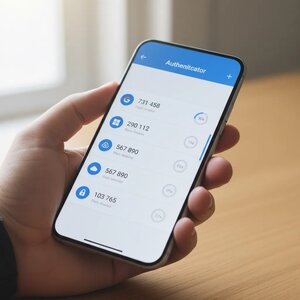
Authenticator apps vs. text codes is a practical security choice for your email, business website, and other important accounts. Both add a step beyond your password, but they protect that step differently. For most people, an authenticator app is safer than a code sent by text.
What is two-factor authentication?
Two-factor authentication (2FA) asks you to prove your identity in two different ways. Usually, you enter something you know, such as your password, and confirm something you have, such as your phone.
That extra check can help if someone steals or guesses your password. They may still need access to your phone or authenticator app before they can sign in.
Two-factor authentication is not a guarantee against every threat. It does make password-only access harder, which is a worthwhile improvement for important accounts.
How do text message codes work?
With short message service (SMS) verification, the website sends a temporary code to your phone number. You enter that code after your password to finish signing in.
It is familiar and usually easy to set up. But SMS depends on your phone number and mobile carrier, which creates some weaknesses.
- SIM swap scams: A scammer may trick your carrier into moving your number to a phone they control. This is called a subscriber identity module (SIM) swap. If successful, they may receive your login texts.
- Lost or unavailable phone: You may be unable to receive codes if your phone is lost, its battery is dead, or you have no service.
- Delayed or missing messages: Texts do not always arrive promptly. That can leave you waiting when you need access.
- Visible or accessible messages: A code might appear in a lock-screen notification. Depending on your settings and apps, messages may also be accessible in other places.
SMS codes are still better than using only a password in many situations. But they rely on a phone network and number that can be targeted or temporarily unavailable. The Cybersecurity and Infrastructure Security Agency (CISA) advises using text-based codes only as a last resort when stronger options are unavailable. See its multifactor authentication guidance.
How does an authenticator app work?
An authenticator app creates a temporary code on your phone or computer. During setup, the account and app share a secret, usually transferred by scanning a quick response (QR) code. The app uses that secret and the current time to create a six-digit code.
The code is generated locally, inside the app. Your phone does not need mobile service or an internet connection to display it. So, the code can still appear in airplane mode or where reception is poor.
You will generally need internet access to reach the website and complete sign-in. “Works offline” means the app can generate the code without a network connection. It does not mean you can sign in to an online service without internet access.
Unlike an SMS code, the authenticator code does not travel through your carrier’s text messaging system. A SIM swap alone does not give a scammer the secret stored in your authenticator app.
Which option is safer?
When you can choose between SMS and an authenticator app, an authenticator app is generally safer. Its code is not tied to your phone number, so a SIM swap will not automatically send your codes to someone else.
That does not make authenticator apps invulnerable. Someone who steals your password and tricks you into entering a current code on a fake sign-in page may still get access. Protect your device, check the website address, and do not share codes with anyone who contacts you unexpectedly.
Some accounts offer stronger sign-in methods, including passkeys. Passkeys can provide better protection against fake login pages. We explain how they work in Passkeys Explained: Signing In Without a Password.
How to set up an authenticator app
The steps vary a little by website, but the process is usually straightforward:
- Open the real website or app yourself. Avoid setup links in unexpected emails or text messages.
- Go to its security or sign-in settings. Look for an authenticator app, verification app, or two-step sign-in option.
- Choose the app option. The service should show a QR code and explain what to do next.
- Open your authenticator app and scan the code. Follow the service’s instructions, then enter the app’s current code to confirm setup.
- Save the recovery codes. Store them somewhere safe, such as a printed sheet in a secure place or a password manager you can access independently.
- Test your new sign-in. Sign out and sign in again while your existing method still works.
Do not photograph a recovery code casually or leave it beside your computer. Treat it like a spare key: anyone who gets it may be able to access your account.
Keep the old method available until you have tested the app and confirmed your recovery options. Then review the account’s settings. Some services keep SMS enabled as a fallback, even after you add an authenticator app.
What if you get a new phone?
Plan the move before you retire your old phone. Many authenticator apps have a way to transfer accounts, but the process varies by app.
Follow the app’s official transfer instructions while you can still use the old device. Add the authenticator to your new phone, test sign-in, and make sure your recovery codes are available. Only then remove the old device or erase it.
If your old phone is already gone, use the service’s recovery process. This is exactly why saving recovery codes during setup matters.
Keep the rest of your account secure
An authenticator app is software running on a device. The device could be lost, stolen, or compromised. Keep its operating system updated, use a secure screen lock, and review which notifications appear on your lock screen.
Your email recovery account matters, too. If someone can take over your email, they may be able to reset passwords elsewhere. Protect that inbox with a strong, unique password and two-factor sign-in. A password manager can help you keep unique passwords without memorizing every one.
A simple way to get started
You do not have to update every account today. Turn on two-factor authentication with whichever method a site offers first. Any extra sign-in check is generally better than relying on a password alone.
When you are ready, move your most important accounts to an authenticator app. Start with email, then consider banking, domain registration, website administration, and other accounts that could affect your business. Keep recovery details safe, and test each change before removing an older sign-in method.
For more on safer sign-ins, read Passkeys Explained: Signing In Without a Password and Password Managers: One Key for a Whole Ring of Locks.










 European Union General Data Protection Regulation Compliant