
The CW Corner – Password Managers: One Key for a Whole Ring of Locks
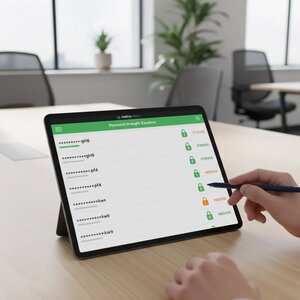
Password managers can make safer online habits much easier. Instead of trying to remember every login, you remember one strong master passphrase. The manager creates and stores different passwords for your other accounts. That can help protect your email, banking, business website, and everyday online services.
The trouble with reused passwords
Remembering passwords can feel like a chore. It is tempting to use one familiar password everywhere, then add a number when a website asks for a change. Unfortunately, that convenience can create a chain reaction.
If one website is breached, criminals may try the exposed password on other sites. They often test email, banking, shopping, and social accounts. If the same password works in several places, one stolen login may put many accounts at risk.
Weak passwords have a similar problem. A pet’s name, a favorite team, or a simple keyboard pattern may be easy to guess. Personal details can also be available through public profiles or other online sources.
The real challenge is not that you have many accounts. It is making sure one account’s password cannot unlock the rest. Unique passwords help break that chain.
What a password manager actually does
Think of a password manager as a locked digital key ring. It stores your logins in a protected vault and helps you use the right one when you visit a website or app.
Most managers can also generate passwords for you. These can be long, random, and different for each account. You do not need to memorize a jumble of letters and symbols. The manager remembers it for you.
You unlock the vault with a master password or passphrase. That is the one you need to know by heart. Depending on the product, the manager may also fill in login details through a browser extension or mobile app.
Some products synchronize your vault across devices. That means you can access it on your computer and phone, rather than relying on a single device. Check how a manager stores and synchronizes your information before choosing one.
How to choose a manager
Choose carefully, because the vault protects access to many accounts. There is no need to pick the first app you see in an advertisement. Look for a product with a trustworthy track record and clear information about its security and recovery options.
Consider these features:
- A reputation you can check. Read independent reviews and look for clear, current information about security practices.
- Cross-device access. Confirm it works on the computers and phones you actually use.
- Browser integration. A browser extension can make logins easier. Make sure it comes from the manager’s official website or app store.
- Synchronization details. Understand how your vault stays available across devices and what happens if you lose access.
- Recovery options. Learn whether the provider can help restore access, and what information that process requires.
A browser extension can also help you notice when a login page is unfamiliar. Still, pause before entering details, especially when you arrived through an unexpected email link. A password manager cannot make every phishing page safe.
The U.S. Cybersecurity and Infrastructure Security Agency recommends password managers as a way to create and manage unique passwords. You can read its guidance on strong passwords.
Make the master passphrase memorable and private
Your master passphrase protects the vault, so it deserves special attention. Make it long and difficult for someone else to guess. A few unrelated words can be easier to remember than a short, complicated string.
Do not reuse a password from another account. Do not use a familiar quotation or personal detail that someone could guess. And do not share the passphrase in email, messages, or with people who do not need access.
You might be tempted to write it on a sticky note. We understand the temptation, but a note beside your computer is not a great security plan. If you need a backup, follow the manager’s guidance and keep recovery information somewhere protected and separate from your everyday devices.
Turn on two-factor authentication, too
A strong master passphrase is important, but it should not be your only safeguard. Turn on two-factor authentication for the password manager if it is available. This requires another proof of identity, such as an approval from an authenticator app or security key.
Use two-factor authentication on your important email, banking, domain, and website accounts as well. Your email account deserves special attention because it may receive password-reset links for other services.
This extra step can help protect an account if someone learns your password. It is not a reason to relax about suspicious links or unexpected login requests. Verify those independently.
Switch over gradually
You do not need to update every account in one sitting. Begin with accounts that could unlock other accounts or cause serious problems if someone accessed them.
A practical order might be:
- Secure your email. Set a unique password and enable two-factor authentication.
- Update banking and payment accounts. Give each one its own generated password.
- Protect your business website and hosting logins. Include your domain registrar and other services that control your online presence.
- Work through the rest of your accounts. Update them when you sign in or have a few quiet minutes.
For each account, open the real website or app yourself. Sign in, change the old password, and save the new one in your manager. Avoid following password-change links from unexpected messages.
Some accounts may have unusual password rules. If a generated password is rejected, adjust the manager’s settings and try again. Do not solve the problem by reusing an old password everywhere.
As you move accounts, check for duplicate or outdated entries in the vault. Remove entries only when you are sure you no longer need them. A slow, orderly switch is much better than a rushed afternoon of login confusion.
What if you forget the master passphrase?
This is the part to understand before you begin. Depending on the manager’s design and your recovery settings, forgetting the master passphrase could mean losing access to the vault. Some providers may be unable to reset it or restore the information inside.
Read the provider’s recovery instructions while you still have access. If it offers recovery codes or another recovery method, learn how that works. Store any recovery information in a protected location, separate from the vault and the devices it protects.
Do not assume that support can recover everything. Strong protection can mean the provider cannot read your saved passwords. That privacy benefit may also limit what support can do if you lose the master passphrase.
Consider how you would recover access before filling the vault. Set up available recovery options, keep your devices updated, and make sure your recovery email account is secure. A little planning now can prevent a very frustrating surprise later.
Safer than sticky notes or password reuse
No tool removes every risk. A password manager still needs a strong master passphrase, secure devices, and sensible recovery planning. It is also wise to install updates and pay attention to account security alerts.
Even so, using a manager is generally safer than repeating one password across important accounts. It is also safer than leaving login details on a note beside your screen. The manager helps you use unique passwords without expecting you to memorize them all.
For a small-business owner, this can make website, email, and payment access easier to manage responsibly. For everyday users, it means fewer reused passwords and less guesswork at sign-in. Start with your most important accounts, then keep going at a comfortable pace.
For more practical security advice, see our posts on passwords and best practices for mitigating website hacks. You may also find our article about phishing attacks helpful. Hopefully this tip makes your online key ring easier to manage, and a lot less likely to be a sticky note.










 European Union General Data Protection Regulation Compliant