by Charles Oropallo | Oct 22, 2026 | Technical Help, The CW Corner, Web Hosting, Website Development, WordPress
 PHP updates may seem like a behind-the-scenes detail, but they can affect your WordPress site’s security, speed, and compatibility. If your hosting company has asked you to change PHP versions, it helps to understand why before clicking anything. The good news: with a little preparation, you can make the change carefully.
First, what is PHP?
PHP, short for PHP: Hypertext Preprocessor, is programming software that runs on the web server. WordPress uses PHP to build pages, display posts, process forms, and connect with your database.
Think of WordPress as the blueprint for your site and PHP as the worker following those instructions. Your visitor requests a page, and PHP helps assemble the right content. The server then sends the finished page to the visitor’s browser.
Unlike a photo or document, PHP does its work behind the scenes. You generally won’t see it while browsing your website. But an older PHP version can affect how well the site runs.
Why do PHP versions get retired?
PHP is maintained in numbered versions, or branches. Each branch receives updates for a limited time. Those updates may fix bugs, improve performance, or address security problems.
Eventually, a branch reaches the end of its support period. The PHP project stops providing fixes for it, including security fixes. Hosting companies also need to maintain software that works with their current servers and support tools. So they retire old versions rather than maintain them indefinitely.
That doesn’t necessarily mean your website will stop working on the day support ends. It does mean the version is no longer receiving fixes from the PHP project. Your host may eventually remove it or require you to move to a supported version.
For current support dates, check the official PHP supported versions list. WordPress also publishes its server requirements, including its current PHP guidance. Requirements can change, so use those sources when planning an update.
What can happen if your site uses outdated PHP?
Security fixes stop. When a PHP branch is no longer maintained, new problems found in that branch may not receive PHP project fixes. Keeping the server software supported is an important part of maintaining a website.
Plugins and themes can fall behind. WordPress add-ons are built to work with particular software versions. Over time, plugin and theme developers may stop testing older PHP branches. That can lead to warnings, errors, or features that no longer work as expected.
Performance may suffer. Newer PHP versions can include improvements that help code run more efficiently. An older version may miss those improvements. Speed also depends on other factors, including hosting resources, site design, and plugins, so changing PHP alone isn’t a promise of a faster site.
Think of it like keeping a work computer on software that no longer receives updates. It may keep doing the job today, but it becomes harder to support and maintain.
How to check your current PHP version
You can usually check your version in the WordPress dashboard:
- Sign in to your WordPress site.
- Open Tools, then choose Site Health.
- Select the Info tab and open the Server section.
- Look for the PHP version listed there.
The wording or menu location may vary by WordPress version. Your hosting control panel may also show the version assigned to your website. If you can’t find it, ask your host. They can confirm both your current version and the supported versions available for your account.
Once you know what you’re running, compare it with the current information from PHP and WordPress. Don’t choose a version based on a guess or an old tutorial. Your site’s plugins, theme, and custom code need to support the version you select.
How to prepare for PHP updates safely
A careful update is much less stressful than a rushed one. Here’s a sensible process:
- Check your site’s components. Make a list of WordPress, your active theme, plugins, and any custom code. Check their documentation or contact their developers about compatibility with your planned PHP version.
- Update WordPress, themes, and plugins first. Install available updates on the existing PHP version, after checking what each update changes. Updated software is more likely to support current PHP versions. Remove plugins and themes you no longer use.
- Make a complete, restorable backup. Include both your website files and database. Confirm how to restore it, and keep a copy separate from the live site.
- Test on a staging copy. Staging is a private copy of your live website for testing changes. Switch the staging site to your intended PHP version first. If your host doesn’t provide staging, ask about safe testing options before changing the live site.
- Test the parts that matter. Check the homepage, several important pages, forms, login, and any booking or shopping features. Try the site on a phone, too. Review available error logs for PHP warnings or failures.
- Change the live site when you’re ready. Make a fresh backup first. Use your hosting panel to select the PHP version for the correct site or domain. Panel names and steps vary, so follow your host’s instructions.
- Check the live site again. Clear relevant caches if needed. Test key features and watch for errors after the switch. If you find a problem, contact your host or developer promptly.
If you want a more detailed walkthrough, see our earlier guide, Is Your PHP Update Breaking Your WordPress Site?
Worried an update will break your website?
That concern is understandable. Some older plugins, themes, or custom code may not work with a newer PHP version. The risk is higher when software has been abandoned or has not been tested against current versions.
You can reduce the chance of trouble by checking compatibility, testing on staging, and keeping a restorable backup. Plan the change for a quieter time, and know how to contact your hosting provider if you need help.
If staging reveals a problem, pause before changing the live site. Look for an update or replacement for the incompatible component.
A calm, planned change gives you a better chance of finding and fixing compatibility issues without surprising your visitors.
Keep the version current, and the process manageable
PHP isn’t a setting to change casually, but it shouldn’t be ignored either. Supported versions help your WordPress site stay compatible with maintained software and receive available fixes. Check your version, review your site’s components, and test before making a live change.
Not sure which version your site can use? Contact your hosting provider or web developer before switching. At The CharlesWorks Corner, we help clients with WordPress development, hosting, and ongoing website maintenance.


by Charles Oropallo | Feb 27, 2025 | Do-It-Yourself, Scams, The CW Corner, Web Hosting

Small business owners face a minefield of sophisticated scams targeting their online presence. These fraudulent schemes don’t just waste money: they can compromise your security and damage customer trust.
The scammers know you’re busy running your business. They exploit that by making urgent-sounding offers or threats that demand immediate action. Don’t fall for it.
Here are the 10 most common web hosting and SEO scams targeting small businesses right now, plus how to spot and avoid them.
1. The “Guaranteed Page 1 Rankings” Trap
This is the granddaddy of SEO scams. You’ll get emails promising guaranteed first-page Google rankings, often within 30 days or less.
Here’s the truth: No legitimate SEO professional can guarantee specific rankings. Google’s algorithm changes constantly, and rankings depend on hundreds of factors including your competition.
Even Google itself can’t predict which pages will rank where or when. Anyone making guarantees is either lying or using black-hat techniques that will eventually hurt your website.
Red flags to watch for:
- “Guaranteed #1 ranking”
- Specific timeline promises
- Vague descriptions of their methods
- Pressure to sign up immediately
2. Fake Google Lighthouse Speed Reports
You receive an official-looking email claiming they’ve tested your website speed using Google Lighthouse. The attached report shows terrible loading times that are supposedly hurting your rankings.
The catch? They never actually tested your website. The speed scores are completely fabricated to scare you into buying their services.
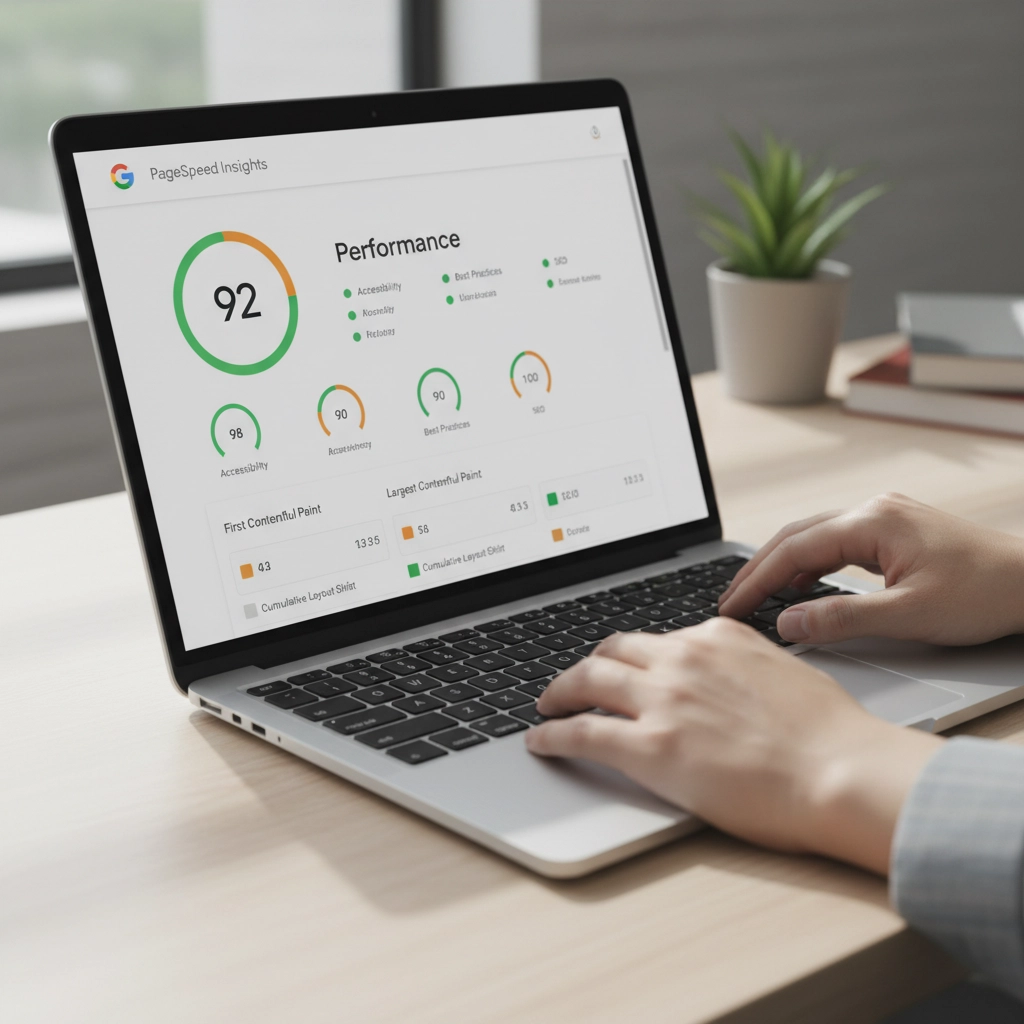
You can verify your real website speed using Google’s PageSpeed Insights tool for free. Don’t trust unsolicited speed reports from unknown senders.
3. Fraudulent Hosting Renewal Invoices
This scam arrives as convincing emails or even physical mail claiming your web hosting is about to expire. The fake invoice includes urgent language like “act immediately” or “don’t lose your website.”
The payment links lead to scammer-controlled sites where they steal your payment information.
Before paying any hosting renewal:
- Check the sender’s email against previous legitimate communications
- Log into your hosting account directly (don’t click email links)
- Verify the services and amounts match your actual account
- Contact your hosting provider using their official support channels
4. Domain Registry Renewal Scams
These official-looking notices claim you need to renew your domain registration. Sometimes they impersonate legitimate registrars or even the Better Business Bureau.
The scammers bill you for renewals you’ve already paid for or services you don’t need. As we’ve covered in our previous article about internet scams and domain renewals, these can be particularly convincing.
Always verify domain renewal notices directly with your actual registrar. Check your records to confirm whether renewal is actually due.
5. Negative SEO Threats and Extortion
Some scammers demand ongoing payments for SEO services. They threaten that if you stop paying, they’ll use “negative SEO” tactics to destroy your rankings.
This is extortion, plain and simple. Legitimate SEO consultants never make unsolicited payment demands or threaten consequences for refusing their services.
If someone threatens to harm your website’s rankings, report them and block all communications. Don’t give in to extortion attempts.
6. Directory Listing and Advertising Scams
You get calls or emails requesting payment to list your business in directories that sound legitimate: like Yellow Pages or Better Business Bureau directories.
The problem? You never authorized these listings, and the “directories” are often fake or worthless.
Before paying any directory fees:
- Check your records to confirm you placed an ad
- Contact the directory directly using verified contact information
- Be especially suspicious of cold calls demanding immediate payment
7. Tech Support Pop-up and Phone Scams
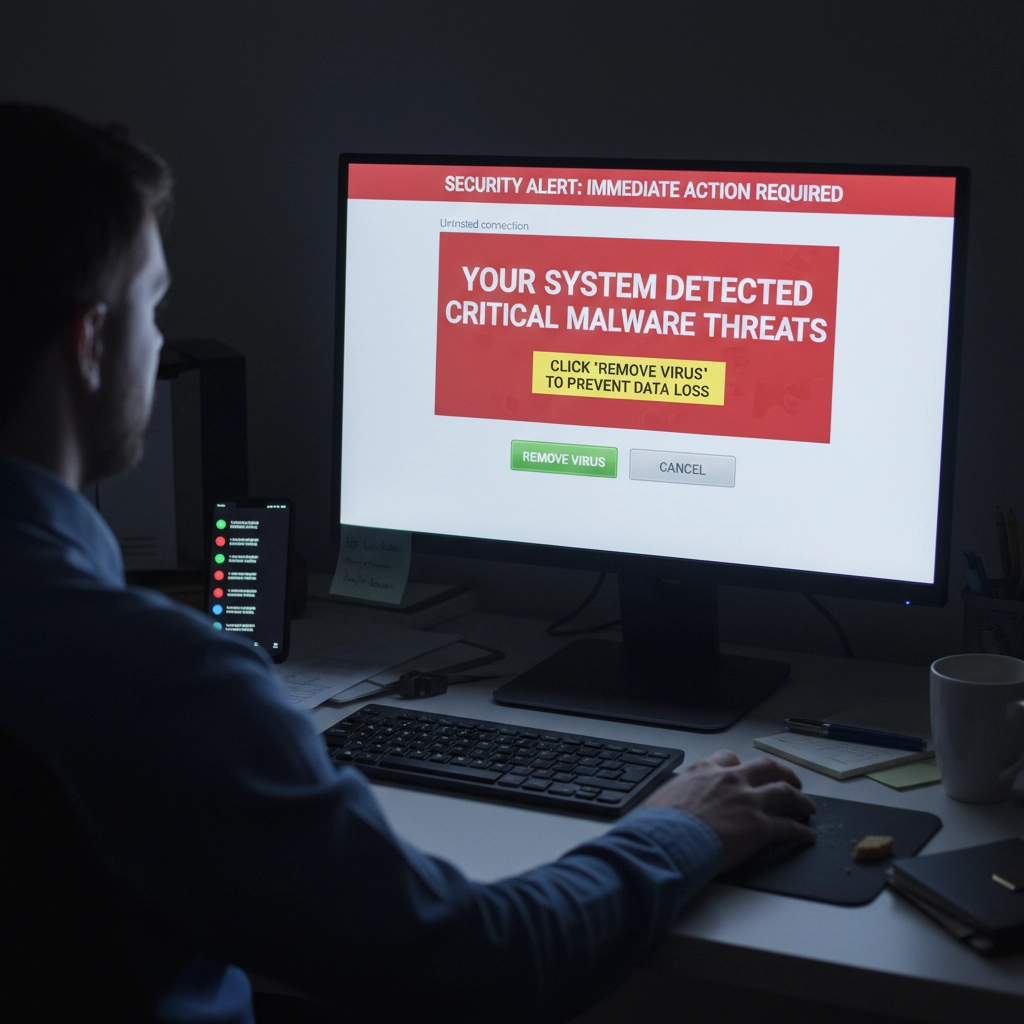
Tech support scams appear as computer pop-ups, emails, or phone calls claiming your website has malware or security issues requiring immediate attention.
These scams can be devastating. Scammers often request remote access to your computers or hosting accounts, leading to hacked accounts, stolen customer data, and compromised systems.
Protect yourself by:
- Using pop-up and ad blockers
- Installing legitimate security software on all devices
- Never giving remote access to unsolicited tech support
- Working with trusted IT professionals instead
8. Unrealistic Traffic and Visitor Promises
Scammers promise you’ll receive 1,000+ visitors per day to your website or guaranteed traffic through paid advertising. These promises sound appealing but rarely deliver real results.
Legitimate web traffic takes time to build through quality content, good SEO practices, and targeted marketing. Be skeptical of anyone promising massive traffic increases overnight.
Real traffic growth strategies focus on:
- Creating valuable content for your audience
- Optimizing for relevant keywords
- Building quality backlinks over time
- Running targeted advertising campaigns
9. Fake Email Security Alerts
You receive urgent emails claiming your business email has security issues or will be suspended unless you take immediate action. These often impersonate your hosting provider or email service.
As we discuss in our email security guide, legitimate providers rarely send urgent security warnings via email. They typically notify you through your account dashboard or official support channels.
Always log into your accounts directly to verify any security concerns. Don’t click links in suspicious emails.
10. Domain Appraisal and Purchase Scams
Scammers send unsolicited offers to appraise your domain name, suggesting it has significant value and you should sell it. They may claim to represent interested buyers.
These scams aim to extract personal information or payment for fake appraisal services. Sometimes they’re fishing expeditions to identify valuable domains they can try to steal or squat.
Ignore unsolicited domain appraisal offers. If you’re genuinely interested in your domain’s value, use legitimate appraisal services or consult with a professional.
How to Protect Your Business
Verify Everything
Never trust urgent communications about your web hosting, domains, or SEO. Always verify through official channels using contact information from your service provider’s website: not the suspicious communication.
Implement Email Authentication
Protect your email domain with SPF (Sender Policy Framework), DKIM (DomainKeys Identified Mail), and DMARC (Domain-based Message Authentication, Reporting, and Conformance). These technologies prevent scammers from impersonating your business email.
Educate Your Team
Make sure everyone on your team knows about these common scams. Establish protocols for verifying unexpected payment requests or service offers.
Use Reputable Providers
Work with established, reputable hosting providers and SEO professionals. Check references and reviews before committing to any services.
Trust Your Instincts
If something feels too good to be true or creates artificial urgency, it probably is a scam. Take time to research and verify before making decisions about your online presence.
Remember, protecting your business from these scams isn’t just about avoiding financial loss. It’s about maintaining the security and trust that your customers depend on. When in doubt, reach out to trusted professionals who can help you navigate these waters safely.
Stay vigilant, verify everything, and don’t let scammers pressure you into hasty decisions about your business’s digital presence.
by Charles Oropallo | Jan 17, 2025 | Security, Technical Help, The CW Corner, Web Hosting
Recently, I encountered an issue while attempting to renew an SSL certificate for one of my domains, (let’s call it) testdomain.com, using Let’s Encrypt on a server running Virtualmin on Debian 12. The process was more complicated than I expected due to a small oversight that many others could easily make. This article details my experience, the errors I encountered due to Let’s Encrypt rate limits (which I didn’t know existed), and steps to avoid or resolve such issues.
The Problem: Let’s Encrypt Rate Limits for Failed Authorizations
 A padlock that shows with an encrypted site using https in some browsers.
Let’s Encrypt provides free SSL certificates for securing websites. However, it enforces rate limits to ensure fair usage and prevent abuse. While attempting to renew the SSL certificate for testdomain.com, I discovered that the DNS settings were not pointed to my server, causing repeated failed validation attempts. By the time I fixed the DNS settings, I had hit Let’s Encrypt’s rate limit for failed authorizations.
This limit restricts requests for the same domain to 5 failed attempts per hour. Once you hit this limit, you must wait for the cooldown period to expire before trying again.
How the Error Appeared in Virtualmin
In the Virtualmin interface, I attempted to renew the certificate by navigating to:
- Virtualmin > Server Configuration > SSL Certificate
- Clicking on the Let’s Encrypt tab
- Ensuring the domain and subdomain (e.g.,
testdomain.com and www.testdomain.com) were selected
- Clicking the Request Certificate button
The renewal process failed with an error that Virtualmin reported as “an unknown issue.” Upon further investigation, I found the detailed error logs in the Let’s Encrypt log file located at:
/var/log/letsencrypt/letsencrypt.log
From the log, I saw this message:
urn:ietf:params:acme:error:rateLimited :: There were too many requests of a given type :: too many failed authorizations (5) for "testdomain.com" in the last 1h0m0s, retry after [time].
Understanding Let’s Encrypt Rate Limits
Let’s Encrypt enforces several types of rate limits. Here are the key ones:
- Failed Validation Limit:
- 5 failed validations per domain per hour.
- This applies to any validation failure, such as DNS misconfigurations or inaccessible
.well-known/acme-challenge directories.
- Duplicate Certificate Limit:
- 5 identical certificates per week.
- If you request the same set of domains repeatedly, you’ll hit this limit.
- Certificates per Registered Domain:
- 50 certificates per registered domain per week.
- All subdomains count toward this limit.
- Account-Level Requests:
- 50 certificates per account per week.
These limits are described in detail at Let’s Encrypt’s rate limit documentation.
Diagnosing the Problem
If you encounter a similar issue, here are the steps to diagnose and resolve it:
1. Check DNS Settings
- Ensure the domain’s DNS A records correctly point to your server.
- Use tools like
dig or online DNS propagation checkers to verify.
2. Verify Webroot Accessibility
3. Examine Let’s Encrypt Logs
4. Check Cooldown Period
- If you’ve hit the rate limit, the log will indicate a
Retry-After time in UTC. Convert it to your local timezone to determine when you can retry.
5. Dry Run Your Request
Steps to Avoid Future Issues
1. Ensure DNS Settings Before Requesting Certificates
- Double-check that DNS records point to the correct server and have propagated globally before initiating an SSL request.
2. Test Webroot Configuration
- Verify that the
.well-known/acme-challenge/ directory is accessible for all domains you’re requesting.
3. Use the Dry-Run Option
- Always test with
--dry-run before making a live request to avoid hitting limits.
4. Automate Renewals
- Virtualmin and Certbot support automated renewals. Ensure the cron job is configured correctly and DNS remains stable.
5. Avoid Forcing Duplicate Requests
- Options like
--duplicate and --force-renewal can lead to unnecessary requests. Only use them when absolutely necessary.
Conclusion
Hitting Let’s Encrypt’s rate limits can be frustrating, but understanding the causes and solutions can save time and effort. By checking DNS settings, verifying webroot accessibility, and using dry runs, you can prevent failed authorizations and avoid cooldown periods.
If you’re using Virtualmin, remember to check the Let’s Encrypt logs for detailed error messages, and plan your certificate renewals carefully to stay within the rate limits. Hopefully, my experience with testdomain.com helps you navigate and prevent similar issues.
As always, proactive testing and attention to detail go a long way in maintaining a secure and smoothly running server.
by Charles Oropallo | Nov 26, 2024 | Do-It-Yourself, Technical Help, The CW Corner, Web Hosting
Resolving Default Page Mismatches
 We had a website transferred to us for hosting by a client who did not know about resolving default page mismatches. This occurs, for example, the a page not found error happens when a site visitor is clicking on your navigation trying to get back to the home page. When hosting a website, ensuring that the correct default page is served when visitors navigate to the root domain (e.g.,
 exampledomain.com) is critical. A mismatch between menu navigation items and the actual default page can confuse visitors and lead to a poor user experience. Below, I’ve outlined several methods to address such issues. Each method depends on the tools and access available on your hosting environment.
1. Redirect Default Page Using a New default.htm File
The simplest solution is to create a default.htm file that redirects visitors to the correct index.html file.
Steps:
- Create a new file named
default.htm in the root directory of the website.
- Add the following HTML code to the file:
<!DOCTYPE html>
<html lang="en">
<head>
    <meta http-equiv="refresh" content="0;url=index.html">
    <title>Redirecting...</title>
</head>
<body>
    <p>If you are not redirected, <a href="index.html">click here</a>.</p>
</body>
</html>
- Save and upload the file to the server.
When visitors access exampledomain.com/default.htm, they will be automatically redirected to index.html.
2. Set Default Pages in Virtualmin
If your hosting server uses Virtualmin, you can configure the default pages it prioritizes when serving the site.
Steps:
- Log in to Virtualmin.
- Navigate to the specific domain by selecting it from the dropdown.
- Go to Server Configuration > Website Options.
- Locate the option for “Default index file names” or similar.
- Add
default.htm to the list if it is not already present. For example:
index.html index.htm default.htm
- Save the changes and reload the website.
With this configuration, default.htm will be recognized as a valid default page alongside index.html.
3. Use an .htaccess File
You can also use an .htaccess file to specify which files should be served as default pages.
Steps:
- Access the root directory of the website via FTP or the file manager.
- Open or create a file named
.htaccess.
- Add the following lines to the file:
DirectoryIndex default.htm index.html index.htm
- Save the file and upload it to the server.
This tells the server to prioritize default.htm as the default page. If default.htm is not found, it will fall back to index.html or other specified files.
4. Update Navigation Links in the Website’s Code
If all navigation menu items point to default.htm, you can update the site’s HTML files to point to index.html instead.
Steps:
- Download the HTML files that contain navigation links.
- Search for
default.htm in the code and replace it with index.html.
- Save and upload the updated files to the server.
This ensures that navigation links point to the correct file and prevents further confusion.
5. Configure the Web Server Directly
For advanced users with root access to the server, you can modify the web server’s configuration files to set the default page order.
Apache Servers:
- Edit the Apache configuration file (e.g.,
/etc/httpd/conf/httpd.conf or /etc/apache2/apache2.conf).
- Find the
DirectoryIndex directive and modify it:
DirectoryIndex default.htm index.html index.htm
- Save the file and restart Apache:
systemctl restart apache2
Nginx Servers:
- Edit the server block configuration file (e.g.,
/etc/nginx/sites-available/exampledomain.com).
- Modify the
index directive:
index default.htm index.html index.htm;
- Save the file and restart Nginx:
systemctl restart nginx
6. Combine Redirect and Navigation Fixes
For maximum compatibility and user experience, you can combine several methods. For example:
- Use the
.htaccess file or Virtualmin to prioritize default.htm.
- Add a redirect in
default.htm for edge cases.
- Update all navigation links to
index.html.
Final Thoughts on Resolving Default Page Mismatches
Choosing the right method depends on your hosting setup and access level. If you’re looking for a quick fix, creating a redirect in default.htm is the easiest option. For a more permanent and scalable solution, consider updating the server configuration or .htaccess file.
Always remember to test changes thoroughly to ensure they work as expected before making them live. This will prevent any disruptions for your website’s visitors.
And, finally, at CharlesWorks we take care of these types of issues for you.
by Charles Oropallo | Oct 18, 2024 | Do-It-Yourself, Security, Technical Help, The CW Corner, Web Hosting
 If you secure many sites with free Let’s Encrypt SSL, you may hit a wall. Suddenly, certificate requests stop cold. One day everything works. The next, you see rate-limit errors and wonder what happened.
Here’s the thing. Let’s Encrypt secures over 350 million websites with free SSL. To keep things stable and safe, they enforce strict rate limits. These limits can surprise even seasoned developers. They bite hardest when securing many domains or subdomains at once.
Understanding these limits prevents headaches. It also keeps your sites secure and your business running. I’ll explain what the limits mean. I’ll share five practical steps to avoid SSL issues before they happen.
What Are Let’s Encrypt Rate Limits?
Think of Let’s Encrypt rate limits like a busy restaurant. It can serve only so many guests each hour. They are not there to hassle you. They ensure fair access and protect the system.
The key limit is 50 certificates per registered domain every 7 days. “Registered domain” means your eTLD+1, or main domain. If you own example.com, all subdomains share that weekly pool. That includes www, blog, and shop subdomains.
That’s not the only limit. You get 5 failed validation attempts per domain per hour. Repeated failures trigger a temporary lockout. Common causes include DNS or firewall issues. There’s also a duplicate certificate limit of 5 per week. Renewals do not count against the 50-certificate quota.
Account creation is limited too: 10 accounts per IP every 3 hours. This prevents abuse through mass accounts. It can also affect legitimate teams that need several accounts.
Step 1: Use Wildcard Certificates for Multiple Subdomains
Here’s your first defense against rate limits. Use a single wildcard certificate, not many subdomain certificates. One wildcard covers all subdomains under your domain.
A wildcard for *.example.com secures www, blog, shop, and new subdomains. You issue only one certificate. This slashes issuance volume and stays within Let’s Encrypt limits.
Even better, a single certificate can list up to 100 domains. Managing many brands? Combine domains into fewer certificates. One cert can cover yourcompany.com, .net, and .org.
Look at your setup. Are you requesting one certificate per subdomain? If so, you burn limits quickly. Switching to wildcard certificates is often the top fix.
Step 2: Test in the Staging Environment First
Before deploying live, test in Let’s Encrypt’s staging environment. It’s a safe practice kitchen. Mistakes don’t affect customers.
Staging has relaxed limits: 50 new registrations per IP per 3 hours. Production allows only 10. Use staging to test SSL, fix DNS, and refine deployment.
Many teams skip this step in a rush to go live. That’s when rate-limit problems strike. You issue, it fails, you retry, and hit five failures. Now you must wait.
Follow this rule. Do not issue a production certificate until staging succeeds. Spend 15 extra minutes. It could save days later.
Step 3: Implement Protective Safeguards
Smart hosting platforms add safeguards to prevent runaway certificate requests. You should do the same.
Many platforms lock SSL provisioning after three failures. They stop before Let’s Encrypt’s limit of five. That buffer prevents retry loops and protects weekly limits.
If you manage SSL yourself, add similar safeguards. Monitor requests per domain and per week. Create alerts near the limits. Add automatic delays between retries.
Do not rely on manual steps. SSL issues feel urgent, and pressure creates mistakes. Automation removes human error in Let’s Encrypt rate-limit management.
Step 4: Monitor and Space Out Certificate Requests
If you manage many sites or a SaaS, timing matters. Be strategic with certificate requests. Avoid securing everything at once.
Let’s Encrypt allows 10 certificates per IP every three hours. Migrating dozens at once? Pace your requests. Spread them over days, not one afternoon.
Keep detailed logs of issuance times and domains. This is essential for weekly limits. Know exact counts for each domain over seven days before requesting more.
Use a spreadsheet or database to track issuance dates, renewals, and limit usage. Seeing requests visually helps avoid accidental Let’s Encrypt limit hits.
Step 5: Fix Root Causes Before Retrying Failed Requests
This might be the most important step. When provisioning fails, do not retry immediately. The seven-day window also tracks failed attempts per domain.
Instead, find and fix the root cause. Common causes include DNS mistakes, blocked HTTP validation, or domain verification issues. Retrying without fixes only wastes your limits.
Some common issues to check when certificates fail:
- DNS records pointing to the correct IP address
- Firewall rules allowing HTTP validation on port 80
- Web server configuration properly handling validation requests
- Domain ownership verification working correctly
Follow this rule of thumb. Wait at least an hour between failures. Do not retry until you fix the specific problem. Many providers recommend this. It prevents accidental lockouts.
What Happens When You Hit Rate Limits
Despite your best efforts, you may still hit limits. When it happens, wait for the window to reset. The main certificate limit resets after seven days.
While you wait, consider alternatives. Issue wildcard certificates where missing. Consolidate domains into fewer certificates. For critical needs, consider a commercial CA as a temporary last resort.
Most important, learn from the incident. Review what happened. Update processes to prevent repeats. Confirm your safeguards work properly.
Remember, Let’s Encrypt rate limits keep the service stable for everyone. Follow the five steps. Use wildcards. Test in staging. Add safeguards. Monitor usage. Fix root causes early.
The key is proactive planning, not reactive troubleshooting. With preparation, you can keep sites secure without hitting these limits.
by Charles Oropallo | Sep 27, 2024 | Do-It-Yourself, Technical Help, The CW Corner, Web Hosting, WordPress

You updated PHP on your hosting account and suddenly your WordPress site displays a white screen or error messages. Sound familiar? You’re not alone. PHP updates break WordPress sites more often than you’d think, but the good news is that most issues have straightforward fixes.
The problem usually stems from outdated plugins, themes, or even WordPress core files that aren’t compatible with newer PHP versions. Think of it like trying to run old software on a brand-new computer – sometimes it just doesn’t work without updates.
Don’t panic. Here’s your step-by-step recovery plan to get your site back online and properly updated.
Step 1: Revert PHP Version Immediately
Your first priority is getting your site back online. Log into your hosting control panel (like cPanel) and find the PHP settings. This might be called “MultiPHP Manager,” “PHP Version,” or “Select PHP Version.”
Switch back to your previous PHP version – usually PHP 7.4 or 8.0. Your site should come back online within minutes. This buys you time to properly diagnose and fix the underlying compatibility issues.
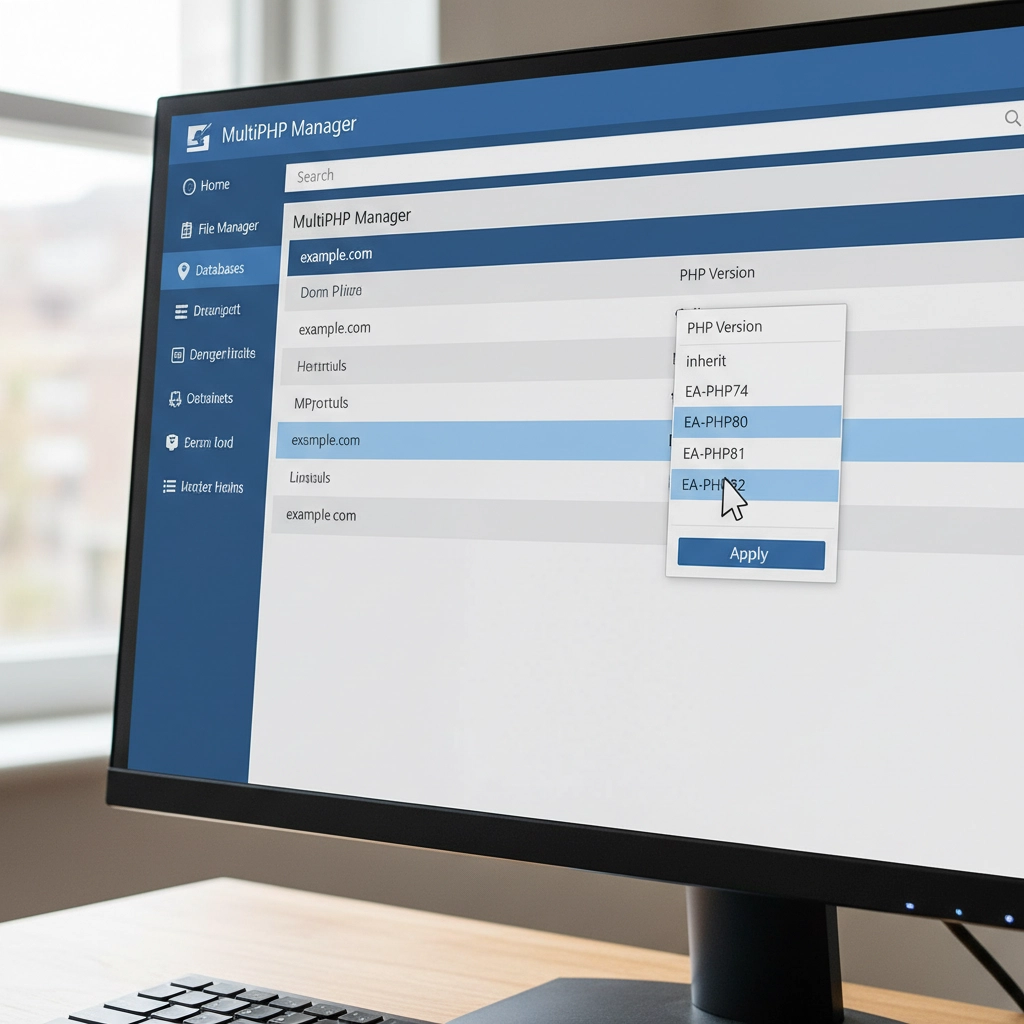
Remember, this is a temporary fix. Running outdated PHP versions leaves your site vulnerable to security threats. PHP 7.4 stopped receiving security updates in November 2022, and even PHP 8.0 support ended in November 2023.
Step 2: Create a Full Site Backup
Before making any changes, backup everything. Use a plugin like UpdraftPlus or your hosting provider’s backup tool. You need both your website files and database.
Think of this as insurance. If something goes wrong during the update process, you can restore your site to its current working state. Many hosting providers offer one-click backups through their control panels.
Don’t skip this step. I’ve seen too many sites get worse instead of better because someone tried to fix things without a safety net.
Step 3: Update WordPress Core, Themes, and Plugins
Head to your WordPress dashboard and navigate to Updates. Install all pending updates for WordPress core, your active theme, and plugins. Newer versions often include compatibility patches for recent PHP versions.
Pay special attention to plugins you haven’t updated in months or years. Abandoned plugins are the biggest culprits in PHP compatibility issues. If you see plugins that haven’t been updated in over two years, consider finding alternatives.
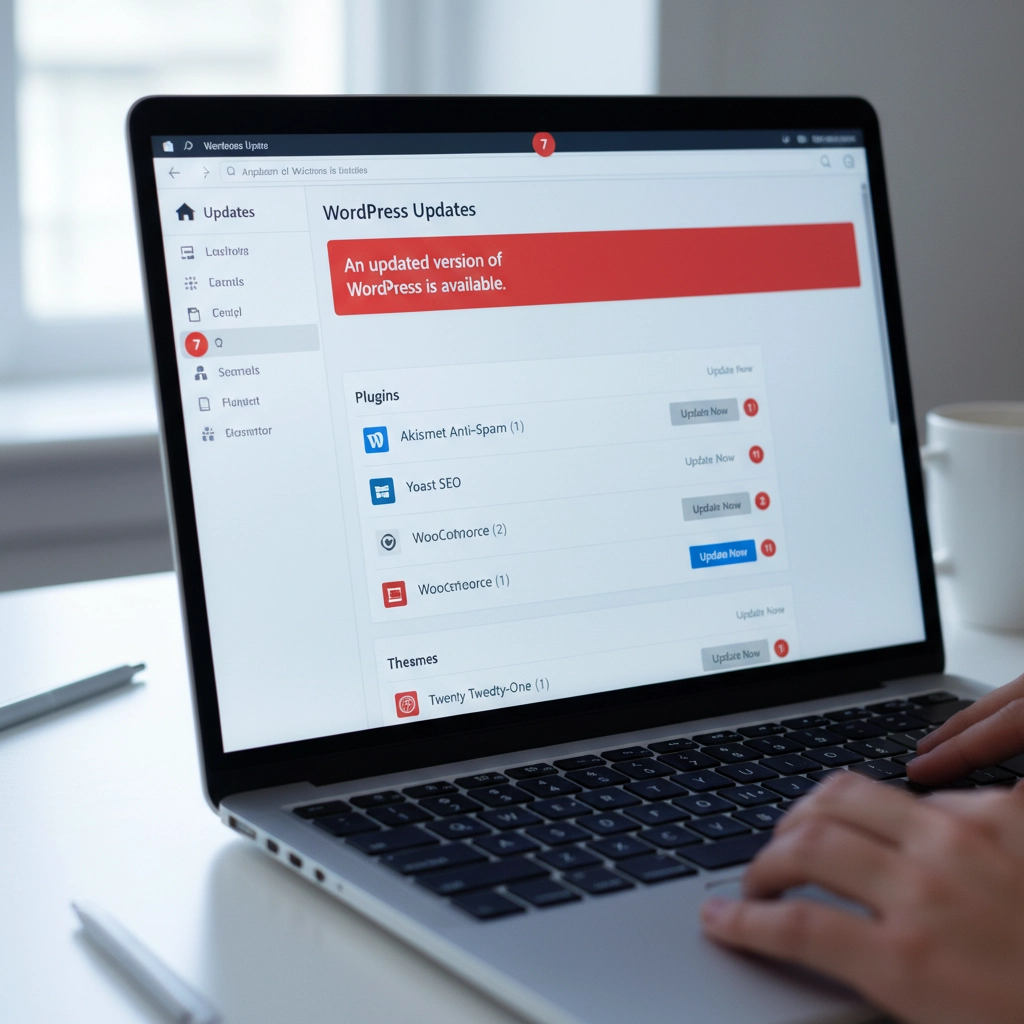
Update your active theme too. Custom themes from developers who no longer provide support can be particularly problematic. If your theme hasn’t been updated recently, contact the developer or consider switching to a well-maintained alternative.
Step 4: Run a PHP Compatibility Check
Install the PHP Compatibility Checker plugin by WP Engine. This free tool scans your entire site and generates a report showing which themes and plugins won’t work with newer PHP versions.
Run a scan targeting your desired PHP version (usually PHP 8.1 or 8.2). The report will flag specific files and functions that need attention. This gives you a roadmap for what needs fixing before you can safely update PHP.
The scan might take several minutes depending on your site size. Don’t close your browser tab while it’s running. The detailed report will show you exactly which plugins or themes are causing problems.
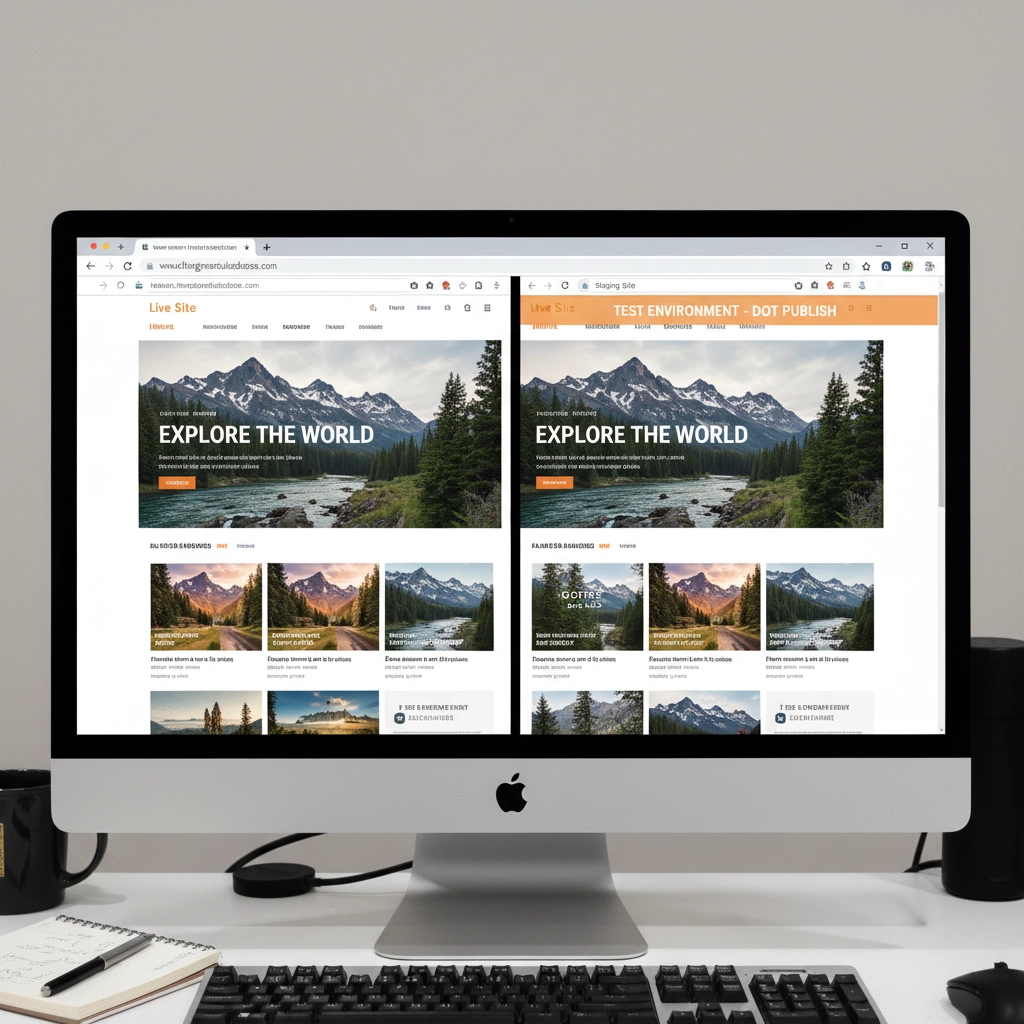
Step 5: Test in a Staging Environment
If your hosting provider offers staging sites, use one. Create a copy of your live site where you can safely test the PHP update without affecting visitors.
Apply the PHP update to your staging site first. If everything works correctly there, you can confidently update your live site. If problems occur, you can troubleshoot without any downtime.
Many hosts include staging tools in their control panels. WordPress.com, WP Engine, and SiteGround all offer easy staging environments. Some plugins like WP Staging can create staging sites on any host.
Step 6: Isolate Problematic Components
If your site still breaks after updating everything, you need to identify the specific culprit. Start by deactivating all plugins and switching to a default WordPress theme like Twenty Twenty-Four.
Try the PHP update again. If your site works with all plugins disabled and the default theme active, you know the problem is with a plugin or your theme.
Reactivate plugins one by one, testing your site after each activation. When your site breaks, you’ve found the problematic plugin. Do the same process with your theme by switching back to it after testing all plugins.
Step 7: Handle Incompatible Extensions
Found the troublemaker? You have several options. First, check if there’s a newer version available. Plugin developers often release compatibility updates shortly after new PHP versions.
If no update exists, look for alternative plugins that provide the same functionality. The WordPress plugin directory has thousands of options, and newer plugins typically support current PHP versions.
For premium plugins or themes, contact the developer directly. Many offer compatibility updates for paying customers even if they haven’t released public updates.
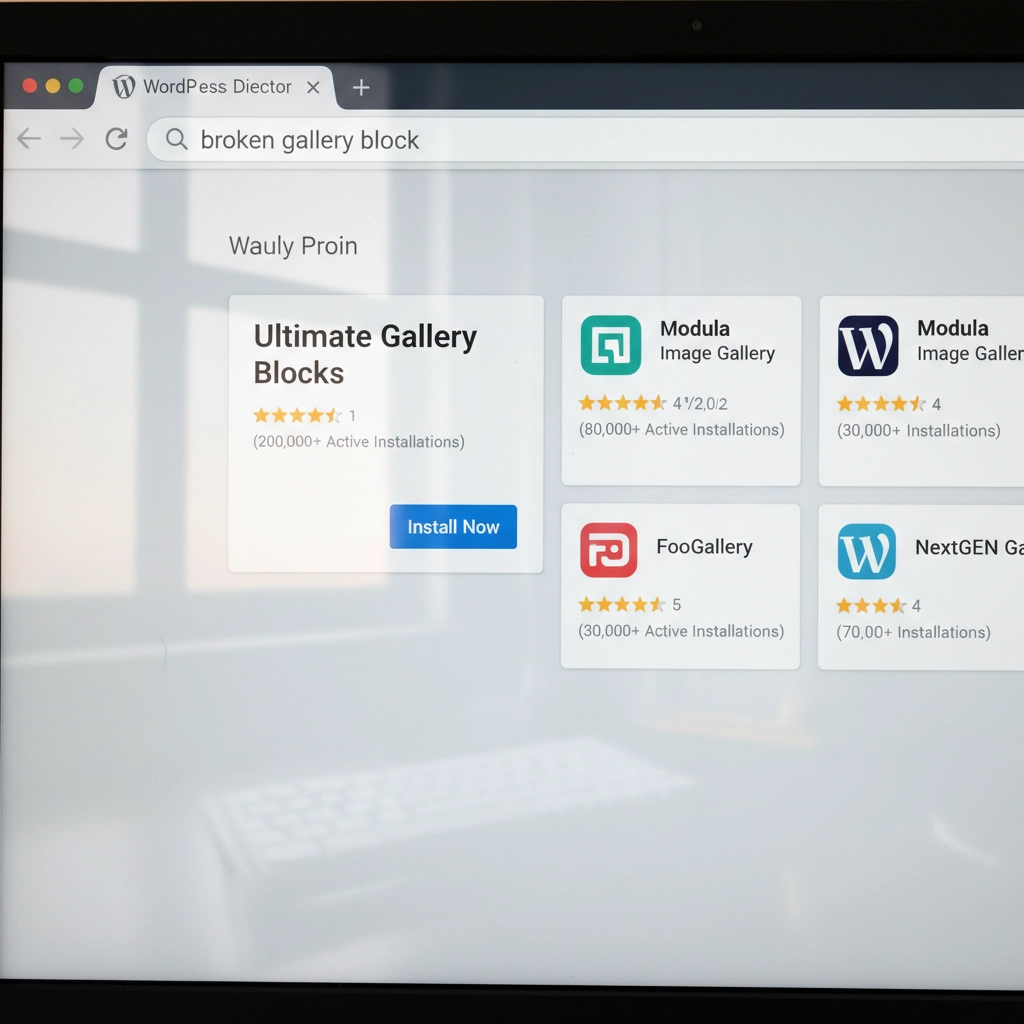
Sometimes you might need to hire a developer to update custom code or modify a theme. This is especially common with heavily customized sites or older premium themes.
Step 8: Reapply the PHP Update
Once you’ve resolved all compatibility issues, it’s time to update PHP again. Go back to your hosting control panel and select your target PHP version.
Most sites work well with PHP 8.1 or 8.2. These versions offer significant performance improvements over older versions. WordPress officially supports PHP 8.0 and higher, with PHP 8.1 being the recommended version.
Apply the change and test your site thoroughly. Check your homepage, admin area, contact forms, and any special functionality like e-commerce checkout processes.
Step 9: Post-Update Monitoring
After updating PHP, monitor your site closely for the first few days. Clear all caches – server-level caches, plugin caches, and your browser cache.
Check your hosting control panel’s error logs for any PHP errors or warnings. Look for the “Error Logs” section in cPanel or similar tools in other hosting panels. WordPress also creates debug logs if you enable debugging in wp-config.php.
Set up website monitoring tools to alert you if your site goes down. Services like UptimeRobot or Pingdom can send email alerts when problems occur.
Prevention Tips for Future Updates
Stay proactive with updates. Install WordPress, theme, and plugin updates regularly instead of letting them accumulate. Regular small updates are much safer than jumping multiple versions at once.
Remove unused plugins and themes. Every piece of code on your site is a potential compatibility problem. If you’re not actively using a plugin, delete it completely.
Consider managed WordPress hosting. Companies like WP Engine, Kinsta, and Pressable handle PHP updates more carefully, often testing compatibility before applying updates to your site.
When to Get Professional Help
Some situations require expert assistance. If you’re running a mission-critical e-commerce site, have heavily customized code, or feel overwhelmed by the technical steps, consider hiring a WordPress professional.
Custom-built themes and plugins often need developer attention for PHP compatibility. The cost of professional help is usually much less than the revenue lost from extended downtime.
Don’t let pride keep your site broken. Sometimes the smartest move is admitting you need help and getting your site fixed quickly and correctly.
Your WordPress site doesn’t have to break every time PHP updates. With proper preparation and systematic troubleshooting, you can keep your site running smoothly on current, secure PHP versions. The key is taking it step by step and not rushing the process.










 European Union General Data Protection Regulation Compliant