
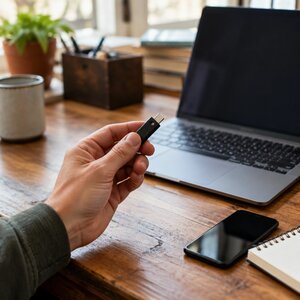
 Hardware security keys are small devices that give your important accounts a strong, physical check at sign-in. You plug one into a computer or tap it against a compatible phone. Think of it as a small key that helps prove you are really you.
For most accounts, the security key is a second step after your password. Some services also let you use a key to sign in without entering a password. Either way, it can make fake login pages much less effective.
What is a hardware security key?
A hardware security key is a small device that connects through a Universal Serial Bus (USB) port or communicates wirelessly with a phone. During sign-in, you may need to touch its button or tap it against your device.
The key works with your browser and the service’s sign-in system. It helps confirm that you are signing in to the real website, not a convincing imitation.
Some keys include a fingerprint reader. Others ask you to touch a button. Either style can work well. Choose a method that feels comfortable and suits the accounts and devices you use.
You may also see keys described as supporting Web Authentication (WebAuthn) and Fast Identity Online (FIDO) standards. Those standards let websites and security keys work together for secure sign-ins. Check that the services you rely on support them.
Why does a key stop many phishing attempts?
A password or code can be copied. If a fake website tricks you into entering a password or a temporary code, the attacker may use it on the real account before it expires.
A hardware security key works differently. During sign-in, the browser and key use the website’s identity to check that the request is for the right service. A key registered for your real email provider will not answer a lookalike site pretending to be that provider.
Picture a key cut for one particular lock. A copied key shape may look convincing, but it will not turn the real lock. A security key uses a similar idea, with digital information instead of metal teeth.
This protection is why keys can resist phishing better than codes you type into a webpage. It does not make every account or device invulnerable. Use the key only on websites you opened yourself, and protect your devices, passwords, and account recovery options.
For another passwordless sign-in option, see Passkeys Explained: Signing In Without a Password. To compare common second-step methods, read Authenticator Apps vs. Text Codes: Which Two-Factor Sign-In Is Safer?.
What should you look for when buying one?
Start by checking that the key supports WebAuthn and FIDO standards. Well-known brands make these devices, but focus on compatibility rather than choosing based on a logo.
Consider how you will connect the key. A model with both a computer connector and a phone-friendly option can be useful if you sign in from both. Check your computer and phone ports before buying.
Buy two keys: one for regular use and one as a spare. Store the spare somewhere safe and separate from your everyday key. A backup does not help much if both keys live on the same key ring.
Some keys have a button you touch during sign-in. Others include a fingerprint reader. Either can be a practical choice. Follow the maker’s setup instructions, and keep the key protected from damage or loss.
Which accounts should you secure first?
Start with accounts that could unlock or disrupt many other parts of your life or business:
- Your email account. Password-reset links for many services arrive in your inbox. That makes email a kind of master key.
- Your domain registrar. Someone with access may be able to change where your website address points.
- Your web hosting account. Access could allow changes to your website or its hosting settings.
- Your bank and payment accounts. Protect accounts that handle business funds or personal savings.
- Your password manager. It may hold the sign-in details for many of your other accounts.
A password manager can help you use a different password for every service. Learn more in Password Managers: One Key for a Whole Ring of Locks.
If your email account is compromised, the damage can spread quickly through password resets. Our email account recovery walkthrough explains why that inbox deserves special attention.
How do you set up a key?
The exact wording varies between services, but the process is usually straightforward:
- Open the service’s official website or app yourself. Avoid starting from an unexpected email link.
- Sign in and open the account’s security or sign-in settings.
- Choose the option to add a security key, then follow the instructions.
- Give the key a name you will recognize, such as “Office key” or “Backup key.”
- While you are still signed in, add your spare key in the same session.
- Test that both keys work before closing the settings page.
Adding the spare right away matters. You may not remember to do it later, and recovering an account can be much harder if your only key disappears.
If the service offers recovery codes, print them and store them somewhere secure, away from your keys. Treat those codes like spare keys to the account. Do not leave them beside your computer or save them in an inbox that the account itself can unlock.
Can your phone act as a security key?
Modern phones can take part in secure sign-ins. Some can approve a login on another device, while many also store passkeys for accounts that support them.
Passkeys are related to security keys, but they are not exactly the same thing. A passkey is a digital sign-in credential stored on a phone, computer, or supported account service. A physical security key is a separate device you carry and connect when needed.
A phone that receives a text message is not the same protection as a physical security key. Text codes can be intercepted or stolen through phone-number scams. Learn about that risk in our article on SIM swap scams.
What are the trade-offs?
You need to have the key with you when signing in, unless you use another supported method. Some services limit how many keys you can register. Others do not support security keys at all.
Losing every registered key can lock you out. That is why you should set up a spare and save recovery codes before trouble starts. Check each service’s recovery process while you still have access.
A key also cannot protect an account if someone has already gained access another way, such as through an open sign-in session. Keep devices updated, watch for unexpected account alerts, and remove keys you no longer use.
A small-business security step worth planning
If employees or contractors can change your website, pay bills, or access customer information, consider issuing keys to those people. Keep a simple record of who holds each key and which accounts it protects.
When someone leaves, remove their key from the relevant accounts the same day. Treat it like a building key: record who has it, and collect or disable access when their work ends.
For a handful of accounts that could ruin your week if they were taken over, hardware security keys are worth considering. Start with your email, domain, hosting, banking, and password manager accounts. Add a spare, save recovery codes, and ask for help if setup gets confusing.










 European Union General Data Protection Regulation Compliant