
 Yesterday, we explained how password managers help you avoid reused passwords and protect your accounts. Today, let’s look at passkeys, another way to make signing in simpler and safer.
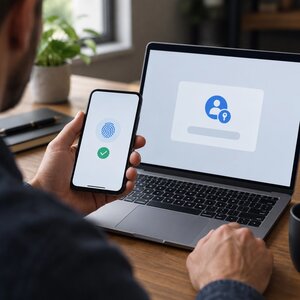
A passkey lets you sign in without typing a password. You approve the login using your fingerprint, face, or device personal identification number (PIN). For many small-business owners, that can mean fewer passwords to remember and less risk from fake login pages.
Passkeys may sound technical, but using one is usually straightforward. Here’s what happens and what you should know before trying one.
What is a passkey?
A passkey is a digital credential that your device or password manager keeps for a specific website or app. You unlock it with the same method you use to unlock your device, such as a fingerprint, face scan, or PIN.
The security behind a passkey uses a pair of digital keys. One stays with your device or passkey provider. The website keeps the matching public key, which can confirm your sign-in but cannot sign you in by itself.
In everyday terms, think of the public key as a lock and the private key as the key that opens it. The website can check that your passkey fits, but it never receives the private key. There is no password sitting on the website’s server for a thief to steal.
Your fingerprint or face data also stays on your device. The website receives confirmation that you approved the sign-in, not your biometric information.
How does signing in work?
When a website supports passkeys, you may see an option to create one or sign in with one. The exact wording varies. You might see “Passkey,” “Sign in with your fingerprint,” or “Sign in with your face.”
The usual steps are simple:
- Visit the real website or open its app.
- Choose the passkey sign-in option, or select the passkey saved for that account.
- Approve the request using your fingerprint, face, or device PIN.
Your device then completes the secure exchange with the website. You do not have to type or remember a password for that sign-in.
Why do passkeys help resist phishing?
Phishing is when someone tries to trick you into giving away information, often through a fake email, text, or website. A lookalike sign-in page may fool someone into typing a password. A passkey is designed to work only with the genuine website it belongs to.
For example, suppose a message directs you to a fake business email login page. Your passkey for the real email service will not provide the fake page with a usable login credential. The passkey checks the website’s identity as part of the sign-in process.
That is a major difference from a password, which you can accidentally type into the wrong page. Still, passkeys do not make every device or account risk-free. Keep your devices updated, secure your accounts, and treat unexpected login prompts carefully.
For more help spotting suspicious messages and links, see our post on rampant phishing.
Where are passkeys stored?
Passkeys may be stored in the built-in accounts and services you already use. Apple, Google, and Windows offer ways to manage passkeys within their ecosystems. Some password managers can store passkeys, too.
A passkey may be synchronized across your devices through the account or manager that stores it. For instance, a passkey saved through a provider may become available on another phone or computer signed in to the same provider.
Other passkeys are saved only on one device. These are often called device-bound passkeys. They do not sync elsewhere, so losing that device can make access more difficult unless you have another sign-in or recovery option.
Before creating one, notice which account or service will store it. You may need access to that account when setting up a replacement device.
What happens when you get a new phone or computer?
If your passkey syncs through an account, setting up the same account on a new device may make the passkey available there. Follow the provider’s instructions and complete any identity checks it requires.
If your passkey exists only on your old device, you may need to use the website’s recovery process or another sign-in method. Some sites let you add more than one passkey, which can help avoid relying on a single device.
You may also be able to sign in on a computer using a nearby phone. Choose an option such as “use a passkey from another device.” The computer may show a quick response (QR) code for your phone to scan. Approve the sign-in on your phone, and it can confirm your identity without moving the passkey onto the computer.
A QR code is not a backup passkey. It is simply a way for your phone to approve a sign-in on a nearby device.
Are passkeys the same as two-factor authentication?
A passkey generally replaces the familiar password-plus-code sign-in. You have the device holding or accessing the passkey, then prove it is you using a fingerprint, face, or PIN. Together, these steps make up the sign-in.
However, websites handle passkeys differently. Some may still ask for a password, an additional code, or another check in certain situations. Follow the instructions shown by the service, and do not assume every passkey login works exactly the same way.
If you want to understand the technology behind passkeys, the FIDO Alliance’s passkeys guide offers more detail. FIDO means Fast IDentity Online, the organization behind standards used for passkey sign-ins.
What are the limits?
Passkeys are useful, but they are not a perfect fit for every situation.
- Shared computers can be awkward. A passkey on your personal phone may be more convenient than saving a credential on a computer used by several people.
- Recovery depends on the service. Check what happens if your phone is lost, your passkey provider account is unavailable, or you change platforms.
- Email recovery matters. Many accounts use your email address to help restore access. Keep that inbox secure and make sure its recovery options are current.
- Some sites still require passwords. A service may offer passkeys for some sign-ins while keeping passwords for other steps or recovery.
For a small business, consider who controls the accounts used for email, banking, domain registration, and website administration. Make sure those accounts have sensible recovery arrangements, not just a sign-in method that works today.
How to start using passkeys
You do not need to switch every account at once. Start with an important account that offers passkeys and has a recovery process you understand.
Your email account is a practical place to begin because it can be used to recover access to other services. Open the official website or app yourself, then look under security or sign-in settings. Search for “passkey,” “passkeys,” or an option to sign in with your fingerprint or face.
Create the passkey, then test it while your existing sign-in method still works. Sign out and try signing in again. Check that your other devices and recovery options are ready, too.
Do not delete your password or remove another sign-in method until the passkey works reliably. A little overlap while you test is much less frustrating than getting locked out.
Passkeys can make everyday sign-ins easier while making phishing attempts harder to pull off. Start with one important account, learn how its recovery works, and add more when you feel comfortable.
For a related look at password managers, read Password Managers: One Key for a Whole Ring of Locks. Used together where appropriate, these tools can help you take better care of your online accounts.










 European Union General Data Protection Regulation Compliant