by Charles Oropallo | Nov 8, 2026 | Do-It-Yourself, SEO, Small Business, The CW Corner
 Google Search Console is a free Google tool that helps you see how your website appears in Google Search. It can show which searches brought your pages into view, which pages Google has indexed, and whether Google found potential problems.
Think of it as a window into Google’s view of your site. It will not tell you everything, and it will not promise better rankings. But it can help you spot useful opportunities and issues before they become bigger concerns.
Search Console and analytics answer different questions
Website analytics tools help you understand what people do after they arrive. You might see which pages they visit or whether they submit a form.
Search Console looks earlier in that journey. It shows how your site appeared in Google Search before someone clicked. You can see queries that showed your pages, impressions, clicks, and related search details.
That difference matters. If a service page receives impressions but few clicks, its title or description may not make its value clear. If it receives few impressions, you may want to check whether Google has found and indexed it.
For a closer look at visitors and on-site activity, see our related article about reading website statistics.
First, verify that you own the site
To access a website’s information, you need to prove you control it. Google calls this process ownership verification. The available method depends on your website setup and access.
Common options include:
- Uploading an HTML (HyperText Markup Language) verification file: You place a file supplied by Google on your website.
- Adding a DNS (Domain Name System) record: You add a record through the service managing your domain.
- Verifying through your web host: Some hosting or site-management services offer a direct connection.
A domain property can cover your main domain and its subdomains. A URL (Uniform Resource Locator) prefix property covers a more specific address, such as a particular version of your site.
Choose the property that fits your needs, and keep its verification method in place. If you are unsure where to add a file or record, ask your web host or developer. Google explains the options in its site ownership verification guide.
The main reports, in everyday language
Search Console has several reports. You do not need to study every screen to get started. These are useful places to look.
Performance: What appeared, and what got clicked?
The Performance report shows how your pages did in Google Search during a selected period. It can display search queries, pages, impressions, clicks, and average position.
An impression means a result from your site appeared in a Google Search result. A click means someone selected that result and visited your site.
The report can help answer practical questions. Which pages are appearing? What words are people searching? Are people clicking through to the pages they see?
You can review information by query, page, device, or other available filters. Treat these figures as clues, not a complete explanation of customer behavior. Search Console records search activity, not every reason someone chooses to call or buy.
Indexing or Pages: Which pages does Google know about?
The Page indexing report shows pages Google knows about and whether they are indexed. It may also list reasons some pages are not indexed.
Not every excluded page is a problem. Duplicate pages, pages you intentionally marked not to appear, and removed pages may be excluded for sensible reasons. Focus on important pages, such as your main services, products, and contact information.
If a valuable page is not indexed, review the reason shown. It could be inaccessible, blocked, or simply not discovered yet. Google’s Page indexing report guide explains what its status information means.
URL Inspection: Check one particular page
The URL Inspection tool lets you check an individual page address. It can show whether Google has an indexed version and whether the current page appears available for indexing.
This is handy after publishing an important page or making a substantial update. Enter its address and review what Google reports. If appropriate, you can request indexing.
A request is not an instant update or a guarantee. Google still decides when to crawl and index a page. Think of the request as asking Google to take another look, not pressing a magic “show me now” button. See Google’s URL Inspection tool guide.
Mobile usability and page experience: Is the site comfortable to use?
Some Search Console accounts show mobile usability or page experience information. What appears can vary as Google updates its reports.
These checks can highlight issues affecting how people experience your site on phones or how quickly pages respond. Use any warnings as prompts to investigate, not as proof that your entire site is broken.
Try the pages yourself on a phone, too. Can a customer read your service details, find your phone number, and use your contact form without frustration? A real-world check is still useful.
Security issues and manual actions: Check important alerts
Security issues can warn you about concerns such as harmful or hacked content. Manual actions are different. They indicate that Google has identified a search-policy violation affecting some or all of a site.
Take either alert seriously. Read the report, follow Google’s instructions, and get help if you are unsure what changed. Do not ignore an alert simply because the homepage still looks normal.
What to do when you find an error
First, read the explanation and identify which pages are affected. Then check whether the listed issue is real and whether those pages should be available to Google.
If something needs fixing, correct the underlying problem first. For example, remove an accidental block or restore a page that should be accessible. Afterward, use the available validation option or request indexing for the page, if appropriate.
Google may take time to revisit and process changes. A submitted request does not mean the issue is fixed immediately, and repeated requests do not make the process instant. Give Google a chance to recrawl the corrected page, then check the report again.
If the warning concerns security, or you do not understand its cause, contact a qualified developer or hosting provider. A calm, careful investigation is better than guessing at technical settings.
Submitting a sitemap
A sitemap is a file that lists pages you want search engines to know about. It can be useful for a growing website or a site with pages that are not easy to discover through links.
Your sitemap must already be available on your website. Search Console does not create or host it for you. Once you have its address, you can submit it in the Sitemaps report.
A submitted sitemap helps Google discover listed pages, but it does not guarantee that Google will index them. Check the report afterward for any processing messages or issues. Google provides details in its sitemap submission guide.
Why average position can feel humbling
Average position summarizes where your results appeared across recorded searches. It is not a promise that every person sees your page in that exact spot.
Your results can vary by query, location, device, and other factors. A page might appear near the top for one search and much lower for another. Averaging those appearances can produce a number that feels less flattering than expected.
Use the measure to notice broad changes or compare related pages. Do not treat it as a fixed ranking for one phrase, or let one number distract you from useful clicks and enquiries. Google explains how impressions, clicks, and position are counted.
A simple weekly Search Console routine
You do not need to live in the dashboard. A short, regular check can help you notice changes while keeping the process manageable.
- Open the Performance report. Review the pages and queries receiving the most impressions and clicks.
- Look for useful questions. Are important services appearing? Do the search terms match what your business offers?
- Check indexing. Review the Pages report for important pages that are excluded or have errors.
- Inspect a key page when needed. Use URL Inspection after publishing or substantially updating an important page.
- Review alerts. Check for security issues or manual actions, and follow up promptly.
Look for patterns rather than reacting to every small change. If a service page appears in search but people rarely click it, consider whether its title clearly describes what customers will find. If a key page is missing from indexing, investigate the reported reason.
Start with a useful peek
Google Search Console gives business owners a practical view of search visibility and technical signals. It complements analytics, but it answers a different question: how your website is appearing in Google before visitors arrive.
Start with the Performance and Pages reports, then check specific pages or alerts as needed. For more background, read our guide to how people find your website through search.
If you would like help understanding Search Console or resolving a website issue, CharlesWorks is here to help.


by Charles Oropallo | Nov 7, 2026 | Do-It-Yourself, Small Business, The CW Corner
 Website stats can help you understand how people find and use your site. You do not need a statistics degree or a complicated dashboard to start. A few basic measures can show whether your website is reaching potential customers and helping them take useful next steps.
Think of website statistics like a shop’s visitor log. They can show how many visits happened, which pages attracted attention, and where visitors came from. They cannot tell you exactly who every visitor is, and they do not explain everything on their own. Still, they can point you toward helpful questions.
Start with the numbers that answer real questions
Analytics tools use several terms that sound alike. Understanding the differences makes reports easier to read.
Users estimate how many individual people visited during a selected period. This is an estimate, not a perfect headcount. Different devices, browsers, and privacy settings can affect how a tool recognizes visitors.
Sessions count visits. One person can visit your website more than once, creating multiple sessions. So, a higher session count does not necessarily mean you reached the same number of different people.
Page views count how often pages were viewed. If someone reads three pages during one visit, those pages may each count as a view. Page views can show what visitors looked at, but they do not tell you whether those pages helped.
These terms are not interchangeable. Google explains the difference between users and sessions. For a business owner, the key is knowing what each measure represents before drawing conclusions.
Find out where visitors came from
Your report may group visits by source or channel. These categories describe how people reached your website.
- Organic search means someone arrived through unpaid search results.
- Direct traffic generally means the report could not identify another source.
- Referral traffic comes from a link on another website.
- Social traffic comes from social media.
- Email traffic comes from a link in an email campaign.
These labels can be useful, but they are not a complete explanation. For example, a direct visit might come from someone typing your address. It might also come from a link that did not pass along its source information.
Some analytics tools separate how a new visitor first found you from how a particular visit began. Google Analytics 4 (GA4) has separate user acquisition and traffic acquisition reports. Google explains the difference in its guide to acquisition reports.
If you send newsletters or post campaign links, use consistent labels when available. That makes it easier to tell which email or promotion brought visits. Avoid changing the labels every time. A little consistency saves confusion later.
Look at the pages people enter and leave
A landing page is the first page someone sees during a visit. It may be your homepage, but it could also be a service page, product page, or article.
Check which pages bring people in. If a page about a particular service attracts visitors, that may show people are looking for that information. Make sure the page explains the service clearly and provides an easy next step.
It is also useful to notice where visits end. A visitor leaving after one page is not automatically a problem. They may have found your phone number, hours, or answer quickly. On the other hand, if people repeatedly leave a page that should lead to a booking or enquiry, it may deserve a closer look.
Ask practical questions. Is the page easy to read on a phone? Is the contact button visible? Does the page match what the visitor expected to find? A small improvement can matter more than another chart.
Treat engagement as a clue, not a grade
Analytics tools may report engagement, meaning visits that included signs of interaction. In GA4, an engaged session can involve a longer visit, multiple page views, or a recorded key event. The Google Analytics guide to engagement explains how its measures work.
Engagement is a clue, not a grade for your business. Someone might spend little time on a page because they quickly found your address and called. Another visitor might stay longer because they cannot find the information they need.
Use the measure alongside the page’s purpose. A detailed article may benefit from careful reading. A simple contact page may do its job when visitors quickly send a message. Context matters more than a number by itself.
Measure actions that matter to your business
The most useful report connects visits to actions. What would you like someone to do after visiting your website?
Depending on your business, useful actions might include:
- Submitting a contact form.
- Requesting an estimate.
- Booking an appointment.
- Making a purchase.
- Signing up for an email list.
- Calling your business from a phone.
In GA4, important actions are called key events. But the tool can only report an action if it has been set up to record it. A form submission or phone link may need extra configuration.
Check that the action works before relying on its report. Submit a test form or try the booking process. If a real enquiry arrives but the analytics report shows nothing, the tracking may need attention.
Then compare actions with traffic sources. A smaller group of visitors that requests estimates may be more valuable than a larger group that does not contact you. Your goal is not simply to collect visits. It is to help the right visitors find what they need.
Compare fairly, and look for patterns
A single day can be unusual. Perhaps you sent an email, ran an event, or experienced a tracking problem. Avoid changing your entire website because of one unexpected spike or dip.
Instead, compare similar periods and look for patterns. Did visits from search increase after you updated a service page? Did a form stop receiving submissions after a site change? Did an email link lead people to the right offer?
Keep notes about changes you make. Record when you update pages, run promotions, or change your website. Otherwise, it can be difficult to connect a result with its likely cause.
When a number changes, check the basics before guessing. Is analytics still installed? Did a consent notice or website update affect tracking? Are the forms working? A tracking issue can make healthy website activity look like a sudden decline.
Respect visitor privacy
Analytics reports are intended to help you understand general patterns. They should not be used to identify or personally monitor individual visitors.
Do not send names, email addresses, or other personal details to an analytics service. Explain your data practices in a clear privacy notice, and follow applicable privacy rules. Google’s Analytics policy guidance covers restrictions on sending personally identifiable information.
If you are unsure whether your setup respects privacy requirements, ask a qualified professional to review it. Good measurement should help your business without treating visitors like suspects.
A simple routine is enough to begin
You do not need to study every chart. Start by checking visits, leading traffic sources, popular landing pages, and meaningful enquiries. Review those measures regularly, then ask whether they support your business goals.
If your reports seem confusing, write down the question you want answered first. “Are people finding our service page?” is clearer than “What does this whole dashboard mean?” Work through one question at a time, and the numbers become more useful.
For more practical reading, see our articles on what search engine optimization means, website engagement, and whether blogging is right for your website.
Hopefully, this tip will help!
by Charles Oropallo | Nov 6, 2026 | Security, Small Business, The CW Corner
 A credit freeze is a free way to make it harder for someone to open new credit accounts in your name. If a data breach exposes personal details, a freeze can help keep that stolen information from being used to get a new credit card or loan.
It takes a few requests to set up, but the process is manageable. Here’s what a freeze does, what it doesn’t do, and how to place one.
What is a credit freeze?
A credit freeze, also called a security freeze, limits access to your credit report for most new-credit applications. Lenders usually check a report before approving credit. If they can’t access the report, opening a new account becomes much harder.
Think of it like adding a lock to a door that is usually open for credit checks. You keep the key, and you can briefly open the door when you apply for credit.
Under federal law, placing, temporarily lifting, or removing a freeze is free in the United States. You don’t need to buy a credit-monitoring plan or a paid credit lock to place one.
A freeze does not change your credit score. It does not close or affect your existing credit cards, loans, or other accounts. You can still check your own credit report.
A freeze also does not block every possible report inquiry. Some existing creditors and certain other parties may still have access under specific exceptions. The main goal is limiting access for someone trying to open new credit in your name.
Place a freeze with all three credit bureaus
The three major credit bureaus are Equifax, Experian, and TransUnion. Each maintains a separate credit report, so you need to request a freeze from each bureau.
Freezing your report at one bureau does not automatically freeze the other two. It’s a small bit of paperwork repeated three times, but it matters.
Use the bureaus’ official freeze pages:
Online requests are usually the fastest way to place or manage a freeze. Each bureau will ask you to verify your identity. You may need to create or sign in to an account.
If you prefer not to use the online process, each bureau provides other request options. Follow the current instructions on its official website.
Be cautious about search ads and lookalike websites. Type the bureau’s web address yourself or use the links above. A security freeze is free, even if a page also promotes paid services.
What’s the difference between a freeze and a fraud alert?
A credit freeze limits access to your report for most new-credit applications. A fraud alert works differently. It asks lenders to take extra steps to verify your identity before granting credit.
An initial fraud alert is free. You can request one through any of the three bureaus, and that bureau must notify the other two. A fraud alert may be useful if you suspect identity theft but still want lenders to access your report.
A fraud alert doesn’t block access to your report the way a freeze does. If you want to limit access, request freezes separately at all three bureaus.
If you believe someone has used your identity, consider contacting the bureaus and reviewing guidance from the Federal Trade Commission about credit freezes and fraud alerts.
How to temporarily lift, or “thaw,” a freeze
A freeze can stay in place while you go about everyday life. When you apply for something that requires a credit check, you can temporarily lift it. People often call this a “thaw.”
You might need a thaw for a car loan, a phone plan, or an apartment application. Before applying, ask the lender, phone company, or property manager which bureau it plans to check. Then temporarily lift the freeze with that bureau, or with each bureau the company may use.
You can request a temporary lift for a specific period, where offered, or remove the freeze and place it again afterward. Check each bureau’s instructions before you submit your application. A frozen report may delay an approval if the lender cannot review it.
Keep your sign-in details and any personal identification number (PIN) or recovery information somewhere secure. Some services may use online account credentials instead of a PIN. A password manager can help, and a note stuck to your monitor is not the security system we’re aiming for.
After your application is complete, check that the freeze is active again. If you chose a time-limited lift, confirm how that bureau restores the freeze.
What a credit freeze does not protect
A freeze is useful, but it isn’t a complete identity-theft shield. It mainly helps prevent new credit accounts from being opened using your information.
It does not stop fraud on existing accounts. Someone who gets your debit-card number or logs into an existing account may still make unauthorized transactions. Keep reviewing bank and credit-card statements, and report suspicious activity promptly.
A freeze also does not prevent phishing. A convincing email or text could still trick you into sharing a password, payment details, or a verification code. Be cautious with unexpected messages, and contact a company through a phone number or website you already trust.
A credit freeze also does not prevent someone from filing a fraudulent tax return using your information. The Internal Revenue Service offers an Identity Protection Personal Identification Number to help eligible taxpayers protect federal tax returns. Review the agency’s current guidance if you’re concerned about tax-related identity theft.
Check your credit reports safely
A freeze does not stop you from checking your own credit report. You can request free reports from the official federally authorized site, AnnualCreditReport.com.
Make sure you have the correct address. Lookalike websites may advertise “free” reports before steering visitors toward paid services. You do not need to buy credit monitoring to request a freeze or check your reports.
When you review your reports, look for unfamiliar accounts, applications, or other activity you don’t recognize. If something looks wrong, contact the bureau and the company involved. Keep notes and copies of messages or letters as you work through the issue.
A practical plan to get started
- Visit each bureau’s official freeze page and place a separate freeze.
- Save the sign-in and recovery details securely.
- Ask lenders which bureau they’ll check before applying for credit.
- Temporarily lift only the freeze or freezes needed for that application.
- Review your statements and credit reports for unfamiliar activity.
A freeze is a simple, no-cost step that can help protect you from new-account fraud. It won’t prevent every kind of identity theft, so pair it with careful account monitoring and sensible online habits.
For more practical security guidance, read our posts on phishing attacks, email security, and mitigating website hacks.
by Charles Oropallo | Nov 5, 2026 | Email, Internet, The CW Corner
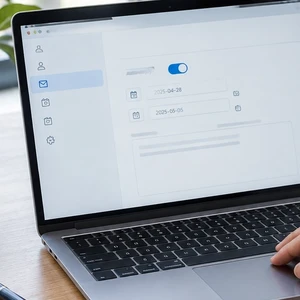 A helpful out of office message lets customers know when you’ll return and where they can get help meanwhile. It can protect your time away while giving people a clear next step.
The trick is keeping it useful, brief, and safe. You don’t need to explain where you’re going or share your plans. A few thoughtful details can help customers feel looked after, even when you’re not checking email.
What should your out of office message say?
Include the information someone needs to decide what to do next. That usually means:
- When you’ll be away: Give the first and last dates you’ll be unavailable.
- When you expect to return: Use a clear date, not just “soon.”
- What to expect: Say whether you’ll be away from email or checking it occasionally.
- Who can help: Name an approved colleague or team contact for urgent requests.
- What happens next: Let people know when you’ll follow up.
For example, a customer writing about a time-sensitive appointment needs more than a vague “I’m away.” They need to know whether to wait, call your office, or contact someone else.
Before naming a substitute, ask their permission. Confirm they’re available, know what they can handle, and are comfortable having their contact details shared. A helpful message should not create an unexpected pile of work for a colleague.
Set expectations about replies
Be honest about how often you’ll check email. If you plan to disconnect, say so. If you might check occasionally, explain that replies could take longer than usual.
Avoid promising that you’ll reply as soon as you return. Your inbox may have other plans for your first morning back. “I’ll respond as soon as I can after I return” is considerate without promising an unrealistic turnaround.
Automatic replies also don’t necessarily go out with every message a person sends. Their frequency depends on your email service and settings. Gmail, for example, generally replies the first time someone contacts you. The same sender may receive another reply after several days or after you edit the message.
So, don’t rely on repeated automatic replies to remind someone about an urgent issue. Give them a clear alternate contact in the original response.
What not to include
A vacation reply should reassure people about your availability, not announce your plans to the world. Avoid details such as your destination, travel dates beyond your absence, where you’re staying, or when your home will be empty.
You also don’t need to list personal reasons for being away. “I’m out of the office” is enough. Keep sensitive business details, private client information, and internal schedules out of a reply that may reach people you don’t know.
Be cautious about offering a personal phone number. Share one only if you genuinely want calls and have permission to use it for work. An alternate business email or main office number is often more appropriate.
Finally, skip jokes that might confuse customers. A light tone is fine, but people should still understand when you’ll return and how to reach help. Keep the message clear enough to work for a new customer, not just a friend who knows your sense of humor.
A simple template to adapt
Use this as a starting point. Replace the bracketed details, then read it once as if you were a customer.
Subject: Out of office until [return date]
Thanks for your message. I’m out of the office from [start date] through [end date] and expect to return on [return date]. I [won’t be checking email / will check email occasionally, so replies may be delayed].
For urgent help with [type of request], please contact [name or team] at [email address or business phone]. Otherwise, I’ll respond as soon as I can after I return.
Best,
[Your name]
Keep the alternate contact description specific. “Contact my colleague” makes the customer guess. “For scheduling help, contact Morgan at [business email]” gives them a practical next step.
If you don’t have someone covering your inbox, say so plainly. You might direct customers to a business phone line, a shared support address, or an online appointment form. Don’t list a route that nobody is monitoring.
How to set up your vacation reply
The labels differ among email services, but the basic process is similar:
- Open your email settings. Look for “Vacation responder,” “Automatic replies,” or “Out of office.”
- Set a start and end time. Check the time zone and confirm the end date matches your return plan.
- Add a clear subject and message. Use your template, then verify every date and contact detail.
- Choose who receives the reply. Some services let you limit replies to your contacts or organization.
- Save the settings. If the service offers a scheduled end date, use it.
- Test the setup. Send a message from another account and confirm the reply reads correctly.
For Gmail, Google’s vacation responder instructions explain how to switch it on, enter dates, write your message, and save changes. Gmail also displays a notice in your inbox while the responder is active.
For Outlook, Microsoft’s automatic reply instructions cover different versions of Outlook. Available settings can vary by account type. If you don’t see the same options, check your provider’s guidance rather than assuming the feature is missing.
When choosing whether to reply to people outside your organization, consider your audience. A broad setting might send replies to newsletters or unwanted messages, too. If your service offers a contacts-only option, decide whether that suits your business.
Don’t forget to turn it off
A scheduled end date is helpful, but make checking the autoresponder part of your return routine. Open the setting on your first day back and confirm it has stopped. If you return earlier or your plans change, update or disable it right away.
Then review any customer requests that came in while you were away. Your automatic reply told people what to expect; a timely follow-up helps complete the promise.
It’s also worth checking your message before each new vacation. An old return date or the wrong substitute contact can confuse customers. Calendar reminders are useful. Sticky notes on your monitor are less reliable, especially if you work away from that desk.
If you use an alias or shared business address, check which inbox controls its automatic replies. The setting may belong to a particular mailbox rather than every address customers use. Our guide to email forwarding explains why separate email features can behave differently. This is a quick reminder to check the right account, not a substitute for testing your autoresponder.
Keep the reply helpful and low-risk
A good vacation message is simple: give your dates, explain your availability, and point urgent requests to someone who can help. Leave travel plans and private details out of it.
Test the reply before you leave, and check that it switches off when you return. If customers tell you they never received your email, our guide explains why business emails can land in spam. A little preparation now can make your time away easier for you and your customers.
by Charles Oropallo | Nov 4, 2026 | Internet, Small Business, The CW Corner
 If you have wondered what is SEO, it means search engine optimization. It’s the work of making your website easier for search engines to understand and easier for people to find.
You do not need to be a web professional to understand the basics. Good SEO starts with useful information, clear organization, and a website that works well for visitors.
How do search engines find websites?
Search engines use automated programs to discover pages across the web. Those programs follow links, visit pages, and gather information about what each page contains.
Next, a search engine may store and organize information about a page. This process is called indexing. A page must generally be indexed before it can appear in search results.
When someone searches, the search engine looks for pages that seem relevant to the words and the person’s needs. Google explains this process in its guide to how Search works.
Think of a search engine like a huge library. It tries to find the most useful books for each question, even though it cannot read every page exactly like a person.
Why do some websites appear higher?
Search engines try to show helpful, relevant results. They consider many signals, including the words on a page, how clearly it answers a question, and how other pages refer to it.
Location can matter, too. Someone searching for a nearby dentist may see local businesses before websites serving an entire country.
There is no single switch that guarantees a top position. Search engines use many signals, and their systems change over time. A competitor may also have more relevant information or a stronger local presence.
Google’s SEO Starter Guide makes an important point: there are no secret tricks that guarantee first place. SEO helps search engines understand your site and helps visitors decide whether it answers their needs.
SEO and paid ads are different
SEO generally focuses on unpaid search results. Your website may appear because a search engine believes a page is relevant to someone’s query.
Paid search ads are placements businesses pay to run. They are usually marked as advertisements, and their visibility depends on campaign settings, competition, and relevance.
Paying for an advertisement does not buy a higher position in unpaid results. The two approaches can work alongside each other, but they serve different purposes.
An advertisement may help promote a timely offer. Useful website content and a complete local business listing can support ongoing visibility. Choose based on your goals and budget, not pressure from someone promising guaranteed rankings.
Practical SEO steps you can take
You can improve some important parts of your website without learning complicated technical skills. Start with the following steps.
1. Give each page a clear title
A page title should tell people what the page is about. It may appear as the clickable heading in search results and in a browser tab.
For example, “Services” tells visitors very little. “Heating Repair and Maintenance in Peterborough, New Hampshire” describes the page more clearly.
Make titles accurate and natural. Avoid repeating the same phrase over and over. Search engines and people both appreciate clarity.
2. Write useful information for real people
Ask what a potential customer needs to know before contacting you. Explain your services, service area, hours, and how people can get started.
A local electrician might describe the kinds of work they handle and the towns they serve. A health professional might explain appointment options and what new patients should expect.
Answer common questions in plain language. Keep pages organized with meaningful headings and short paragraphs. You do not need to publish a blog every week if your existing pages already explain your services well.
3. Keep your local listings accurate
If you serve a local area, claim and maintain your Google Business Profile. Check that your business name, contact details, hours, and service information are current.
Also review listings on relevant directories and local organization websites. Make sure your basic business details match across them. An outdated phone number can frustrate customers, even if your website looks excellent.
For more practical local guidance, see our article on local SEO tips for small businesses.
4. Make sure your website works on phones
Many people search while using a phone. Your pages should be easy to read without pinching and zooming. Menus, buttons, and contact details should be easy to find and use.
Try visiting your website on your own phone. Can you quickly understand what you offer? Can you tap your phone number or complete a form without frustration?
If the site is difficult to use, visitors may leave and look elsewhere. Ask your developer or hosting provider for help if basic pages do not display properly.
5. Use clear links and a simple structure
Organize your website so people can move between related pages. A visitor should be able to get from your homepage to services, contact information, and other useful details without hunting.
Descriptive links help, too. “See our repair services” tells readers more than “click here.” Clear organization makes your site easier for both visitors and search engines to understand.
6. Give it time, and be wary of promises
SEO is ongoing work, not an instant switch. Search engines need to discover and understand your pages. Results can also depend on your competition, location, and the information people are seeking.
Check your website periodically. Update outdated details, improve confusing pages, and listen to customer questions. Small, steady improvements are more sensible than chasing every new SEO trick.
Be cautious if someone promises a guaranteed first-place ranking or claims they have a secret connection to a search engine. Our article about SEO scams explains why pressure tactics deserve a careful look.
A secure, reliable website helps visitors, too
SEO is only one part of a useful website. Visitors also need to feel comfortable contacting you and using your pages.
A secure connection, reliable hosting, and regular maintenance support a better overall experience. If you are unsure what the browser’s padlock means, read what an SSL certificate does.
These basics do not guarantee better rankings. They do help make your website more dependable for people who find it.
Start with the basics
So, what is SEO? It is a practical way to help search engines understand your website and help people find useful information.
Start with clear page titles, helpful content, accurate local listings, and a site that works well on phones. Be patient, make improvements as you go, and avoid anyone selling guaranteed rankings.
You do not have to do everything at once. A clear, helpful website is a strong place to begin.










 European Union General Data Protection Regulation Compliant