by Charles Oropallo | Nov 13, 2026 | Do-It-Yourself, Small Business, Technical Help, The CW Corner, Web Hosting
 If your website is down, take a breath before changing anything. A calm first-hour checklist helps you gather useful facts and avoid turning one problem into several.
A site can appear down in different ways. You might see a blank white page, a server error, or a page that never finishes loading. Your browser might warn about the connection. Or the site may load for you but fail for a customer.
Those symptoms do not all point to the same cause. Your first job is not to guess the fix. It is to find out what is happening.
First, confirm the site is really down
Check the site using another device on a different network. For example, turn off your phone’s Wi-Fi and try mobile data. If possible, ask someone outside your office to check, too.
Try a second browser on your own device. Your internet connection, router, browser, or a local network filter can make a working site look unreachable. If the site loads elsewhere, that is an important clue.
Also check what the customer actually sees. Ask them for the page address and the exact message, rather than relying on “it’s broken.” A homepage may load while a form, booking page, or other important feature fails.
For now, confirm the problem from another connection before touching the website.
Read the message before clicking
Read the browser or server message carefully. Write down its exact wording, or take a screenshot that includes the address bar. Don’t click through a warning or dismiss an error before recording it.
A “500” style server error usually means the server received the request but failed while trying to handle it. The message alone may not tell you exactly why.
A “can’t be reached” or timeout message often points to a networking issue, the Domain Name System (DNS), or the server itself. DNS directs a domain name to the server that hosts the site.
A certificate warning is a different problem. An expired or incorrectly configured Secure Sockets Layer (SSL) certificate can trigger a browser warning, even when the server is responding. Don’t tell visitors to bypass that warning.
The wording helps your host or developer choose where to look first. It is much more useful than “my site is broken.”
Note when it started and what changed
Write down when you first noticed the problem. If you know when the site last worked, note that, too. Then ask yourself what changed shortly beforehand.
Possible clues include:
- A plugin or theme update.
- A new form or website feature.
- A hosting change or server move.
- A domain or DNS edit.
- A renewal that may have lapsed.
A recent change is often the first lead worth checking. This one note can save time, especially if someone else needs to investigate. Don’t try to undo every recent change at once.
Rule out simple administrative causes
Check the basics before assuming the website itself needs repair. These issues are often quick to confirm and easy to overlook during a stressful moment.
- Domain registration: Is the domain still registered and renewed? See our guide to what happens when your domain expires.
- SSL certificate: Is the certificate active and covering the address your customers use? Our article explains SSL certificates and the little padlock.
- Hosting account: Is there an unpaid invoice or account notice from your hosting provider?
- Host status: Has your provider posted a maintenance notice or reported a service interruption?
Check these items through the provider’s official website or account. Avoid following unexpected payment links in emails. A few basic checks can rule out straightforward causes before anyone changes website files.
If WordPress opens, look without changing anything
If you can reach your WordPress dashboard, take note of what you see. Does the dashboard load normally? Are there visible error notices? Does the problem affect the whole site or only certain pages?
If you have a staging copy, a developer may be able to check whether the site works with a default theme there. A staging copy is a separate version used for testing, away from the live business site.
Do not start deactivating plugins, reinstalling WordPress, or pasting code from a search result into a live site during an outage. Those steps can affect features, remove useful clues, or introduce new problems.
The WordPress guide to common errors explains several symptoms, including blank pages and server errors. WordPress also advises caution before making changes. Its debugging guide recommends using a staging environment or an appropriate backup before modifying a site.
If you are comfortable checking the dashboard, stick to observation. Leave changes to someone who understands the site and can protect its current state.
Know when to call your host or developer
Contact your host or developer when customers cannot use the site, the error persists across devices, or you see a certificate warning. Reach out sooner if your website handles appointments, inquiries, or other essential business tasks.
You do not need to diagnose the problem before asking for help. Send a short, useful report with:
- The exact error text or a screenshot.
- When the problem started, and when the site last worked.
- What changed shortly before the problem appeared.
- Whether the WordPress dashboard loads.
- Whether your business email still works.
- The best way to reach you.
That information gives the person investigating a useful starting point. “My site is broken” leaves them asking basic questions before they can begin.
If the outage follows a website change, mention that clearly. If you are unsure whether something changed, say so. Accurate uncertainty is more helpful than a confident guess.
Keep routine maintenance separate
A sudden outage needs triage, not an improvised maintenance session. Once the immediate issue is resolved, you can review your regular care plan separately. Our article on a website maintenance routine you will actually keep covers that different task.
For now, keep your notes, avoid risky live-site changes, and ask for help when the next step is unclear. That is a sensible response, not a failure to fix your own website.
A calm first hour can make the fix faster
A website outage is usually recoverable, especially when backups exist. The first hour is about gathering information, not performing heroics.
Confirm what is down, record what you see, check the simple administrative causes, and share the facts with your host or developer. Then let the right person investigate before making changes. Hopefully, this checklist helps you slow the moment down and get the repair moving.


by Charles Oropallo | Nov 12, 2026 | Do-It-Yourself, Internet, Security, Small Business, The CW Corner
 Public Wi-Fi safety matters whenever you connect at a coffee shop, airport, hotel, or other shared place. These networks are convenient, but you do not control who set them up or who else is connected. That calls for sensible caution, not panic.
The familiar warning that everyone nearby can automatically read everything you do is too broad. Modern websites and apps often encrypt their connections. Still, the network itself can create risks, and a convincing fake hotspot can fool you into connecting.
Here’s what to watch for, and how to make safer choices without giving up your coffee-shop table.
What can someone on public Wi-Fi see?
When you use an open or poorly secured network, other people may be able to observe some network activity. The risk is greater when a website or service sends information without encryption.
HTTPS (Hypertext Transfer Protocol Secure) encrypts the connection between your browser and the website you visit. That helps keep the contents of your connection private while they travel across the network. It is common on websites and in apps today.
But encryption is not a reason to stop paying attention. A network operator may still see some connection details, such as which online services your device contacts. And HTTPS cannot protect information you type into a fake website or sign-in page.
For a quick reminder about secure website connections, see our earlier article on SSL (Secure Sockets Layer). We’ll keep the details simple here: check the address and connection, and don’t ignore browser warnings.
Watch for fake look-alike hotspots
One realistic risk is a fake hotspot designed to look like the venue’s real network. It may use a similar name, a slightly different spelling, or a name suggesting “free Wi-Fi.” A stronger signal does not prove that a network is genuine.
Imagine sitting in an airport and seeing two networks with nearly identical names. You might choose the first one, connect, and see a sign-in page that looks familiar. If the network is controlled by someone else, that page could be designed to collect information.
Before connecting, ask staff for the exact network name and any instructions. Use the venue’s official signage as a helpful reference, but verify if anything looks unusual. Be wary of unexpected requests for passwords, payment details, or extra downloads just to get online.
A lock symbol beside a network name does not confirm that the network belongs to the business. It only indicates that a password or other protection is involved. Confirm the name with staff instead of guessing.
The Cybersecurity and Infrastructure Security Agency (CISA) describes fake “evil twin” hotspots and advises confirming a public network’s name before using it. Read its wireless network safety guidance.
Use a personal hotspot for sensitive tasks
When practical, use your phone’s cellular connection or personal hotspot for sensitive work. That can be a better choice for banking, payment tasks, business administration, account recovery, or handling private client information.
A personal hotspot uses your phone’s mobile data connection to provide internet access to your other device. It avoids the coffee shop’s shared Wi-Fi network, although it does not replace other good security habits. Use a strong hotspot password, and switch the hotspot off when you are finished.
If cellular service is weak or unavailable, pause and consider whether the task can wait. Reading a news story is different from changing the password for your business email. A little patience can be a worthwhile security measure.
Check the website before signing in
If you do use public Wi-Fi, check that important websites use HTTPS and that the web address is the one you intended to visit. A lock icon can indicate an encrypted connection, but it does not prove the website itself is genuine.
Look closely at the address before entering a password or payment information. A fake page can use a name that resembles a real business. If your browser shows a certificate or security warning, stop. Don’t click through just to make the warning go away.
When possible, avoid signing in to sensitive accounts on a shared network. If you must access one, use the official app or type the website address yourself. Do not rely on a link from an unexpected message or a pop-up from the Wi-Fi network.
Public Wi-Fi may also ask you to accept terms on a sign-in page, often called a captive portal. A basic access page can be normal. But be cautious if it asks for your email password, banking credentials, a one-time sign-in code, or an unexpected software installation. When in doubt, disconnect and ask venue staff.
For more help with spotting fraudulent messages and links, see our existing article about phishing. The key point here is simple: don’t hand over account details just because a page appeared after you connected.
Turn off automatic connections and file sharing
Your device may automatically join networks it has used before. That can be handy at home, but it can also lead your device to connect without you noticing.
Turn off automatic joining for public networks, or remove networks you no longer need. Then choose a network manually when you arrive. If a familiar network name appears in an unfamiliar place, verify it before connecting.
Also turn off file sharing and network discovery when using public Wi-Fi. These settings can make your computer visible to other devices nearby. CISA recommends disabling file sharing on public networks. You can enable it again when you return to a trusted network, if you need it.
Keep your phone, computer, browser, and apps updated. Updates fix known problems and help protect the device you carry between home, work, and public spaces. A screen lock also matters if someone can physically reach your device.
What does a VPN do?
A VPN (virtual private network) creates an encrypted connection between your device and a VPN service. Think of it as a protected tunnel through the shared network. It can make it harder for other people on that Wi-Fi network to observe your traffic.
A reputable VPN can be useful when you regularly use public Wi-Fi, especially for work. But it is not an invisibility cloak. The VPN service becomes part of your connection, and you still need HTTPS for the connection between the VPN service and the website.
A VPN also cannot make a fake sign-in page trustworthy. It will not protect you if you enter your password into a look-alike website or install a harmful app. Choose a VPN carefully, keep its app updated, and treat requests to install certificates or unfamiliar software as a reason to pause.
If you connect to public Wi-Fi often for business, ask your IT provider or support contact whether a VPN is appropriate for your work.
Keep your sign-in habits strong
Public Wi-Fi safety works best alongside the account protections you use everywhere else. Two-factor authentication (2FA) adds another sign-in check beyond your password. It can help if someone learns that password, though it cannot make a fake login page safe.
We recently covered authenticator apps and text codes. That article explains how those sign-in options differ. Use the protections available on your important accounts, especially email and business services.
A practical routine before you connect
Before joining a coffee-shop, airport, or hotel network, take a moment to:
- Ask staff to confirm the exact network name.
- Turn off automatic joining and file sharing.
- Use your phone’s hotspot for sensitive tasks when practical.
- Check the web address and HTTPS before signing in.
- Stop if you see a browser warning or an unusual portal request.
- Use a reputable VPN when appropriate, while continuing to check websites.
Public Wi-Fi is not automatically dangerous, and you do not need to treat every café like a spy movie. Just remember that a shared network is outside your control. Verify the hotspot, protect your device, and save sensitive work for a safer connection when you can.
by Charles Oropallo | Nov 11, 2026 | Do-It-Yourself, Internet, Passwords, Security, Small Business, The CW Corner
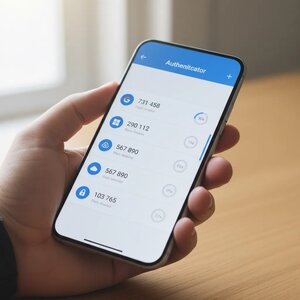
Authenticator apps vs. text codes is a practical security choice for your email, business website, and other important accounts. Both add a step beyond your password, but they protect that step differently. For most people, an authenticator app is safer than a code sent by text.
What is two-factor authentication?
Two-factor authentication (2FA) asks you to prove your identity in two different ways. Usually, you enter something you know, such as your password, and confirm something you have, such as your phone.
That extra check can help if someone steals or guesses your password. They may still need access to your phone or authenticator app before they can sign in.
Two-factor authentication is not a guarantee against every threat. It does make password-only access harder, which is a worthwhile improvement for important accounts.
How do text message codes work?
With short message service (SMS) verification, the website sends a temporary code to your phone number. You enter that code after your password to finish signing in.
It is familiar and usually easy to set up. But SMS depends on your phone number and mobile carrier, which creates some weaknesses.
- SIM swap scams: A scammer may trick your carrier into moving your number to a phone they control. This is called a subscriber identity module (SIM) swap. If successful, they may receive your login texts.
- Lost or unavailable phone: You may be unable to receive codes if your phone is lost, its battery is dead, or you have no service.
- Delayed or missing messages: Texts do not always arrive promptly. That can leave you waiting when you need access.
- Visible or accessible messages: A code might appear in a lock-screen notification. Depending on your settings and apps, messages may also be accessible in other places.
SMS codes are still better than using only a password in many situations. But they rely on a phone network and number that can be targeted or temporarily unavailable. The Cybersecurity and Infrastructure Security Agency (CISA) advises using text-based codes only as a last resort when stronger options are unavailable. See its multifactor authentication guidance.
How does an authenticator app work?
An authenticator app creates a temporary code on your phone or computer. During setup, the account and app share a secret, usually transferred by scanning a quick response (QR) code. The app uses that secret and the current time to create a six-digit code.
The code is generated locally, inside the app. Your phone does not need mobile service or an internet connection to display it. So, the code can still appear in airplane mode or where reception is poor.
You will generally need internet access to reach the website and complete sign-in. “Works offline” means the app can generate the code without a network connection. It does not mean you can sign in to an online service without internet access.
Unlike an SMS code, the authenticator code does not travel through your carrier’s text messaging system. A SIM swap alone does not give a scammer the secret stored in your authenticator app.
Which option is safer?
When you can choose between SMS and an authenticator app, an authenticator app is generally safer. Its code is not tied to your phone number, so a SIM swap will not automatically send your codes to someone else.
That does not make authenticator apps invulnerable. Someone who steals your password and tricks you into entering a current code on a fake sign-in page may still get access. Protect your device, check the website address, and do not share codes with anyone who contacts you unexpectedly.
Some accounts offer stronger sign-in methods, including passkeys. Passkeys can provide better protection against fake login pages. We explain how they work in Passkeys Explained: Signing In Without a Password.
How to set up an authenticator app
The steps vary a little by website, but the process is usually straightforward:
- Open the real website or app yourself. Avoid setup links in unexpected emails or text messages.
- Go to its security or sign-in settings. Look for an authenticator app, verification app, or two-step sign-in option.
- Choose the app option. The service should show a QR code and explain what to do next.
- Open your authenticator app and scan the code. Follow the service’s instructions, then enter the app’s current code to confirm setup.
- Save the recovery codes. Store them somewhere safe, such as a printed sheet in a secure place or a password manager you can access independently.
- Test your new sign-in. Sign out and sign in again while your existing method still works.
Do not photograph a recovery code casually or leave it beside your computer. Treat it like a spare key: anyone who gets it may be able to access your account.
Keep the old method available until you have tested the app and confirmed your recovery options. Then review the account’s settings. Some services keep SMS enabled as a fallback, even after you add an authenticator app.
What if you get a new phone?
Plan the move before you retire your old phone. Many authenticator apps have a way to transfer accounts, but the process varies by app.
Follow the app’s official transfer instructions while you can still use the old device. Add the authenticator to your new phone, test sign-in, and make sure your recovery codes are available. Only then remove the old device or erase it.
If your old phone is already gone, use the service’s recovery process. This is exactly why saving recovery codes during setup matters.
Keep the rest of your account secure
An authenticator app is software running on a device. The device could be lost, stolen, or compromised. Keep its operating system updated, use a secure screen lock, and review which notifications appear on your lock screen.
Your email recovery account matters, too. If someone can take over your email, they may be able to reset passwords elsewhere. Protect that inbox with a strong, unique password and two-factor sign-in. A password manager can help you keep unique passwords without memorizing every one.
A simple way to get started
You do not have to update every account today. Turn on two-factor authentication with whichever method a site offers first. Any extra sign-in check is generally better than relying on a password alone.
When you are ready, move your most important accounts to an authenticator app. Start with email, then consider banking, domain registration, website administration, and other accounts that could affect your business. Keep recovery details safe, and test each change before removing an older sign-in method.
For more on safer sign-ins, read Passkeys Explained: Signing In Without a Password and Password Managers: One Key for a Whole Ring of Locks.
by Charles Oropallo | Nov 10, 2026 | Do-It-Yourself, Internet, Security, Small Business, The CW Corner
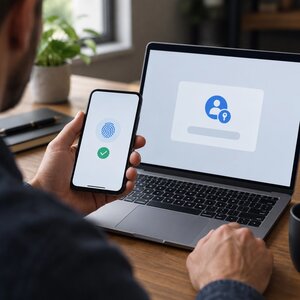 Yesterday, we explained how password managers help you avoid reused passwords and protect your accounts. Today, let’s look at passkeys, another way to make signing in simpler and safer.
A passkey lets you sign in without typing a password. You approve the login using your fingerprint, face, or device personal identification number (PIN). For many small-business owners, that can mean fewer passwords to remember and less risk from fake login pages.
Passkeys may sound technical, but using one is usually straightforward. Here’s what happens and what you should know before trying one.
What is a passkey?
A passkey is a digital credential that your device or password manager keeps for a specific website or app. You unlock it with the same method you use to unlock your device, such as a fingerprint, face scan, or PIN.
The security behind a passkey uses a pair of digital keys. One stays with your device or passkey provider. The website keeps the matching public key, which can confirm your sign-in but cannot sign you in by itself.
In everyday terms, think of the public key as a lock and the private key as the key that opens it. The website can check that your passkey fits, but it never receives the private key. There is no password sitting on the website’s server for a thief to steal.
Your fingerprint or face data also stays on your device. The website receives confirmation that you approved the sign-in, not your biometric information.
How does signing in work?
When a website supports passkeys, you may see an option to create one or sign in with one. The exact wording varies. You might see “Passkey,” “Sign in with your fingerprint,” or “Sign in with your face.”
The usual steps are simple:
- Visit the real website or open its app.
- Choose the passkey sign-in option, or select the passkey saved for that account.
- Approve the request using your fingerprint, face, or device PIN.
Your device then completes the secure exchange with the website. You do not have to type or remember a password for that sign-in.
Why do passkeys help resist phishing?
Phishing is when someone tries to trick you into giving away information, often through a fake email, text, or website. A lookalike sign-in page may fool someone into typing a password. A passkey is designed to work only with the genuine website it belongs to.
For example, suppose a message directs you to a fake business email login page. Your passkey for the real email service will not provide the fake page with a usable login credential. The passkey checks the website’s identity as part of the sign-in process.
That is a major difference from a password, which you can accidentally type into the wrong page. Still, passkeys do not make every device or account risk-free. Keep your devices updated, secure your accounts, and treat unexpected login prompts carefully.
For more help spotting suspicious messages and links, see our post on rampant phishing.
Where are passkeys stored?
Passkeys may be stored in the built-in accounts and services you already use. Apple, Google, and Windows offer ways to manage passkeys within their ecosystems. Some password managers can store passkeys, too.
A passkey may be synchronized across your devices through the account or manager that stores it. For instance, a passkey saved through a provider may become available on another phone or computer signed in to the same provider.
Other passkeys are saved only on one device. These are often called device-bound passkeys. They do not sync elsewhere, so losing that device can make access more difficult unless you have another sign-in or recovery option.
Before creating one, notice which account or service will store it. You may need access to that account when setting up a replacement device.
What happens when you get a new phone or computer?
If your passkey syncs through an account, setting up the same account on a new device may make the passkey available there. Follow the provider’s instructions and complete any identity checks it requires.
If your passkey exists only on your old device, you may need to use the website’s recovery process or another sign-in method. Some sites let you add more than one passkey, which can help avoid relying on a single device.
You may also be able to sign in on a computer using a nearby phone. Choose an option such as “use a passkey from another device.” The computer may show a quick response (QR) code for your phone to scan. Approve the sign-in on your phone, and it can confirm your identity without moving the passkey onto the computer.
A QR code is not a backup passkey. It is simply a way for your phone to approve a sign-in on a nearby device.
Are passkeys the same as two-factor authentication?
A passkey generally replaces the familiar password-plus-code sign-in. You have the device holding or accessing the passkey, then prove it is you using a fingerprint, face, or PIN. Together, these steps make up the sign-in.
However, websites handle passkeys differently. Some may still ask for a password, an additional code, or another check in certain situations. Follow the instructions shown by the service, and do not assume every passkey login works exactly the same way.
If you want to understand the technology behind passkeys, the FIDO Alliance’s passkeys guide offers more detail. FIDO means Fast IDentity Online, the organization behind standards used for passkey sign-ins.
What are the limits?
Passkeys are useful, but they are not a perfect fit for every situation.
- Shared computers can be awkward. A passkey on your personal phone may be more convenient than saving a credential on a computer used by several people.
- Recovery depends on the service. Check what happens if your phone is lost, your passkey provider account is unavailable, or you change platforms.
- Email recovery matters. Many accounts use your email address to help restore access. Keep that inbox secure and make sure its recovery options are current.
- Some sites still require passwords. A service may offer passkeys for some sign-ins while keeping passwords for other steps or recovery.
For a small business, consider who controls the accounts used for email, banking, domain registration, and website administration. Make sure those accounts have sensible recovery arrangements, not just a sign-in method that works today.
How to start using passkeys
You do not need to switch every account at once. Start with an important account that offers passkeys and has a recovery process you understand.
Your email account is a practical place to begin because it can be used to recover access to other services. Open the official website or app yourself, then look under security or sign-in settings. Search for “passkey,” “passkeys,” or an option to sign in with your fingerprint or face.
Create the passkey, then test it while your existing sign-in method still works. Sign out and try signing in again. Check that your other devices and recovery options are ready, too.
Do not delete your password or remove another sign-in method until the passkey works reliably. A little overlap while you test is much less frustrating than getting locked out.
Passkeys can make everyday sign-ins easier while making phishing attempts harder to pull off. Start with one important account, learn how its recovery works, and add more when you feel comfortable.
For a related look at password managers, read Password Managers: One Key for a Whole Ring of Locks. Used together where appropriate, these tools can help you take better care of your online accounts.
by Charles Oropallo | Nov 9, 2026 | Do-It-Yourself, Passwords, Security, Small Business, The CW Corner
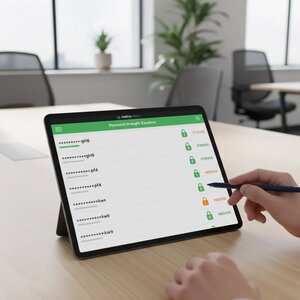
Password managers can make safer online habits much easier. Instead of trying to remember every login, you remember one strong master passphrase. The manager creates and stores different passwords for your other accounts. That can help protect your email, banking, business website, and everyday online services.
The trouble with reused passwords
Remembering passwords can feel like a chore. It is tempting to use one familiar password everywhere, then add a number when a website asks for a change. Unfortunately, that convenience can create a chain reaction.
If one website is breached, criminals may try the exposed password on other sites. They often test email, banking, shopping, and social accounts. If the same password works in several places, one stolen login may put many accounts at risk.
Weak passwords have a similar problem. A pet’s name, a favorite team, or a simple keyboard pattern may be easy to guess. Personal details can also be available through public profiles or other online sources.
The real challenge is not that you have many accounts. It is making sure one account’s password cannot unlock the rest. Unique passwords help break that chain.
What a password manager actually does
Think of a password manager as a locked digital key ring. It stores your logins in a protected vault and helps you use the right one when you visit a website or app.
Most managers can also generate passwords for you. These can be long, random, and different for each account. You do not need to memorize a jumble of letters and symbols. The manager remembers it for you.
You unlock the vault with a master password or passphrase. That is the one you need to know by heart. Depending on the product, the manager may also fill in login details through a browser extension or mobile app.
Some products synchronize your vault across devices. That means you can access it on your computer and phone, rather than relying on a single device. Check how a manager stores and synchronizes your information before choosing one.
How to choose a manager
Choose carefully, because the vault protects access to many accounts. There is no need to pick the first app you see in an advertisement. Look for a product with a trustworthy track record and clear information about its security and recovery options.
Consider these features:
- A reputation you can check. Read independent reviews and look for clear, current information about security practices.
- Cross-device access. Confirm it works on the computers and phones you actually use.
- Browser integration. A browser extension can make logins easier. Make sure it comes from the manager’s official website or app store.
- Synchronization details. Understand how your vault stays available across devices and what happens if you lose access.
- Recovery options. Learn whether the provider can help restore access, and what information that process requires.
A browser extension can also help you notice when a login page is unfamiliar. Still, pause before entering details, especially when you arrived through an unexpected email link. A password manager cannot make every phishing page safe.
The U.S. Cybersecurity and Infrastructure Security Agency recommends password managers as a way to create and manage unique passwords. You can read its guidance on strong passwords.
Make the master passphrase memorable and private
Your master passphrase protects the vault, so it deserves special attention. Make it long and difficult for someone else to guess. A few unrelated words can be easier to remember than a short, complicated string.
Do not reuse a password from another account. Do not use a familiar quotation or personal detail that someone could guess. And do not share the passphrase in email, messages, or with people who do not need access.
You might be tempted to write it on a sticky note. We understand the temptation, but a note beside your computer is not a great security plan. If you need a backup, follow the manager’s guidance and keep recovery information somewhere protected and separate from your everyday devices.
Turn on two-factor authentication, too
A strong master passphrase is important, but it should not be your only safeguard. Turn on two-factor authentication for the password manager if it is available. This requires another proof of identity, such as an approval from an authenticator app or security key.
Use two-factor authentication on your important email, banking, domain, and website accounts as well. Your email account deserves special attention because it may receive password-reset links for other services.
This extra step can help protect an account if someone learns your password. It is not a reason to relax about suspicious links or unexpected login requests. Verify those independently.
Switch over gradually
You do not need to update every account in one sitting. Begin with accounts that could unlock other accounts or cause serious problems if someone accessed them.
A practical order might be:
- Secure your email. Set a unique password and enable two-factor authentication.
- Update banking and payment accounts. Give each one its own generated password.
- Protect your business website and hosting logins. Include your domain registrar and other services that control your online presence.
- Work through the rest of your accounts. Update them when you sign in or have a few quiet minutes.
For each account, open the real website or app yourself. Sign in, change the old password, and save the new one in your manager. Avoid following password-change links from unexpected messages.
Some accounts may have unusual password rules. If a generated password is rejected, adjust the manager’s settings and try again. Do not solve the problem by reusing an old password everywhere.
As you move accounts, check for duplicate or outdated entries in the vault. Remove entries only when you are sure you no longer need them. A slow, orderly switch is much better than a rushed afternoon of login confusion.
What if you forget the master passphrase?
This is the part to understand before you begin. Depending on the manager’s design and your recovery settings, forgetting the master passphrase could mean losing access to the vault. Some providers may be unable to reset it or restore the information inside.
Read the provider’s recovery instructions while you still have access. If it offers recovery codes or another recovery method, learn how that works. Store any recovery information in a protected location, separate from the vault and the devices it protects.
Do not assume that support can recover everything. Strong protection can mean the provider cannot read your saved passwords. That privacy benefit may also limit what support can do if you lose the master passphrase.
Consider how you would recover access before filling the vault. Set up available recovery options, keep your devices updated, and make sure your recovery email account is secure. A little planning now can prevent a very frustrating surprise later.
Safer than sticky notes or password reuse
No tool removes every risk. A password manager still needs a strong master passphrase, secure devices, and sensible recovery planning. It is also wise to install updates and pay attention to account security alerts.
Even so, using a manager is generally safer than repeating one password across important accounts. It is also safer than leaving login details on a note beside your screen. The manager helps you use unique passwords without expecting you to memorize them all.
For a small-business owner, this can make website, email, and payment access easier to manage responsibly. For everyday users, it means fewer reused passwords and less guesswork at sign-in. Start with your most important accounts, then keep going at a comfortable pace.
For more practical security advice, see our posts on passwords and best practices for mitigating website hacks. You may also find our article about phishing attacks helpful. Hopefully this tip makes your online key ring easier to manage, and a lot less likely to be a sticky note.










 European Union General Data Protection Regulation Compliant