
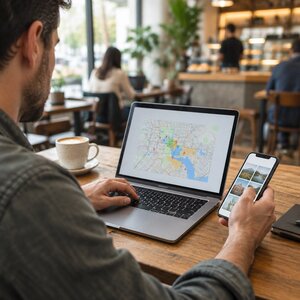
 Public Wi-Fi safety matters whenever you connect at a coffee shop, airport, hotel, or other shared place. These networks are convenient, but you do not control who set them up or who else is connected. That calls for sensible caution, not panic.
The familiar warning that everyone nearby can automatically read everything you do is too broad. Modern websites and apps often encrypt their connections. Still, the network itself can create risks, and a convincing fake hotspot can fool you into connecting.
Here’s what to watch for, and how to make safer choices without giving up your coffee-shop table.
What can someone on public Wi-Fi see?
When you use an open or poorly secured network, other people may be able to observe some network activity. The risk is greater when a website or service sends information without encryption.
HTTPS (Hypertext Transfer Protocol Secure) encrypts the connection between your browser and the website you visit. That helps keep the contents of your connection private while they travel across the network. It is common on websites and in apps today.
But encryption is not a reason to stop paying attention. A network operator may still see some connection details, such as which online services your device contacts. And HTTPS cannot protect information you type into a fake website or sign-in page.
For a quick reminder about secure website connections, see our earlier article on SSL (Secure Sockets Layer). We’ll keep the details simple here: check the address and connection, and don’t ignore browser warnings.
Watch for fake look-alike hotspots
One realistic risk is a fake hotspot designed to look like the venue’s real network. It may use a similar name, a slightly different spelling, or a name suggesting “free Wi-Fi.” A stronger signal does not prove that a network is genuine.
Imagine sitting in an airport and seeing two networks with nearly identical names. You might choose the first one, connect, and see a sign-in page that looks familiar. If the network is controlled by someone else, that page could be designed to collect information.
Before connecting, ask staff for the exact network name and any instructions. Use the venue’s official signage as a helpful reference, but verify if anything looks unusual. Be wary of unexpected requests for passwords, payment details, or extra downloads just to get online.
A lock symbol beside a network name does not confirm that the network belongs to the business. It only indicates that a password or other protection is involved. Confirm the name with staff instead of guessing.
The Cybersecurity and Infrastructure Security Agency (CISA) describes fake “evil twin” hotspots and advises confirming a public network’s name before using it. Read its wireless network safety guidance.
Use a personal hotspot for sensitive tasks
When practical, use your phone’s cellular connection or personal hotspot for sensitive work. That can be a better choice for banking, payment tasks, business administration, account recovery, or handling private client information.
A personal hotspot uses your phone’s mobile data connection to provide internet access to your other device. It avoids the coffee shop’s shared Wi-Fi network, although it does not replace other good security habits. Use a strong hotspot password, and switch the hotspot off when you are finished.
If cellular service is weak or unavailable, pause and consider whether the task can wait. Reading a news story is different from changing the password for your business email. A little patience can be a worthwhile security measure.
Check the website before signing in
If you do use public Wi-Fi, check that important websites use HTTPS and that the web address is the one you intended to visit. A lock icon can indicate an encrypted connection, but it does not prove the website itself is genuine.
Look closely at the address before entering a password or payment information. A fake page can use a name that resembles a real business. If your browser shows a certificate or security warning, stop. Don’t click through just to make the warning go away.
When possible, avoid signing in to sensitive accounts on a shared network. If you must access one, use the official app or type the website address yourself. Do not rely on a link from an unexpected message or a pop-up from the Wi-Fi network.
Public Wi-Fi may also ask you to accept terms on a sign-in page, often called a captive portal. A basic access page can be normal. But be cautious if it asks for your email password, banking credentials, a one-time sign-in code, or an unexpected software installation. When in doubt, disconnect and ask venue staff.
For more help with spotting fraudulent messages and links, see our existing article about phishing. The key point here is simple: don’t hand over account details just because a page appeared after you connected.
Turn off automatic connections and file sharing
Your device may automatically join networks it has used before. That can be handy at home, but it can also lead your device to connect without you noticing.
Turn off automatic joining for public networks, or remove networks you no longer need. Then choose a network manually when you arrive. If a familiar network name appears in an unfamiliar place, verify it before connecting.
Also turn off file sharing and network discovery when using public Wi-Fi. These settings can make your computer visible to other devices nearby. CISA recommends disabling file sharing on public networks. You can enable it again when you return to a trusted network, if you need it.
Keep your phone, computer, browser, and apps updated. Updates fix known problems and help protect the device you carry between home, work, and public spaces. A screen lock also matters if someone can physically reach your device.
What does a VPN do?
A VPN (virtual private network) creates an encrypted connection between your device and a VPN service. Think of it as a protected tunnel through the shared network. It can make it harder for other people on that Wi-Fi network to observe your traffic.
A reputable VPN can be useful when you regularly use public Wi-Fi, especially for work. But it is not an invisibility cloak. The VPN service becomes part of your connection, and you still need HTTPS for the connection between the VPN service and the website.
A VPN also cannot make a fake sign-in page trustworthy. It will not protect you if you enter your password into a look-alike website or install a harmful app. Choose a VPN carefully, keep its app updated, and treat requests to install certificates or unfamiliar software as a reason to pause.
If you connect to public Wi-Fi often for business, ask your IT provider or support contact whether a VPN is appropriate for your work.
Keep your sign-in habits strong
Public Wi-Fi safety works best alongside the account protections you use everywhere else. Two-factor authentication (2FA) adds another sign-in check beyond your password. It can help if someone learns that password, though it cannot make a fake login page safe.
We recently covered authenticator apps and text codes. That article explains how those sign-in options differ. Use the protections available on your important accounts, especially email and business services.
A practical routine before you connect
Before joining a coffee-shop, airport, or hotel network, take a moment to:
- Ask staff to confirm the exact network name.
- Turn off automatic joining and file sharing.
- Use your phone’s hotspot for sensitive tasks when practical.
- Check the web address and HTTPS before signing in.
- Stop if you see a browser warning or an unusual portal request.
- Use a reputable VPN when appropriate, while continuing to check websites.
Public Wi-Fi is not automatically dangerous, and you do not need to treat every café like a spy movie. Just remember that a shared network is outside your control. Verify the hotspot, protect your device, and save sensitive work for a safer connection when you can.










 European Union General Data Protection Regulation Compliant