
The CW Corner – Webmail vs. Email Client: Which Should You Use for Your Business Email?
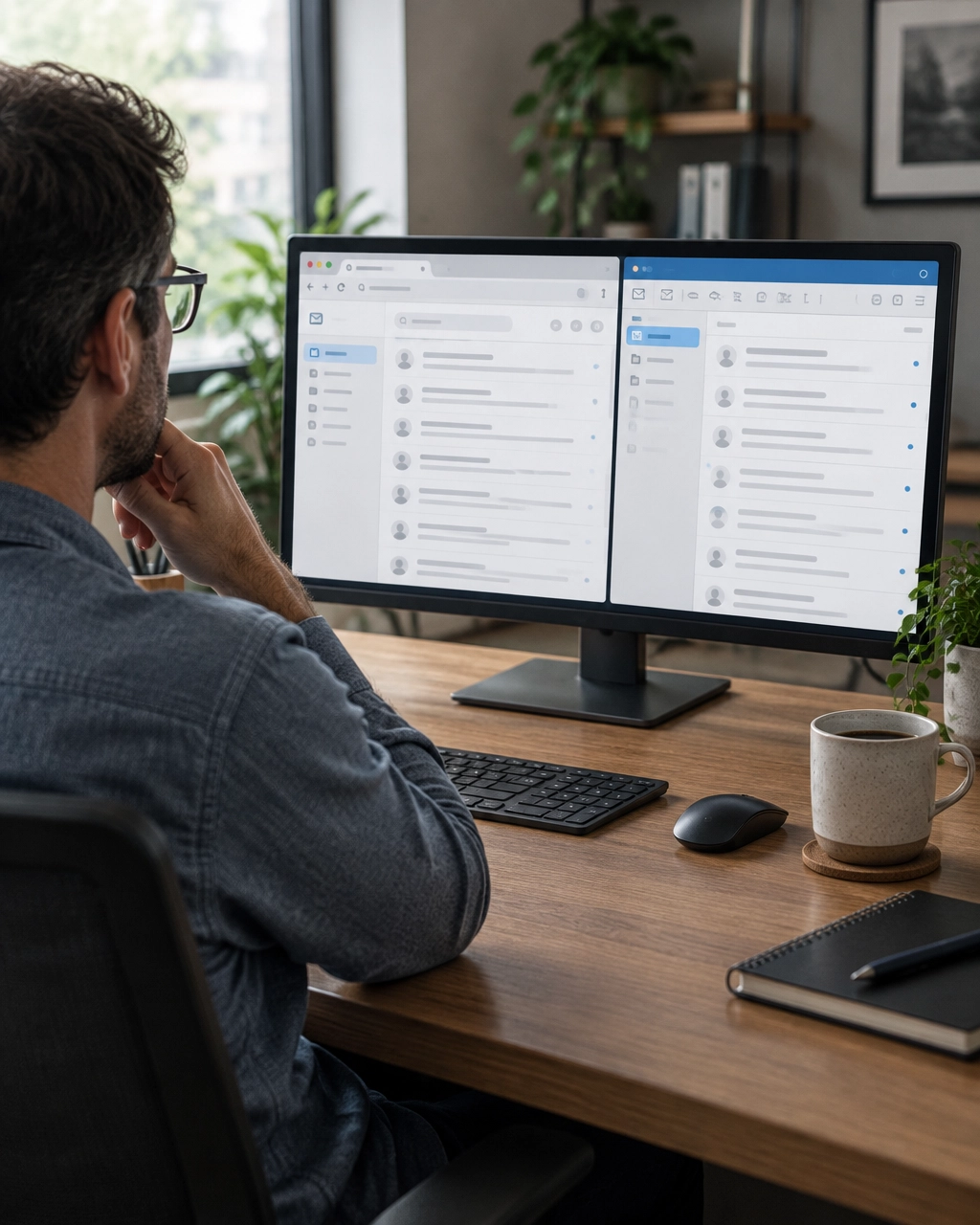 Webmail vs email client is a choice you face when reading business email on your own domain. Webmail opens in a browser, while an email client is an app such as Outlook, Apple Mail, or Thunderbird. Both can access the same mailbox. The best option depends on where you work and how you want to manage messages.
What is webmail?
Webmail lets you sign in to your email account through a browser. Your hosting provider may give you a webmail link or a portal, such as Roundcube.
You generally don’t need to install or configure anything. Open the link, enter your email address and password, and read or send messages. That makes webmail a practical starting point, especially on a borrowed computer or a new device.
Your mailbox stays on the email provider’s server. The browser is simply the window you use to access it. You can usually sign in from different devices with an internet connection.
The trade-off is that browser-based webmail may not notify you reliably when new messages arrive. You might need to keep a tab open, allow browser notifications, or remember to check manually. If you close the browser and move on, the inbox may not call your attention.
What is an email client?
An email client is a program or app installed on your computer or phone. Outlook, Apple Mail, and Thunderbird are familiar examples.
Once the account is set up, the app connects to your provider’s mail server. It can collect new messages, send replies, and display notifications. Many clients also keep a local copy of messages, so you can read previously downloaded email when offline.
The setup takes more effort. You may need to enter your incoming and outgoing server names, username, password, and security settings. Your host supplies these details. A typo or mismatched setting can prevent sending or receiving.
For background on how mail apps connect, see Microsoft’s explanation of IMAP and POP and Apple’s Mail settings guidance.
Webmail or an app: which is easier?
If you want to start reading email without setting up software, try webmail. It’s usually the simplest way to confirm that your address and password work.
An app may suit you better if you spend much of your day in one program, want notifications, or need to read older messages without an internet connection. Keep in mind that offline access only includes messages already saved on your device. You’ll need an internet connection to receive new mail or send queued messages.
There’s no need to treat this as a permanent decision. You can use webmail and an email app at the same time. Switching between them is safe and reversible. Just choose the right connection type if you want messages and folders to stay consistent across devices.
Choose IMAP for multiple devices
When setting up an email client, you may be asked to choose between IMAP and POP3.
IMAP (Internet Message Access Protocol) keeps messages on the mail server and synchronizes your mailbox across devices. If you read a message on your phone, it can show as read on your computer, too. Folders and other changes can stay in sync.
If you check business email on a phone and a computer, IMAP is usually the sensible choice. It helps avoid the “I thought I replied to that” moment caused by different devices showing different inboxes.
POP3 (Post Office Protocol version 3) typically downloads messages to one device. Depending on its settings, the app may remove downloaded messages from the server. That can make those messages unavailable through webmail or another device.
POP3 can work for a deliberate, single-device setup. But it generally isn’t the best fit when you want the same inbox on several devices. For more details, read Thunderbird’s guide to IMAP and POP.
Setting up an email app
Your hosting provider gives you the account details needed for setup. These may include incoming and outgoing server names, your username, and required security settings.
The incoming server handles messages you receive. The outgoing server uses SMTP (Simple Mail Transfer Protocol) to send your messages. Enter the information exactly as your provider gives it to you.
Here’s a helpful setup routine:
- Ask your host for the current email setup instructions.
- Choose IMAP if you want to use the account on multiple devices.
- Enter the server names, username, and other required details.
- Match the security options to your provider’s instructions.
- Send a test message, then check your inbox and sent folder.
Don’t guess at server names or security settings. Different hosting companies can use different configurations. If automatic setup fails, your provider can confirm the correct details.
What to check when email stops working
If your app suddenly stops sending or receiving, start by signing in to webmail. If webmail works, your mailbox is likely reachable, and the issue may be in the app’s settings or connection.
Check the app’s incoming and outgoing server names, username, password, and security settings against your provider’s instructions. Also confirm that the app is online and not holding messages in an Outbox.
If webmail also fails, check that you’re using the right address and password. Look in your spam or junk folder for messages that seem missing. Check for a full-mailbox warning, too. Delete or archive older messages when appropriate, and save important items before clearing anything.
If mail still doesn’t arrive, contact your hosting provider. They may be able to check the mail queue or server logs for delivery information. These details can help distinguish a mailbox problem from an app problem.
Keep your business email protected
Use a strong, unique password for your email account. Turn on two-factor authentication if your provider offers it. This adds another verification step when you sign in.
Never send passwords in plain-text email. An inbox can be forwarded, accessed on several devices, or exposed if an account is compromised. Share account details only through a secure method recommended by your provider.
Also back up messages or attachments you can’t afford to lose. Synchronization is useful, but it is not the same as a separate backup. Keep important records somewhere secure and accessible to your business.
A practical place to start
For a beginner, webmail is often the easiest first step. Sign in and confirm that your mailbox works. When you’re ready for notifications or offline reading, set up an email client using your host’s instructions.
If the app has trouble, test webmail before changing settings. When webmail works and the app doesn’t, that’s a useful clue: the problem is likely in the app configuration.
The CharlesWorks Corner handles email services for clients, including help with account setup and troubleshooting. Visit cwcorner.com to learn more. Start with the access method that feels comfortable, and change it later if your work habits change.










 European Union General Data Protection Regulation Compliant