
The CW Corner – What Your Hosting Control Panel Actually Does
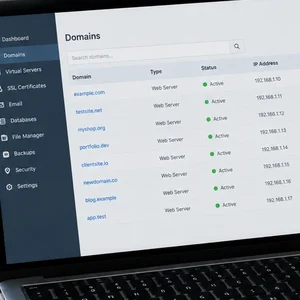 A hosting control panel helps manage the behind-the-scenes services that keep your website and domain working. If you have hosting but rarely open the panel, you may wonder what it’s for. The short answer: it puts important hosting settings in one place. The CharlesWorks uses Virtualmin for hosting control. You don’t need to become a server expert, but knowing what the panel does can help you ask useful questions and spot issues sooner.
Think of it as the building’s utility room
Your website is what visitors see. Hosting is the space and services that make it available online. A control panel is a management interface for those services.
It isn’t usually where you write pages or choose colors. Instead, it helps an authorized user manage the hosting account, email services, storage, backups, and usage. Think of it like a building’s utility room: you may not visit every day, but it’s helpful to know what’s there.
The panel can look technical, and some settings can affect how your website or email works. You don’t need to change anything just to take a look. Start by understanding what each area is for.
Domains and virtual servers
A control panel such as Virtualmin can organize hosting into virtual servers. In plain language, a virtual server is a separate hosting space for a domain. It can hold the website and related services associated with that domain.
For example, a business might have one domain for its main website and another for a separate project. The hosting administrator can manage those as distinct virtual servers. Each space can have its own settings and resources.
The arrangement can vary. Some domains may share a hosting space or be configured as aliases, depending on the setup. So “one per domain” is a useful general idea, not a rule for every account.
This separation helps keep unrelated websites and services organized. It can also make it clearer which account owns a particular setting or resource. Your developer or hosting provider can explain how your domains are arranged.
Email accounts and aliases
A hosting control panel can also be used to create and manage email accounts associated with a domain. For example, an administrator might set up info@example.com or a named mailbox for a staff member.
The panel can manage email aliases, too. An alias is an additional address associated with an existing email account. It can give customers another familiar address to contact, without necessarily creating another separate mailbox.
Some panels also provide settings for spam filtering. An administrator may be able to adjust whether filtering is enabled or change how strictly messages are assessed. Those settings can affect what gets through, so it’s worth asking your provider before changing them.
If you want to add an address or adjust a filter, check how your organization handles email first. A quick conversation can prevent a small change from creating a confusing problem.
Backups: settings worth understanding
A control panel may provide options for scheduling automatic backups. A backup is a saved copy of website or account data that may help restore information after an error or other disruption.
Depending on the setup, a backup can include website files, databases, and selected account settings. It may be stored on the same server or sent to a separate, remote location. These options matter because a copy stored beside the original could be affected by the same hardware problem.
Here are sensible questions to ask your hosting provider:
- What information is included in the backup?
- Where are backup copies stored?
- How often are backups made?
- Who can access them?
- What is the process for restoring data?
Seeing a schedule in a control panel is useful, but it doesn’t confirm that every backup contains everything you expect. Ask your provider to explain the arrangement and restoration process. For more about our hosting services, visit The CharlesWorks Corner or browse our web hosting articles.
Disk space and traffic
Your hosting account uses disk space to store items such as website files, databases, and email data. A panel may show how much storage the account is using and whether it is approaching a limit.
That information can help you notice growth before it becomes urgent. For instance, a business adding staff, product photos, or new website features may use more storage over time.
The panel may also report traffic or bandwidth. These terms describe data moving between your website and visitors’ devices. A busy website with many images or downloads can use more data than a small informational site.
Usage figures are useful context, not a reason to panic over every change. If a graph rises unexpectedly, ask your developer or host to interpret it. They can help distinguish normal growth from an issue that needs attention.
Why take a look if your developer handles the site?
Your developer may manage the technical settings for you, and that can be a sensible arrangement. Still, a periodic look at your hosting account can help you understand what services are connected to your domain.
You might confirm which domains are hosted, which email accounts exist, or where usage information appears. You can also learn whom to contact when you need a change. That basic familiarity can save time when a staff member joins or a new project launches.
Just remember that a control panel may include settings that affect more than one service. Changing an unfamiliar option can interrupt a website or email. Looking is not the same as editing. If you’re unsure, ask before clicking the button that sounds important.
A calm, practical check-in
You don’t need to inspect every setting. Instead, use a simple check-in when your business changes or when you speak with your hosting provider:
- Confirm the domains. Ask which domains and websites are managed in the account.
- Review email accounts. Check whether the listed addresses still match your current team and needs.
- Ask about backups. Confirm what is saved, where it is stored, and how restoration works.
- Notice storage and traffic. Learn where the panel shows usage, and ask about unusual changes.
- Leave unfamiliar settings alone. Get guidance before changing mail, backup, or hosting options.
This isn’t a technical exam. It’s a way to stay informed about services your business depends on.
The panel is a tool, not a test
A hosting control panel brings many behind-the-scenes tasks into one interface. It can organize virtual servers, manage email accounts and aliases, provide spam-filtering settings, schedule backups, and show storage or traffic usage.
You don’t have to manage all of that yourself. Your hosting provider or developer can handle the technical work. But knowing what the panel does helps you understand your hosting, ask clearer questions, and make informed decisions.
The best approach is simple: take a look, learn where key information lives, and ask for help before changing settings. That’s enough to make the control panel feel less mysterious.










 European Union General Data Protection Regulation Compliant