by Charles Oropallo | Jul 23, 2025 | Do-It-Yourself, Security, The CW Corner, Website Development, WordPress
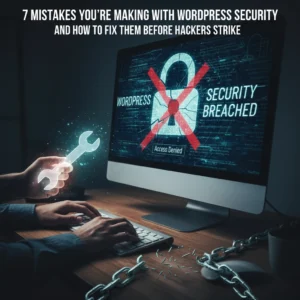 WordPress powers over 40% of all websites on the internet. That popularity makes it a prime target for hackers. Every day, thousands of WordPress sites get compromised because owners make simple security mistakes.
The good news? Most of these mistakes are easy to fix. You don’t need to be a security expert to protect your website. You just need to know what you’re doing wrong and how to fix it.
Let’s dive into the seven biggest WordPress security mistakes and their solutions.
Mistake #1: Ignoring Updates (The Silent Site Killer)
Here’s the harsh truth: 97% of WordPress security problems come from plugins. Yet only 30% of WordPress users have auto-updates enabled.
Think about it this way. When developers find a security hole, they release an update to fix it. The longer you wait to update, the more time hackers have to exploit that known weakness.
How to Fix It:
Enable automatic updates for WordPress core, plugins, and themes. Most hosting providers offer this feature in their control panels. If yours doesn’t, consider switching to a managed WordPress host.
Check your plugins weekly. Delete any you’re not using. Inactive plugins can still be exploited by hackers.
Set calendar reminders if auto-updates aren’t available. Manual updates beat no updates every time.
Pro Tip: Create a staging site to test updates before they go live. This prevents your main site from breaking during updates.
Mistake #2: Using Weak Passwords and Predictable Usernames
“admin” with password “password123” isn’t clever. It’s dangerous. 41% of WordPress users still use weak passwords or skip two-factor authentication entirely.
Hackers use bots that test thousands of password combinations per minute. A weak password like “ADMIN123” gets cracked in seconds.
How to Fix It:
Create strong passwords with at least 12 characters. Mix uppercase, lowercase, numbers, and special characters.
Never use “admin” as your username. Choose something unique that doesn’t relate to your business name.
Use a password manager like 1Password or Bitwarden. They generate complex passwords and store them securely.
Change default usernames immediately. If you already have an “admin” account, create a new administrator account with a different username, then delete the old one.
Quick Check: Can you guess your password by looking at your keyboard or personal information? If yes, change it now.
Mistake #3: Skipping Two-Factor Authentication (Your Security Backup Plan)
Passwords alone aren’t enough anymore. Even strong passwords can be compromised through data breaches or phishing attacks.
Two-Factor Authentication (2FA) adds a second layer of protection. Even if hackers get your password, they still need your phone or authentication app to get in.
How to Fix It:
Install a 2FA plugin like Wordfence or Google Authenticator for WordPress.
Set up 2FA for all user accounts, especially administrators and editors.
Use an authenticator app instead of SMS when possible. Apps like Google Authenticator or Authy are more secure than text messages.
Test your 2FA setup regularly. Make sure you can access backup codes if you lose your phone.
Remember: 2FA might seem inconvenient, but it’s much less inconvenient than rebuilding your hacked website.
Mistake #4: Forgetting to Back Up Your Website
“My hosting company handles backups.” Famous last words from website owners who lost everything.
Hosting backups might not include all your files. They might be stored on the same server that gets hacked. Or they might be overwritten before you realize you need them.
How to Fix It:
Set up automated daily backups that include your entire website and database.
Store backups in multiple locations. Use cloud services like Google Drive, Dropbox, or Amazon S3.
Test your backup restoration process monthly. A backup that doesn’t restore is useless.
Keep at least 30 days of backup history. Sometimes you don’t notice problems immediately.
Use plugins like UpdraftPlus or BackWPup for automated scheduling.
Reality Check: When did you last check if your backups actually work? If you can’t answer that, check today.
Mistake #5: Installing Themes and Plugins from Sketchy Sources
Free premium themes and plugins sound tempting. But they often come with hidden malware or backdoors that give hackers access to your site.
Even legitimate-looking themes can contain malicious code that steals user data or redirects visitors to scam sites.
How to Fix It:
Only download themes and plugins from the official WordPress repository or established developers.
Check ratings and reviews before installing anything. Look for recent updates and active support.
Research the developer. Do they have other plugins? A professional website? Good reviews?
Scan new themes and plugins with security tools before activation.
Delete unused plugins immediately. Don’t just deactivate them: remove them completely.
Warning Sign: If a “premium” theme or plugin is offered free on a random website, it’s probably infected with malware.
Mistake #6: Ignoring File Permissions (The Technical Blind Spot)
File permissions control who can access what on your server. Wrong permissions can let hackers read sensitive files or upload malicious code.
Most WordPress users never check their file permissions. They assume their hosting provider set them correctly. That’s a dangerous assumption.
How to Fix It:
Set correct file permissions: 755 for directories and 644 for files.
Never use 777 permissions unless absolutely necessary (and change them back immediately after).
Protect your wp-config.php file with 600 permissions.
Work with your hosting provider to audit permissions if you’re unsure.
Use security plugins that monitor and alert you about permission changes.
Technical Note: If file permissions sound too complex, ask your web developer or hosting support to check them for you.
Mistake #7: No Security Monitoring (Flying Blind)
Many WordPress owners only discover they’ve been hacked when visitors complain or Google flags their site. By then, the damage is done.
Hackers often work silently, stealing data or using your site to attack others. You need active monitoring to catch problems early.
How to Fix It:
Install security monitoring plugins like Wordfence, Sucuri, or iThemes Security.
Set up email alerts for suspicious login attempts, file changes, or malware detection.
Monitor your website traffic for unusual spikes or patterns.
Check your site regularly from different devices and browsers.
Use Google Search Console to monitor for security warnings.
Pro Tip: Set up uptime monitoring to alert you immediately if your site goes down. Services like UptimeRobot offer free basic monitoring.
Taking Action: Your Security Checklist
Security isn’t a one-time task. It’s an ongoing process. Here’s your priority order for fixing these mistakes:
- Enable automatic updates immediately – This fixes your biggest vulnerability right now
- Change weak passwords and usernames – Use a password manager to make this easy
- Set up 2FA on all accounts – Add that crucial second layer of protection
- Configure automated backups – Your safety net for when things go wrong
- Audit your plugins and themes – Remove anything suspicious or unused
- Check file permissions – Get help if this feels too technical
- Install security monitoring – Your early warning system
Don’t try to fix everything at once. Start with automatic updates and work down the list. Each step makes your site significantly more secure.
Remember: The best time to secure your WordPress site was yesterday. The second-best time is right now.
Need help implementing these security measures? Our team specializes in WordPress security and can audit your site for vulnerabilities. Contact us for a security consultation that could save your website from becoming another hacking statistic.


by Charles Oropallo | Jun 14, 2025 | Email, Security, The CW Corner
Here’s the uncomfortable truth: your business emails probably aren’t as private as you think. If you’re using Gmail, Yahoo, or Outlook for sensitive communications, you’re essentially trading your privacy for convenience. Most people assume their emails are protected, but the reality is far more concerning.
Think about what’s connected to your email accounts. Banking notifications, client contracts, internal discussions, vendor communications, all flowing through systems that treat your messages as data to be analyzed and monetized.
Why Your “Private” Email Isn’t Actually Private
Most popular email services scan your inbox content, track your behavior, and monetize your data. This practice is buried in lengthy terms of service that few people read. Gmail, for instance, lacks end-to-end encryption and actively analyzes user data for targeted advertising.
Here’s what actually happens to your emails:
- Content gets scanned for advertising insights
- Metadata gets collected and stored indefinitely
- Behavioral patterns get tracked across services
- Your data becomes a product to be sold
The global Email Encryption market jumped from $11.9 billion in 2024 to a projected $36.2 billion by 2030. That’s not coincidence, it’s people waking up to privacy reality.
What Real Email Privacy Actually Looks Like
True email privacy requires specific technical safeguards that most providers simply don’t offer. Here’s what genuinely private email includes:
Zero-access encryption means even your email provider can’t read your messages. Your emails get encrypted directly on your device before transmission. Only the intended recipient can decrypt them.
No data mining ensures your communications can’t be sold or analyzed for advertising. Your messages remain yours alone.
Secure signup processes keep your account creation details private. No sharing with third parties or cross-platform tracking.
Disposable addresses let you create temporary email addresses for specific purposes. This reduces your digital footprint and protects your primary inbox from spam.
The Growing Threat Landscape Targeting Your Business
Email security in 2025 is deteriorating rapidly. Cyber criminals send an estimated 3.4 billion malicious emails daily. That’s not a typo: billion with a ‘B’. And 87% of security professionals report their organizations encountered AI-driven cyber attacks in the last year.
Business Email Compromise (BEC) attacks represent the biggest threat to your bottom line. These attacks accounted for 73% of all reported cyber incidents in 2024. Even small companies face serious risk: businesses with fewer than 1,000 employees have a 70% weekly probability of experiencing at least one BEC attack.
The financial damage is staggering. BEC attacks cost an average of $4.89 million per incident. The average wire transfer request in a BEC attack was $24,586 at the start of 2025. Among organizations working with Managed Service Providers, one in five lost money through BEC attacks over the previous 12 months.
Specific Threats Targeting Your Inbox Right Now
Phishing remains the top concern for IT leaders, with 47% ranking it as their primary worry. Approximately 66% of phishing attempts target organizational resources using credential theft and fake billing documents. The remaining 34% go after personal information, particularly financial data.
Microsoft 365 users face heightened risk. A concerning 79% of M365 users experienced cyber incidents in 2025. In healthcare specifically, 52% of breaches now occur on Microsoft 365: up from 43% in 2024.
Pretexting attacks nearly doubled in frequency last year. These sophisticated impersonation tactics fool employees into believing they’re communicating with trusted executives or partners. Attackers research their targets extensively before striking.
Small businesses get hit hardest because they often lack dedicated IT security staff. For every 323 emails a small business receives, one contains malware or phishing attempts.
For more specific guidance on email security measures, check out our detailed guide at The CW Corner Email Security.
What Email Security Protocols Actually Protect
Proper email security establishes three fundamental protections that work together:
Confidentiality ensures only intended recipients can read your email content. This involves encryption during transmission and storage.
Integrity guarantees your message arrives exactly as you sent it. No tampering or modification occurs during delivery.
Authenticity proves emails actually come from their claimed sender. This prevents spoofing and impersonation attacks.
Organizations implementing comprehensive email security protocols experience 70% fewer successful email-based attacks compared to those with minimal protections. The investment pays for itself quickly when you consider the average cost of a single breach.
Taking Action: What You Can Do Today
Don’t wait for a security incident to force your hand. Here are immediate steps you can take:
Evaluate your current email provider honestly. If you’re using free services for business communications, you’re accepting significant privacy and security risks.
Implement multi-factor authentication on all email accounts immediately. This single step prevents most credential-based attacks.
Train your team to recognize phishing attempts and BEC tactics. 95% of security leaders expect to encounter email security problems this year: preparation matters.
Consider encrypted email services for sensitive communications. The cost is minimal compared to potential breach expenses.
Establish clear protocols for financial requests and vendor communications. Verify all wire transfer requests through separate communication channels.
The Bottom Line on Email Privacy and Security
In 2025, assuming your emails are private or secure without taking specific action is dangerous. The old trade of convenience for privacy is no longer acceptable when cyber threats evolve at unprecedented speed.
Privacy-focused email services with end-to-end encryption, combined with proper security awareness training and technical controls, aren’t luxuries: they’re business necessities. Whether you’re a solo entrepreneur or managing a team, your email security directly impacts your financial security.
The question isn’t whether you need to worry about email privacy and security. The question is whether you’re willing to take action before becoming another statistic. Start with one improvement today, then build from there. Your future self will thank you for taking email security seriously now rather than learning its importance the hard way.
For more security guidance and web development insights, visit us at The CharlesWorks Corner. Don’t risk potential losses when practical solutions exist.
by Charles Oropallo | May 17, 2025 | Internet, Scams, Security, The CW Corner
 Cybercriminals are getting smarter every day. They’re not just sending those obvious “Nigerian Prince” emails anymore. Today’s scammers use sophisticated tactics that can fool even tech-savvy people.
Let’s break down the three main types of social engineering attacks you need to know about. We’ll cover phishing, smishing, and vishing – plus some sneaky new tricks that emerged in 2025.
What’s the Difference Between Phishing, Smishing, and Vishing?
Think of these three methods as different doors criminals use to break into your digital life. Each one targets a different communication channel you use every day.
Phishing happens through email and fake websites. Scammers impersonate trusted companies like your bank or Amazon. They’ll send urgent messages claiming your account needs immediate attention. The goal? Get you to click malicious links or download infected attachments.
Smishing uses text messages and messaging apps like WhatsApp. These texts often claim your package is delayed or your account is compromised. They include suspicious links that steal your information when clicked.
Vishing involves phone calls or voicemails. Scammers pretend to be from your bank, tech support, or government agencies. They use high-pressure tactics to make you reveal passwords or account numbers over the phone.
How Phishing Really Works (It’s More Clever Than You Think)
Modern phishing emails look incredibly convincing. Scammers copy official logos, use proper grammar, and mirror legitimate company websites perfectly.
Here’s a real example: You receive an email from “PayPal” saying someone tried to access your account. The email looks authentic, complete with PayPal’s logo and formatting. It includes a link to “verify your identity.”
But when you click that link, you land on a fake PayPal login page. The moment you enter your credentials, criminals capture them. Within minutes, they’re accessing your real PayPal account.
The scary part? These fake websites often use HTTPS encryption, so you’ll see that “secure” lock icon in your browser. Don’t let that fool you – criminals can get SSL certificates too.
Smishing: Why Text Message Scams Work So Well
People trust text messages more than emails. We’re conditioned to respond quickly to texts, especially ones that seem urgent.
Smishing attacks often use shortened URLs like bit.ly links. These hide the real destination, making it impossible to see where you’re actually going. The messages create artificial urgency: “Your package will be returned if you don’t respond in 24 hours!”
Here’s what makes smishing particularly dangerous: Most people don’t have security software on their phones like they do on computers. This makes mobile devices easier targets for malicious websites and downloads.
Think about how many important accounts are linked to your phone number. Your bank, email, social media – they all send verification codes via text. Criminals know this and exploit it ruthlessly.
Vishing: The Human Touch That Breaks Down Your Defenses
Voice phishing feels the most personal and urgent. There’s something about hearing another person’s voice that makes threats feel real and immediate.
Skilled vishers study their targets beforehand. They might know your name, where you bank, or recent purchases you’ve made. This inside knowledge makes their calls incredibly convincing.
Caller ID spoofing makes these calls appear to come from legitimate numbers. Your phone might display your bank’s actual customer service line, even though the call is coming from a criminal’s burner phone.
The pressure tactics are intense. They’ll claim your account has been compromised and you need to verify information “right now” to prevent further damage. They might transfer you between different “departments” to make the scam feel more authentic.
The New Tricks Criminals Started Using in 2025
Artificial Intelligence changed the game completely. AI-powered phishing creates personalized messages that perfectly mimic your colleagues’ or friends’ writing styles. These aren’t generic scam emails – they’re tailored specifically for you.
Clone Phishing takes emails you’ve actually received before and creates malicious copies. Remember that legitimate email from your bank last month? Criminals recreate it exactly, but replace the links with dangerous ones. Since you recognize the format, you’re more likely to trust it.
Business Email Compromise (BEC) targets companies by impersonating executives. An employee receives an email that appears to come from their CEO, requesting an urgent wire transfer or asking for sensitive customer data. These attacks often don’t include any attachments – they rely purely on social manipulation.
Deepfake voice technology now lets criminals clone someone’s voice from just a few minutes of audio. They might call pretending to be your boss, using AI-generated speech that sounds exactly like them.
Red Flags That Scream “This Is a Scam”
Your gut instinct is often right. If something feels off, it probably is. Here are specific warning signs to watch for:
Urgent language designed to bypass your critical thinking. Phrases like “immediate action required,” “account will be closed,” or “respond within 24 hours” are huge red flags.
Requests for sensitive information through email or text. Legitimate companies never ask for passwords, Social Security numbers, or account details this way. They already have this information.
Generic greetings like “Dear Customer” instead of using your actual name. Real companies typically address you personally in important communications.
Shortened URLs or suspicious links. Hover over any link before clicking to see where it actually goes. Be especially wary of URLs with random characters or unfamiliar domains.
Grammar and spelling mistakes in messages from “professional” organizations. While scammers have gotten better at this, many still make obvious errors.
Your Defense Strategy: Simple Steps That Actually Work
For email phishing: Never click links in suspicious emails. Instead, go directly to the company’s website by typing their URL into your browser. If the issue is real, you’ll see it when you log into your account normally.
For smishing: Don’t click text message links from unknown numbers. If the message claims to be from a company you do business with, use their official app or website instead.
For vishing: Hang up and call back using the official number from the company’s website. Real representatives won’t mind you verifying their identity this way.
Enable two-factor authentication (2FA) on all important accounts. Even if criminals steal your password, they won’t be able to access your accounts without the second verification step.
Keep your software updated. This includes your operating system, web browser, and antivirus programs. Updates often fix security vulnerabilities that criminals exploit.
When in Doubt, Verify Through a Different Channel
Here’s the golden rule: If someone contacts you claiming there’s a problem, verify it independently. Don’t use the contact information they provide – look it up yourself.
Call your bank using the number on your debit card. Log into your accounts directly rather than clicking email links. Check with IT before responding to urgent requests from “executives.”
This simple habit will protect you from 99% of social engineering attacks. Criminals count on you responding immediately without thinking it through.
Protecting Your Business and Family
Share this information with your employees and family members. Cybercriminals often target less tech-savvy individuals to get access to business networks or family finances.
Create a family or workplace policy: Never give out sensitive information over the phone or via email without verification. Make it clear that taking time to verify suspicious requests is always acceptable.
Consider using a password manager and teaching others to do the same. This makes it much harder for criminals to access multiple accounts even if they steal one password.
Remember, you don’t have to become a cybersecurity expert to stay safe. Following these basic guidelines and trusting your instincts will keep you ahead of most scammers.
If you’re concerned about your business’s email security or need help implementing better protection policies, our email security consulting services can help you create a comprehensive defense strategy.
The key is staying informed and remaining skeptical of unsolicited contacts asking for information or immediate action. When criminals can’t pressure you into quick decisions, their tactics usually fail.
by Charles Oropallo | Jan 17, 2025 | Security, Technical Help, The CW Corner, Web Hosting
Recently, I encountered an issue while attempting to renew an SSL certificate for one of my domains, (let’s call it) testdomain.com, using Let’s Encrypt on a server running Virtualmin on Debian 12. The process was more complicated than I expected due to a small oversight that many others could easily make. This article details my experience, the errors I encountered due to Let’s Encrypt rate limits (which I didn’t know existed), and steps to avoid or resolve such issues.
The Problem: Let’s Encrypt Rate Limits for Failed Authorizations
 A padlock that shows with an encrypted site using https in some browsers.
Let’s Encrypt provides free SSL certificates for securing websites. However, it enforces rate limits to ensure fair usage and prevent abuse. While attempting to renew the SSL certificate for testdomain.com, I discovered that the DNS settings were not pointed to my server, causing repeated failed validation attempts. By the time I fixed the DNS settings, I had hit Let’s Encrypt’s rate limit for failed authorizations.
This limit restricts requests for the same domain to 5 failed attempts per hour. Once you hit this limit, you must wait for the cooldown period to expire before trying again.
How the Error Appeared in Virtualmin
In the Virtualmin interface, I attempted to renew the certificate by navigating to:
- Virtualmin > Server Configuration > SSL Certificate
- Clicking on the Let’s Encrypt tab
- Ensuring the domain and subdomain (e.g.,
testdomain.com and www.testdomain.com) were selected
- Clicking the Request Certificate button
The renewal process failed with an error that Virtualmin reported as “an unknown issue.” Upon further investigation, I found the detailed error logs in the Let’s Encrypt log file located at:
/var/log/letsencrypt/letsencrypt.log
From the log, I saw this message:
urn:ietf:params:acme:error:rateLimited :: There were too many requests of a given type :: too many failed authorizations (5) for "testdomain.com" in the last 1h0m0s, retry after [time].
Understanding Let’s Encrypt Rate Limits
Let’s Encrypt enforces several types of rate limits. Here are the key ones:
- Failed Validation Limit:
- 5 failed validations per domain per hour.
- This applies to any validation failure, such as DNS misconfigurations or inaccessible
.well-known/acme-challenge directories.
- Duplicate Certificate Limit:
- 5 identical certificates per week.
- If you request the same set of domains repeatedly, you’ll hit this limit.
- Certificates per Registered Domain:
- 50 certificates per registered domain per week.
- All subdomains count toward this limit.
- Account-Level Requests:
- 50 certificates per account per week.
These limits are described in detail at Let’s Encrypt’s rate limit documentation.
Diagnosing the Problem
If you encounter a similar issue, here are the steps to diagnose and resolve it:
1. Check DNS Settings
- Ensure the domain’s DNS A records correctly point to your server.
- Use tools like
dig or online DNS propagation checkers to verify.
2. Verify Webroot Accessibility
3. Examine Let’s Encrypt Logs
4. Check Cooldown Period
- If you’ve hit the rate limit, the log will indicate a
Retry-After time in UTC. Convert it to your local timezone to determine when you can retry.
5. Dry Run Your Request
Steps to Avoid Future Issues
1. Ensure DNS Settings Before Requesting Certificates
- Double-check that DNS records point to the correct server and have propagated globally before initiating an SSL request.
2. Test Webroot Configuration
- Verify that the
.well-known/acme-challenge/ directory is accessible for all domains you’re requesting.
3. Use the Dry-Run Option
- Always test with
--dry-run before making a live request to avoid hitting limits.
4. Automate Renewals
- Virtualmin and Certbot support automated renewals. Ensure the cron job is configured correctly and DNS remains stable.
5. Avoid Forcing Duplicate Requests
- Options like
--duplicate and --force-renewal can lead to unnecessary requests. Only use them when absolutely necessary.
Conclusion
Hitting Let’s Encrypt’s rate limits can be frustrating, but understanding the causes and solutions can save time and effort. By checking DNS settings, verifying webroot accessibility, and using dry runs, you can prevent failed authorizations and avoid cooldown periods.
If you’re using Virtualmin, remember to check the Let’s Encrypt logs for detailed error messages, and plan your certificate renewals carefully to stay within the rate limits. Hopefully, my experience with testdomain.com helps you navigate and prevent similar issues.
As always, proactive testing and attention to detail go a long way in maintaining a secure and smoothly running server.
by Charles Oropallo | Oct 18, 2024 | Do-It-Yourself, Security, Technical Help, The CW Corner, Web Hosting
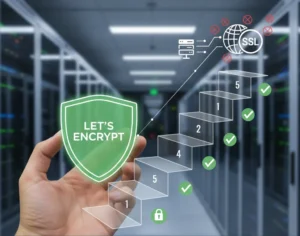 If you secure many sites with free Let’s Encrypt SSL, you may hit a wall. Suddenly, certificate requests stop cold. One day everything works. The next, you see rate-limit errors and wonder what happened.
Here’s the thing. Let’s Encrypt secures over 350 million websites with free SSL. To keep things stable and safe, they enforce strict rate limits. These limits can surprise even seasoned developers. They bite hardest when securing many domains or subdomains at once.
Understanding these limits prevents headaches. It also keeps your sites secure and your business running. I’ll explain what the limits mean. I’ll share five practical steps to avoid SSL issues before they happen.
What Are Let’s Encrypt Rate Limits?
Think of Let’s Encrypt rate limits like a busy restaurant. It can serve only so many guests each hour. They are not there to hassle you. They ensure fair access and protect the system.
The key limit is 50 certificates per registered domain every 7 days. “Registered domain” means your eTLD+1, or main domain. If you own example.com, all subdomains share that weekly pool. That includes www, blog, and shop subdomains.
That’s not the only limit. You get 5 failed validation attempts per domain per hour. Repeated failures trigger a temporary lockout. Common causes include DNS or firewall issues. There’s also a duplicate certificate limit of 5 per week. Renewals do not count against the 50-certificate quota.
Account creation is limited too: 10 accounts per IP every 3 hours. This prevents abuse through mass accounts. It can also affect legitimate teams that need several accounts.
Step 1: Use Wildcard Certificates for Multiple Subdomains
Here’s your first defense against rate limits. Use a single wildcard certificate, not many subdomain certificates. One wildcard covers all subdomains under your domain.
A wildcard for *.example.com secures www, blog, shop, and new subdomains. You issue only one certificate. This slashes issuance volume and stays within Let’s Encrypt limits.
Even better, a single certificate can list up to 100 domains. Managing many brands? Combine domains into fewer certificates. One cert can cover yourcompany.com, .net, and .org.
Look at your setup. Are you requesting one certificate per subdomain? If so, you burn limits quickly. Switching to wildcard certificates is often the top fix.
Step 2: Test in the Staging Environment First
Before deploying live, test in Let’s Encrypt’s staging environment. It’s a safe practice kitchen. Mistakes don’t affect customers.
Staging has relaxed limits: 50 new registrations per IP per 3 hours. Production allows only 10. Use staging to test SSL, fix DNS, and refine deployment.
Many teams skip this step in a rush to go live. That’s when rate-limit problems strike. You issue, it fails, you retry, and hit five failures. Now you must wait.
Follow this rule. Do not issue a production certificate until staging succeeds. Spend 15 extra minutes. It could save days later.
Step 3: Implement Protective Safeguards
Smart hosting platforms add safeguards to prevent runaway certificate requests. You should do the same.
Many platforms lock SSL provisioning after three failures. They stop before Let’s Encrypt’s limit of five. That buffer prevents retry loops and protects weekly limits.
If you manage SSL yourself, add similar safeguards. Monitor requests per domain and per week. Create alerts near the limits. Add automatic delays between retries.
Do not rely on manual steps. SSL issues feel urgent, and pressure creates mistakes. Automation removes human error in Let’s Encrypt rate-limit management.
Step 4: Monitor and Space Out Certificate Requests
If you manage many sites or a SaaS, timing matters. Be strategic with certificate requests. Avoid securing everything at once.
Let’s Encrypt allows 10 certificates per IP every three hours. Migrating dozens at once? Pace your requests. Spread them over days, not one afternoon.
Keep detailed logs of issuance times and domains. This is essential for weekly limits. Know exact counts for each domain over seven days before requesting more.
Use a spreadsheet or database to track issuance dates, renewals, and limit usage. Seeing requests visually helps avoid accidental Let’s Encrypt limit hits.
Step 5: Fix Root Causes Before Retrying Failed Requests
This might be the most important step. When provisioning fails, do not retry immediately. The seven-day window also tracks failed attempts per domain.
Instead, find and fix the root cause. Common causes include DNS mistakes, blocked HTTP validation, or domain verification issues. Retrying without fixes only wastes your limits.
Some common issues to check when certificates fail:
- DNS records pointing to the correct IP address
- Firewall rules allowing HTTP validation on port 80
- Web server configuration properly handling validation requests
- Domain ownership verification working correctly
Follow this rule of thumb. Wait at least an hour between failures. Do not retry until you fix the specific problem. Many providers recommend this. It prevents accidental lockouts.
What Happens When You Hit Rate Limits
Despite your best efforts, you may still hit limits. When it happens, wait for the window to reset. The main certificate limit resets after seven days.
While you wait, consider alternatives. Issue wildcard certificates where missing. Consolidate domains into fewer certificates. For critical needs, consider a commercial CA as a temporary last resort.
Most important, learn from the incident. Review what happened. Update processes to prevent repeats. Confirm your safeguards work properly.
Remember, Let’s Encrypt rate limits keep the service stable for everyone. Follow the five steps. Use wildcards. Test in staging. Add safeguards. Monitor usage. Fix root causes early.
The key is proactive planning, not reactive troubleshooting. With preparation, you can keep sites secure without hitting these limits.
by Charles Oropallo | Aug 23, 2024 | Do-It-Yourself, Security, Technical Help, The CW Corner, WordPress
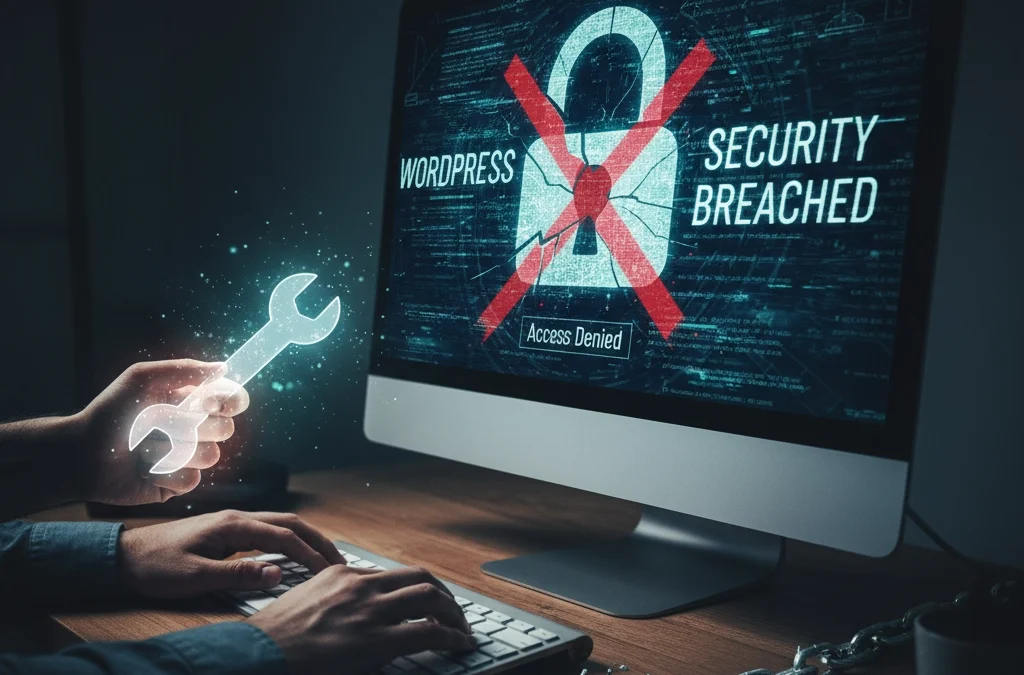
WordPress powers over 40% of all websites on the internet. That popularity makes it a prime target for hackers. Every day, thousands of WordPress sites get compromised because owners make simple security mistakes.
The good news? Most of these mistakes are easy to fix. You don’t need to be a security expert to protect your website. You just need to know what you’re doing wrong and how to fix it.
Let’s dive into the seven biggest WordPress security mistakes and their solutions.
Mistake #1: Ignoring Updates (The Silent Site Killer)
Here’s the harsh truth: 97% of WordPress security problems come from plugins. Yet only 30% of WordPress users have auto-updates enabled.
Think about it this way. When developers find a security hole, they release an update to fix it. The longer you wait to update, the more time hackers have to exploit that known weakness.

How to Fix It:
Enable automatic updates for WordPress core, plugins, and themes. Most hosting providers offer this feature in their control panels. If yours doesn’t, consider switching to a managed WordPress host.
Check your plugins weekly. Delete any you’re not using. Inactive plugins can still be exploited by hackers.
Set calendar reminders if auto-updates aren’t available. Manual updates beat no updates every time.
Pro Tip: Create a staging site to test updates before they go live. This prevents your main site from breaking during updates.
Mistake #2: Using Weak Passwords and Predictable Usernames
“admin” with password “password123” isn’t clever. It’s dangerous. 41% of WordPress users still use weak passwords or skip two-factor authentication entirely.
Hackers use bots that test thousands of password combinations per minute. A weak password like “ADMIN123” gets cracked in seconds.
How to Fix It:
Create strong passwords with at least 12 characters. Mix uppercase, lowercase, numbers, and special characters.
Never use “admin” as your username. Choose something unique that doesn’t relate to your business name.
Use a password manager like 1Password or Bitwarden. They generate complex passwords and store them securely.
Change default usernames immediately. If you already have an “admin” account, create a new administrator account with a different username, then delete the old one.
Quick Check: Can you guess your password by looking at your keyboard or personal information? If yes, change it now.
Mistake #3: Skipping Two-Factor Authentication (Your Security Backup Plan)
Passwords alone aren’t enough anymore. Even strong passwords can be compromised through data breaches or phishing attacks.
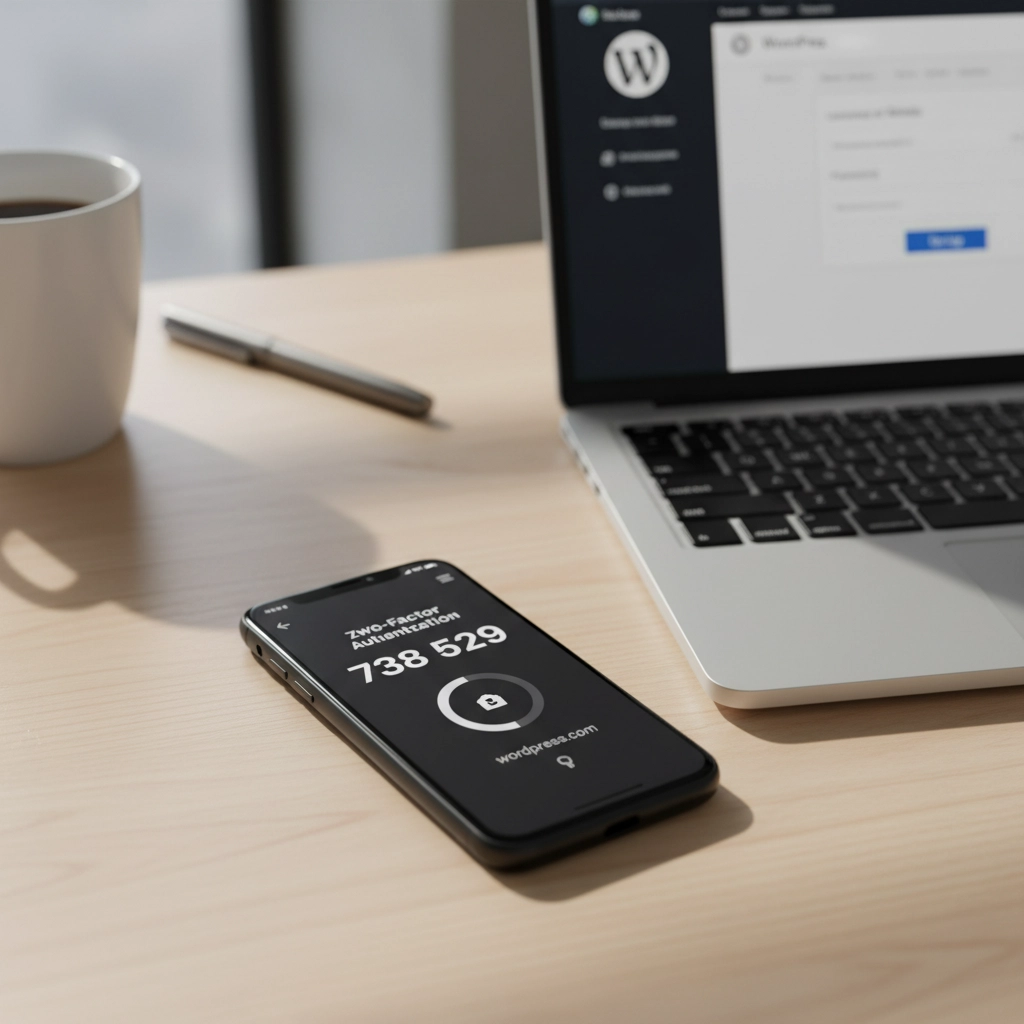
Two-Factor Authentication (2FA) adds a second layer of protection. Even if hackers get your password, they still need your phone or authentication app to get in.
How to Fix It:
Install a 2FA plugin like Wordfence or Google Authenticator for WordPress.
Set up 2FA for all user accounts, especially administrators and editors.
Use an authenticator app instead of SMS when possible. Apps like Google Authenticator or Authy are more secure than text messages.
Test your 2FA setup regularly. Make sure you can access backup codes if you lose your phone.
Remember: 2FA might seem inconvenient, but it’s much less inconvenient than rebuilding your hacked website.
Mistake #4: Forgetting to Back Up Your Website
“My hosting company handles backups.” Famous last words from website owners who lost everything.
Hosting backups might not include all your files. They might be stored on the same server that gets hacked. Or they might be overwritten before you realize you need them.
How to Fix It:
Set up automated daily backups that include your entire website and database.
Store backups in multiple locations. Use cloud services like Google Drive, Dropbox, or Amazon S3.
Test your backup restoration process monthly. A backup that doesn’t restore is useless.
Keep at least 30 days of backup history. Sometimes you don’t notice problems immediately.
Use plugins like UpdraftPlus or BackWPup for automated scheduling.
Reality Check: When did you last check if your backups actually work? If you can’t answer that, check today.
Mistake #5: Installing Themes and Plugins from Sketchy Sources
Free premium themes and plugins sound tempting. But they often come with hidden malware or backdoors that give hackers access to your site.
Even legitimate-looking themes can contain malicious code that steals user data or redirects visitors to scam sites.

How to Fix It:
Only download themes and plugins from the official WordPress repository or established developers.
Check ratings and reviews before installing anything. Look for recent updates and active support.
Research the developer. Do they have other plugins? A professional website? Good reviews?
Scan new themes and plugins with security tools before activation.
Delete unused plugins immediately. Don’t just deactivate them: remove them completely.
Warning Sign: If a “premium” theme or plugin is offered free on a random website, it’s probably infected with malware.
Mistake #6: Ignoring File Permissions (The Technical Blind Spot)
File permissions control who can access what on your server. Wrong permissions can let hackers read sensitive files or upload malicious code.
Most WordPress users never check their file permissions. They assume their hosting provider set them correctly. That’s a dangerous assumption.
How to Fix It:
Set correct file permissions: 755 for directories and 644 for files.
Never use 777 permissions unless absolutely necessary (and change them back immediately after).
Protect your wp-config.php file with 600 permissions.
Work with your hosting provider to audit permissions if you’re unsure.
Use security plugins that monitor and alert you about permission changes.
Technical Note: If file permissions sound too complex, ask your web developer or hosting support to check them for you.
Mistake #7: No Security Monitoring (Flying Blind)
Many WordPress owners only discover they’ve been hacked when visitors complain or Google flags their site. By then, the damage is done.
Hackers often work silently, stealing data or using your site to attack others. You need active monitoring to catch problems early.

How to Fix It:
Install security monitoring plugins like Wordfence, Sucuri, or iThemes Security.
Set up email alerts for suspicious login attempts, file changes, or malware detection.
Monitor your website traffic for unusual spikes or patterns.
Check your site regularly from different devices and browsers.
Use Google Search Console to monitor for security warnings.
Pro Tip: Set up uptime monitoring to alert you immediately if your site goes down. Services like UptimeRobot offer free basic monitoring.
Taking Action: Your Security Checklist
Security isn’t a one-time task. It’s an ongoing process. Here’s your priority order for fixing these mistakes:
- Enable automatic updates immediately – This fixes your biggest vulnerability right now
- Change weak passwords and usernames – Use a password manager to make this easy
- Set up 2FA on all accounts – Add that crucial second layer of protection
- Configure automated backups – Your safety net for when things go wrong
- Audit your plugins and themes – Remove anything suspicious or unused
- Check file permissions – Get help if this feels too technical
- Install security monitoring – Your early warning system
Don’t try to fix everything at once. Start with automatic updates and work down the list. Each step makes your site significantly more secure.
Remember: The best time to secure your WordPress site was yesterday. The second-best time is right now.
Need help implementing these security measures? Our team specializes in WordPress security and can audit your site for vulnerabilities. Contact us for a security consultation that could save your website from becoming another hacking statistic.










 European Union General Data Protection Regulation Compliant